
Go to documentation repository


Page History
...
- Go to editing a user (see the Going to user editing section).
- Click the right mouse button in user photo area.
- Select the Assign picture -> Select file in the opened functional menu.
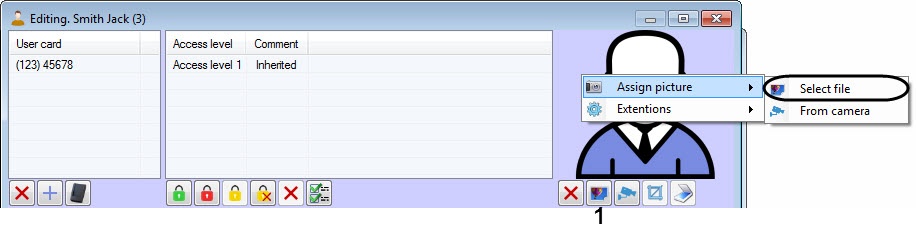
Click the
The standardbutton (1). As a result, the standard Windows
dialog window will be opened.
Select the file with photograph.
...
In this window, select a file with a photo, which will be assigned to the user.
Info title Note You can also assign a photo to the user by right-clicking on the user's photo area and selecting Assign picture -> Select file in the opened functional menu.
Assigning photograph from a file is completed.
Overview
Content Tools