
Versions Compared

Key

  • This line was added.
  • This line was removed.
  • Formatting was changed.

...

  1. Go to the IntLab module object settings panel, which is created on the basis of the LPR Channel object.
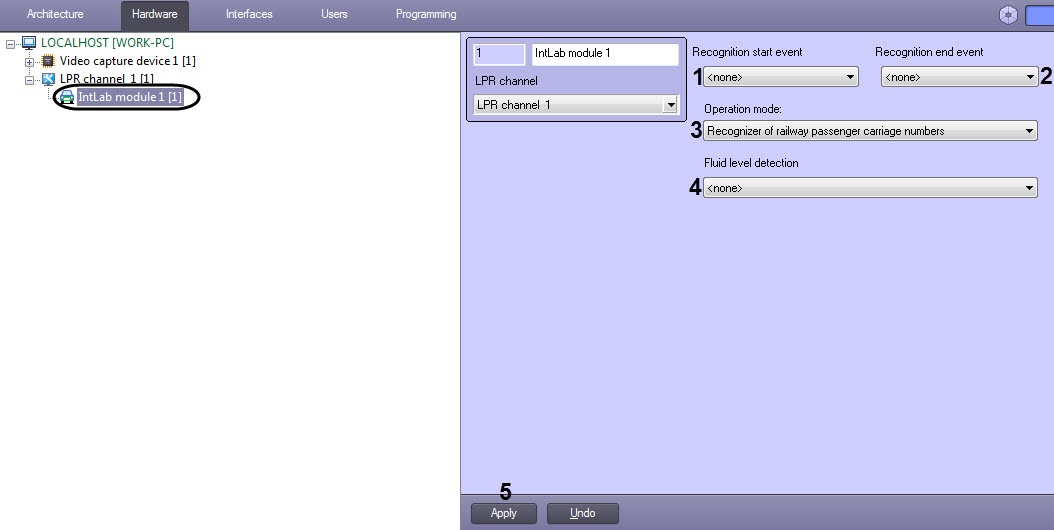
  2. Select the macro from the drop-down list of the Recognition start event (1on which the LP recognition will be started.

    Info
    titleNote

    LP number recognition may also start with the subtitles information added to a video. To do so, it is necessary to specify the 1 value for the ReadRayFromTitles registry key (for more details, see Registry keys reference guide, for more information about working with the registry, see Working with Windows OS registry).


  3. Select the macro from the drop-down list of the Recognition end event (2) on which the LP recognition will be completed and the result will be given.

    Info
    titleNote
    For more details on working with macros, see Creating and using macros.


  4. From the Operation mode drop-down list select the mode of numbers recognition (3).

    ModeAdditional info
    Recognizer of railway passenger carriage numbers-
    Recognizer of railway freight carriage numbers-
    Recognizer of UIC railway carriage numbersAllows recognition of UIC carriage numbers
    Railway container number recognizer-


  5. From the Fluid level detection drop-down list select the Fluid level detection object to be used with the IntLab module (4). Fluid level detection is a part of the Intellect Detector Pack subsystem starting from version 2.6. For details on how to create, configure and operate it, please refer to Detector Pack. User Guide (the most relevant version is available in AxxonSoft documentation repository).
  6. Go to the parent LPR Channel object settings panel (see Selecting the traffic direction for LP number recognition) and select the carriage or container direction in the camera view:
    1. any: license plates are recognized for carriages moving in both directions;
    2. to the right: license plates are recognized for carriages moving to the right;
    3. to the left: license plates are recognized for carriages moving to the left.
  7. Click Apply (5) to save changes.

...

Info
titleNote

When the Auto-Intellect software is restarted for the first time after configuring the IntLab module, the folder will be created on the following address:

  • for x32: <Auto-Intellect installation directory>\Modules\intlab_railway_detector\id
  • for x64: <Auto-Intellect installation directory>\Modules64\UrmLpr\intlab_railway_detector\id,
    where id is the object identifier of the LP recognition channel.

This folder will contain the following files and folders:

  1. settings.json is the file containing initial settings of the IntLab module.
  2. settings_override.json is the file containing modified settings which can be edited manually.
  3. settings_merge.json is the file containing the merge result of the above mentioned files. There are parameters displayed in this file which are directly used by the IntLab module.
  4. The folders with the IntLab subordinate module object identifiers name, if they exist (see Setting up the auxiliary recognition channel of the IntLab module), containing similar files but having the settings of the corresponding Intlab subordinate module.

...