
Go to documentation repository


Page History
By default, indexing starts automatically after specifying video files (see Domyślnie, indeksowanie rozpoczyna się automatycznie po sprecyzowaniu plików do importu (zobacz: Importowanie wideo do Axxon Next).
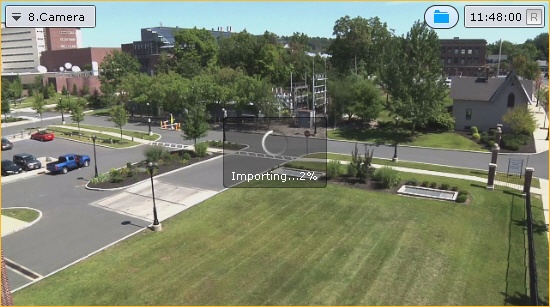
This may take a while and increase the CPU usage. Similar to the export process, the status of the indexing process is displayed at the top of the screen (see Viewing export progress) and in the viewing tileMoże to zająć długi czas, oraz zwiększy to obciążenie CPU. Podobnie procesu eksportowania, status indeksowania jest wyświetlany w górnej części ekranu (zobacz: Podgląd przebiegu eksportu) oraz w komórce z podglądem wideo.

| Note | ||
|---|---|---|
| ||
You should not view the replicated archive during indexing. Also, do not run multiple simultaneous indexing procedures. |
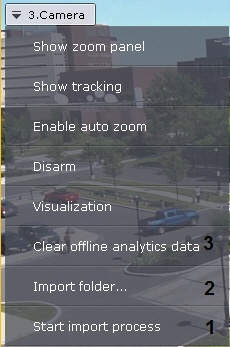
If you set the On demand replication period (see Konfiguracja replikacji danych), then to start the indexing procedure select Start import process (1) from the context menu of the viewing tile.
Nie przeglądaj zreplikowanego archiwum w czasie indeksowania. Nie uruchamiaj wielu procesów indeksowania jednocześnie. |
Jeśli okres replikacji jest ustawiony Na żądanie (zobacz: Konfiguracja replikacji danych), w celu rozpoczęcia procedury indeksowania zaznacz Rozpocznij proces importowania (1) z menu kontekstowego wyświetlanego podglądu wideo.
Jeśli chcesz zindeksować wideo z innego folderu, naciśnij Importuj folder (2), lub naciśnij  w komórce podgląduIf you want to index the video from another folder, click Import folder (2), or click in the viewing tile.
| Note | ||
|---|---|---|
| ||
If you change the folder, all files in Mirror Archive and metadata will be lostJeśli zmienisz folder, wszystkie pliki z archiwum importowania oraz metadane zostaną utracone. |
| Note | ||
|---|---|---|
| ||
You can select only the folder specified in the settings and its sub-folders | ||
Możesz wyznaczyć jedynie foldery określone w ustawieniach, oraz ich podfoldery. |
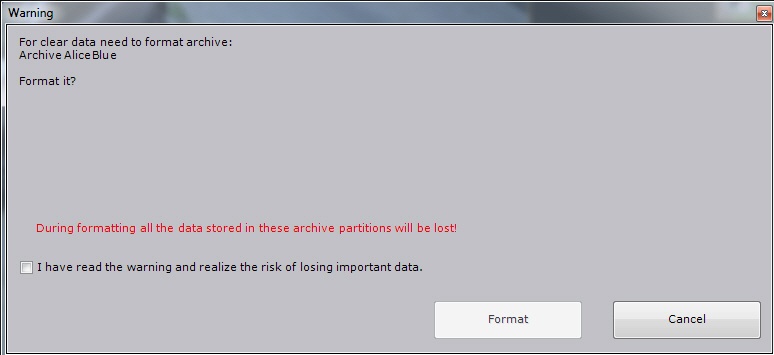
Aby usunąć metadane oraz wideo z archiwum, naciśnij Wyczyść dane analizy offline (3), a następnie potwierdź formatowanieTo remove metadata and video from an archive, select Clear offline analytics data (3) and confirm file formatting.
Overview
Content Tools