
Go to documentation repository


Page History
To control a PTZ camera, you can use both step buttons (discrete PTZ mode) and the virtual joystick (the camera must support continuous PTZ), if the camera supports both modesKontrolowanie kamery PTZ jest możliwe zarówno za pomocą przycisków (tryb swobodny PTZ), jak i wirtualnego joysticka (kamera musi wspierać tryb ciągły PTZ), o ile tylko kamera wspiera oba tryby PTZ.
To select, click the  and
and  buttons.
Aby oba tryby były aktywne jednocześnie, naciśnij przyciski oraz .
W innych przypadkach dostępny jest tylko jeden trybOtherwise, only one of the modes may be used.
| Info | ||
|---|---|---|
| ||
If your camera is set to Discrete PTZ Control via Continuous, your control options will be limited to buttons only (see The PTZ Object). |
Set the sensitivity level of PTZ step buttons by selecting a value from 1 to 10.

Jeśli kamera korzysta z trybu swobodnego (Discrete) kontroli PTZ poprzez tryb ciągły PTZ, panel kontrolny będzie ograniczony do przycisków (zobacz: Obiekt typu Telemetria). |
Ustaw czułość przycisków PTZ na wartość z zakresu od 1 do 10.
Jeśli naciśniesz i przytrzymasz przyciski, kamera PTZ będzie poruszała się ruchem ciągłymIf you press and hold the buttons, the PTZ camera will move continuously.
| Note | ||
|---|---|---|
| ||
Interakcje między kamerami PTZ a Klientem mogą spowodować nieregularny ruch kamery w niektórych przypadkach. Kamery mogą poruszać się nieregularnie, gdy są połączone poprzez protokół Onvif (zobacz: Interaction between PTZ cameras and the Client may cause the cameras to jerk in some cases. Cameras also may jerk when they are connected by the Onvif protocol (see Notes on configuring video cameras connected via ONVIF). |
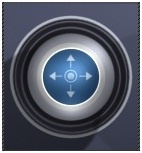
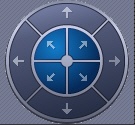
Virtual joysticks are controlled as follows:
Joysticki wirtualne są kontrolowane w następujący sposób:
- Przyciśnij i przytrzymaj joystick lewym przyciskiem myszy w jego centralnej części.
- Przeciągnij joystick w pożądanym kierunku
- Click and hold down the left mouse button in the central (blue) portion of the joystick.
- Drag the joystick in the necessary direction.
| Info | ||
|---|---|---|
| ||
Joystickiem można poruszać także poprzez naciśnięcie obszaru poza gałką wirtualnego joysticka. Szybkość przesuwania kamery jest zależna od pochylenia joysticka; im większe pochylenie, tym większa szybkośćYou can also move the joystick by clicking and holding the left mouse button outside of the joystick border.The turn speed depends on the tilt of the joystick: the greater the tilt, the higher the speed. |
| Info | ||
|---|---|---|
| ||
If you rotate a camera view / viewing tile 180°, you will have PTZ controls invertedJeśli obrócisz okno podglądu kamery o 180°, reakcje kontrolek PTZ także zostaną odwrócone. |
Overview
Content Tools