
Go to documentation repository


Page History
| Section | |||||||||||||||||||||
|---|---|---|---|---|---|---|---|---|---|---|---|---|---|---|---|---|---|---|---|---|---|
|
...
The license keys for License plate recognition (VT) require the Sentinel LDK Run-time environment. It is installed automatically with the Addon VT LPR (see Installing DetectorPack addonsadd-ons).
To manually install the Sentinel LDK Run-time environment, do the following:
- Download the haspdinst_EOAWT.exe installer.
- Run the command line as system administrator.
- Execute the haspdinst_EOAWT.exe -i -fi -fss command.
- Restart the Sentinel LDK License Manage service or restart the OS.
| Info | ||
|---|---|---|
| ||
If the environment is successfully installed, the Sentinel Admin Control Center web application will open in the Web browser at http://127.0.0.1:1947/. |
...
The Sentinel LDK Run-time environment and a standard demo license for searching the recognized license plates in the archive are installed automatically with the Addon VT LPR (see Installing DetectorPack addonsadd-ons).
| Note | ||
|---|---|---|
| ||
If you use this license, note that there is a 30 seconds delay between the recognition of a license plate and the appearance of a corresponding event (see Vehicle number plate recognition and search). |
...
- Download the distribution package: 25 FPS or 6 FPS.
- Run the command line as system administrator.
- Execute the SDK_4hi_60d_WORLD.exe -i -fi -fss command (for a 25 FPS demo license) or SDK_4lo_60d_WORLD.exe -i -fi -fss command (for a 6 FPS demo license).
- Restart the Sentinel LDK License Manage service or restart the OS.
| Info | ||
|---|---|---|
| ||
Information about the installed demo license is displayed in the Sentinel Admin Control Center web application, on the Sentinel Keys tab. |
...
- Download the RUS_EOAWT.exe.
- Run the command line as system administrator.
- Execute the haspdinst_EOAWT.exe -fr -purge command.
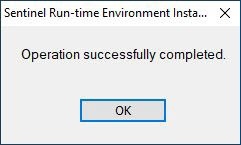
- Click OK in the dialog box to confirm the installation is completed.
Run the RUS_EOAWT.exe file to start the Remote Update System. The RUS dialog box opens.
Info title Note The abbreviation RUS stands for "Remote Update System".
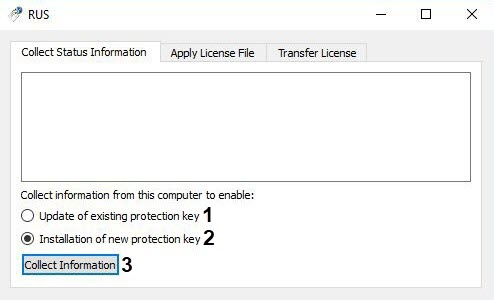
- Set the Collect information from this computer to enable switch into one of the following positions:
- Update of existing protection key (1) if a demo license is already in use.
- Installation of new protection key (2) if license for a "clean computer" is required, i.e. if there is no demo license on the Server.
- Click Collect Information (3).
- Save the file with the c2v extension to the required directory.
- Close the RUS_EOAWT.exe utility.
Give the created file with the c2v extension to the AxxonSoft manager.
Get a v2c file from the AxxonSoft manager.
- Run the RUS_EOAWT.exe utility and go to the Apply License File tab (4).
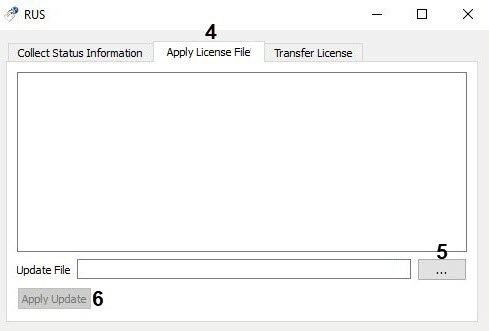
- Specify location of the license file in the Update File field using the ... button (5).
- Click Apply Update (6).
- Restart the Sentinel LDK License Manage service or restart the OS.
| Info | ||
|---|---|---|
| ||
Information about the installed software key is displayed in the Sentinel Admin Control Center web application, on the Sentinel Keys tab. |
...
Run the RUS_EOAWT.exe utility.
Set the Collect information from this computer to enable switch to the Update of existing protection key position (1).
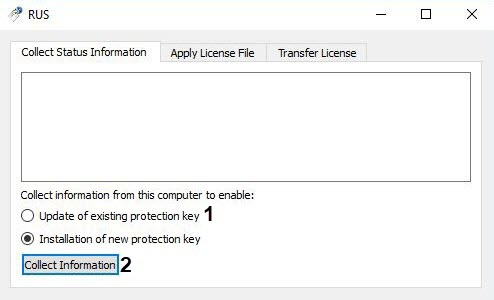
- Click Collect Information (2).
- Save the file with the c2v extension to the required directory.
- Close the RUS_EOAWT.exe utility.
Give the created file with the c2v extension to the AxxonSoft manager.
Get a v2c file from the AxxonSoft manager.
- Run the RUS_EOAWT.exe utility and go to the Apply License File tab (3).
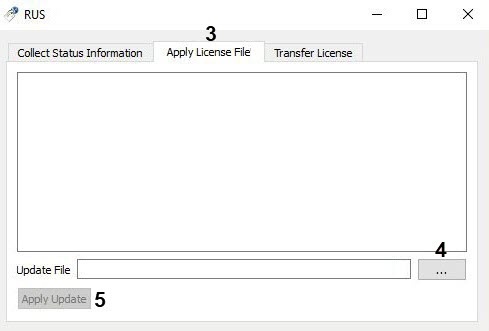
- Specify location of the license file in the Update File field using the ... button (4).
- Click Apply Update (5).
- Restart the Sentinel LDK License Manage service or restart the OS.
| Info | ||
|---|---|---|
| ||
Information about the activated/updated license is displayed in the Sentinel Admin Control Center web application, on the Sentinel Keys tab. |
...
- Delete the v2c license file from the C:\Program Files (x86)\Common Files\SafeNet Sentinel\Sentinel LDK\installed\ folder.
- Restart the Sentinel LDK License Manage service or restart the OS.
The removal of the license is now complete.
...
Overview
Content Tools