Go to documentation repository
...
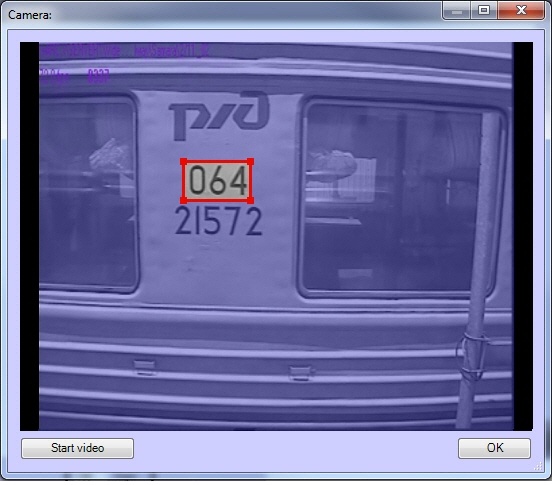
Click the  button to open the Camera window. The Camera window displays video image from the camera set in the LPR channel settings.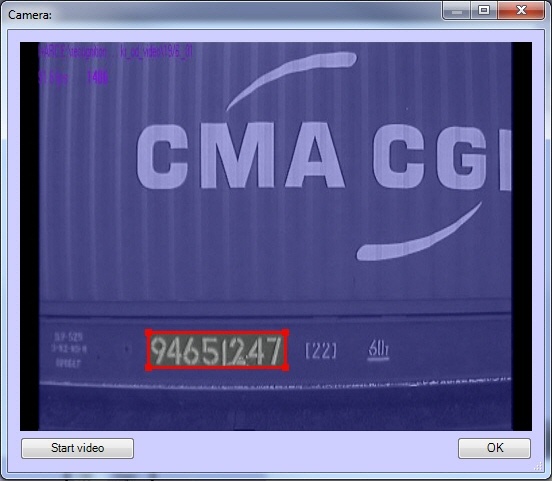
| Note | ||
|---|---|---|
| ||
|
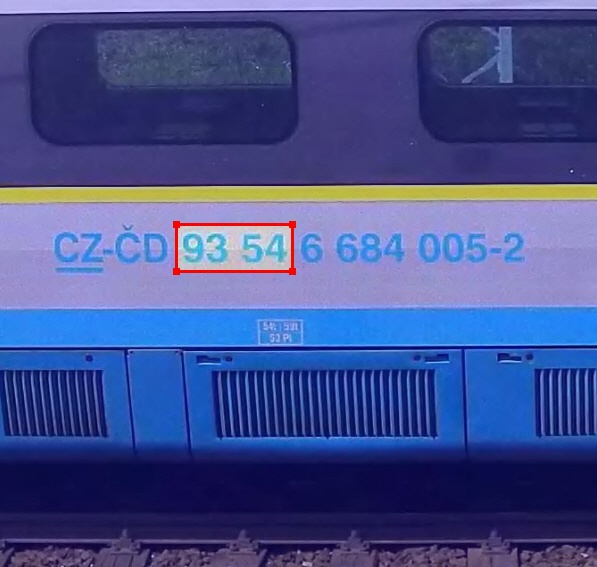
Keep the mouse button pressed and drag the mouse across the supposed search area to the opposite corner. Release the mouse button and click the OK button to save the selected area.
| Note | ||
|---|---|---|
| ||
For the correct recognition of double-row plates (e.g. plates of passenger carriages), specify the size of one row in the Typical plate size field.
|
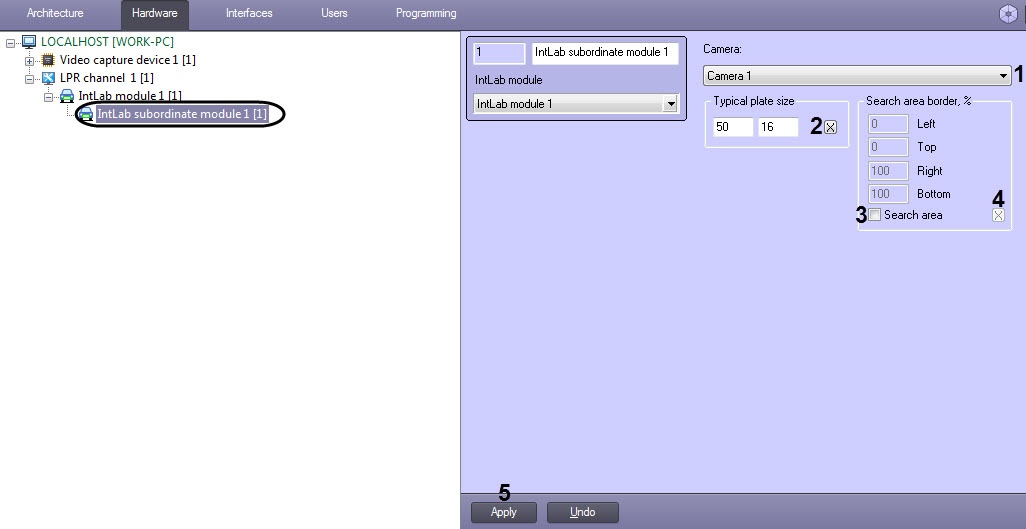
Set the Search area checkbox to enable the function of specifying search area borders in the video image (3).
| Info | ||
|---|---|---|
| ||
The procedure of specifying the search area borders in the video image using the mouse button is the same as the procedure of specifying plate size (see step 3). |
button in the video frame (4)....