
Go to documentation repository


Page History
...
- Open the required layout (see Selection and Slideshow of Layouts).
- Switch to the archive mode (see Switching to the Archive mode).
- Select the required camera.
- Place the timeline pointer at the beginning of the interval.
- Click the
 button.
 - Scroll the timeline and place the pointer at the end of the interval.
- Click the
 button.
 - Click the Story board button.
- In the board that opens, click the
 button in the center of the preview. The video will be added to the export kit.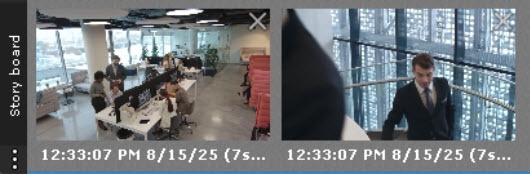
- Repeat the above steps for all points of interest with required cameras.
- Click the
 button to export all selected videos.
 - In the Export window that opens, set the settings of the parameters specified in the table.
- Click the Export
 button.
By default, video is exported to a single file. To export video from different cameras to separate files, clear the Export as single file checkbox in the export window.
...
Overview
Content Tools