Go to documentation repository
...
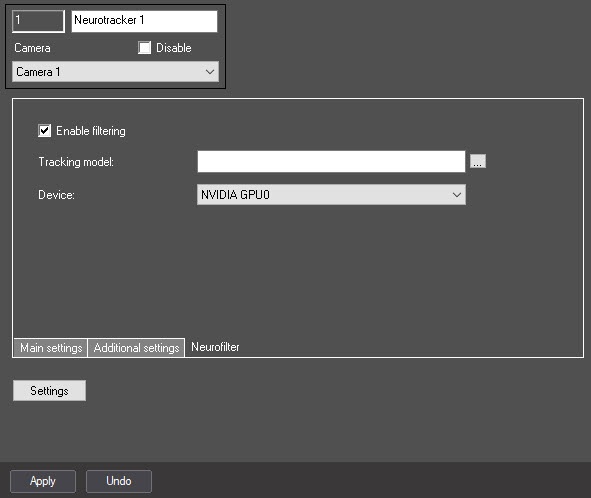
 button to the right of the Tracking model field and in the standard Windows Explorer window, specify the path to the file.
| Note | ||
|---|---|---|
| ||
To train a neural network, contact the AxxonSoft technical support (see Data collection requirements for neural network training). A neural network trained for a specific scene allows you to detect objects of a certain type only (for example, a person, cyclist, motorcyclist, and so on). |
| Note | ||
|---|---|---|
| ||
|
Click the Apply button to save the changes.
| Info | ||
|---|---|---|
| ||
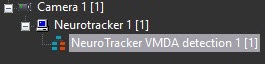
If necessary, create and configure the NeuroTracker VMDA detection tools on the basis of the Neurotracker object. The procedure of creating and configuring the NeuroTracker VMDA detection tools is similar to creating and configuring the VMDA detection tools for a regular tracker. The only difference is that it is necessary to create the NeuroTracker VMDA detection tools on the basis of the Neurotracker object, and not the Tracker object (see Creating and configuring the VMDA detection). Also, if you select the Staying in the area for more than 10 sec detector type, the time the object stays in the zone, after which the NeuroTracker VMDA detection tools are triggered, is configured using the LongInZoneTimeout2 registry key, not LongInZoneTimeout. The procedure of configuring the alarm generation mode for any type of VMDA detection tools is similar to the VMDA detection tools for a regular tracker using the VMDA.oneAlarmPerTrack registry key (see Registry keys reference guide).
|
...