...
Configuration of the VI detection of camera state module includes general settings and configuration settings: configuration parameters and detector characteristics.
General settings
- Go to the settings panel of the VI detection of camera state object that is created on the basis of the Camera object on the Hardware tab of the System settings window.
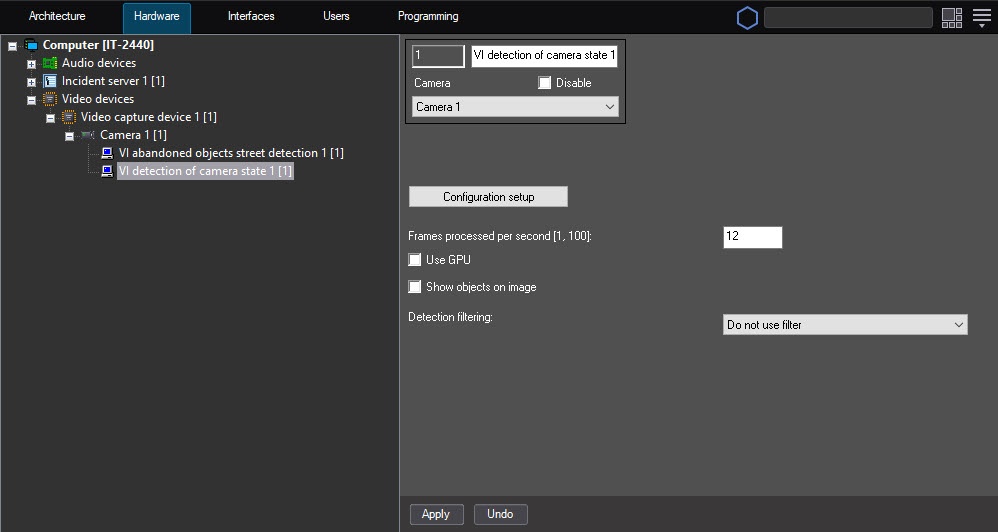 Image Modified
 - In the Frames processed per second [1, 100] field, specify the number of frames in the range 1-100 that the detector processes per second. The default value is 12 (recommended). You can specify only
a - the positive integer. If you enter a number outside the range 1-100, it is automatically changed to the nearest border value. If you leave the field blank, it automatically returns to the default value when you save the settings.
- Set the Use GPU checkbox to use the NVIDIA GPU when
working - you work with the neural network.
- Set the Show objects on image checkbox to outline the detection zone with a red
border - frame on the Video surveillance monitor when an event of a camera state change
is received- occurs.
- From the Detection filtering drop-down list, select the filter that you want to use: Object filter, Object counting filter, Do not use filter (default). You can configure filters on the Postprocessing tab of the Detection settings window.
- Click the Configuration setup button.
The Detection settings window opens- As a result, the detector settings window opens.
The Parameters tab
- Go to the Parameters tab of the detector settings window. This tab displays the parameters of the used configuration. If you
do not - don't need to change the configuration, skip steps 2 and 3 and go to the next tab.
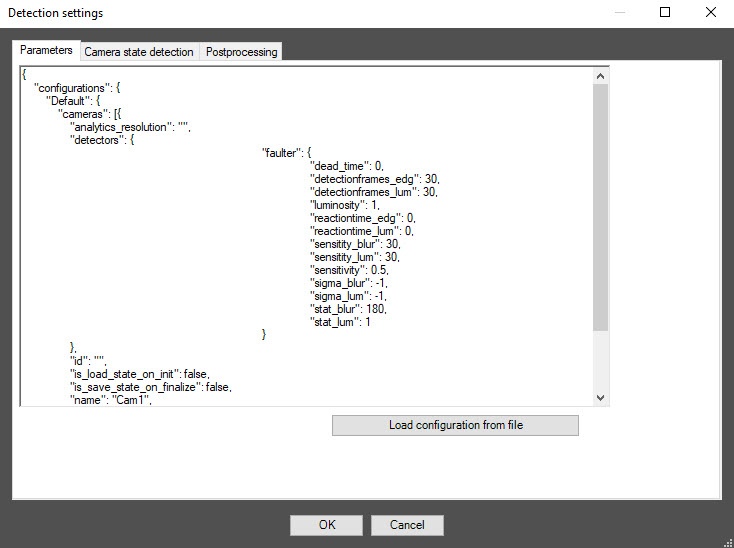 Image Modified
 - To use custom configuration, click the Load configuration from file button.
- In the standard Windows search window that opens, specify the path to the prepared configuration file in JSON format.
The Camera state detection tab
- Go to the Camera state detection tab.
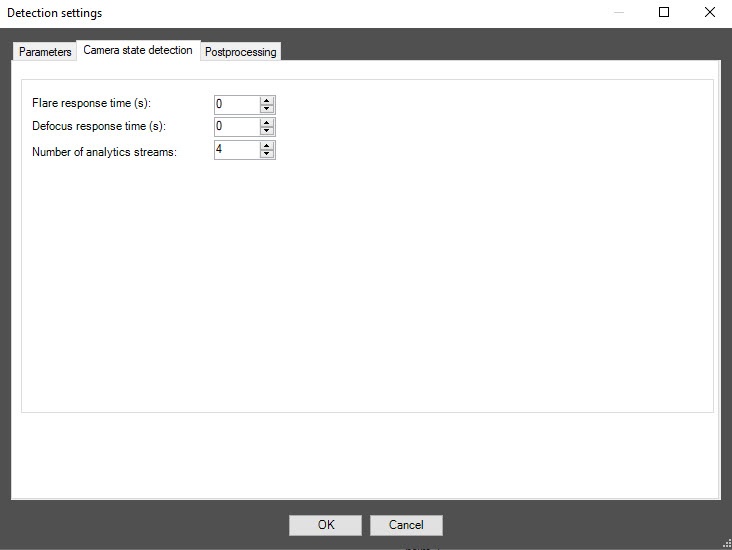 Image Modified
 In the Flare response time (sec) field, specify the time interval in seconds after which the detector signals whether the video surveillance scene is backlighted or darkened.
In the Defocus response time (sec) field, specify the time interval in seconds after which the detector signals that the video surveillance scene is defocused.
- In the Number of analytics streams field, specify the number of video streams that are used for the neural network analytics. The default value is 4.
- To save the detector settings, click the OK button.
- To save the applied changes, click the Apply button on the settings panel of the VI detection of camera state object.
| Info |
|---|
|
To enable debug logging mode in the VI SDK and collect detailed information about the configuration of VI detectors, use the ViDetectorDebug=1 parameter of the HKEY_LOCAL_MACHINE\SOFTWARE\WOW6432Node\AxxonSoft\PSIM\DetectorExt registry key (for more details, see the registry key reference guide in Vertical solutions; for information on working with the registry, see Working with Windows OS registry). |
Configuring the Configuration of the VI detection of camera state module program module is complete.


