
Go to documentation repository
...
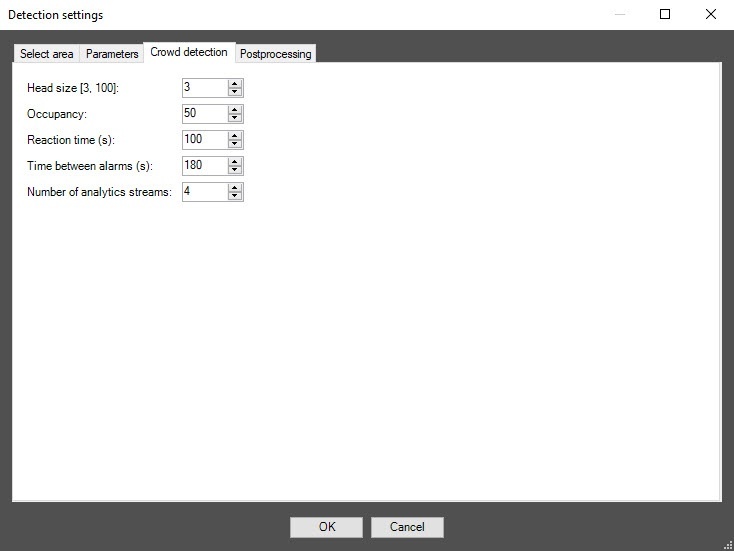
In the Occupancy field, specify as a percentage the share of the detection zone area that must be filled in order for the detector to record the beginning of the Crowd event. If the occupancy remains longer than the time threshold specified in the Reaction time (s) field, the Crowd alarm event is generated on the detector. The default value is 50.
In the Reaction time (s) field, specify in seconds the time interval after which the Crowd alarm event is generated on the detector if the value of the Occupancy parameter remains equal to or above the set threshold. If during the specified period of time the value of this parameter drops below the threshold value, then the time counting stops and the counter is reset to zero. The default value is 100.
In the Time between alarms (s) field, specify in seconds the frequency of the Crowd alarm event generation. The default value is 180.
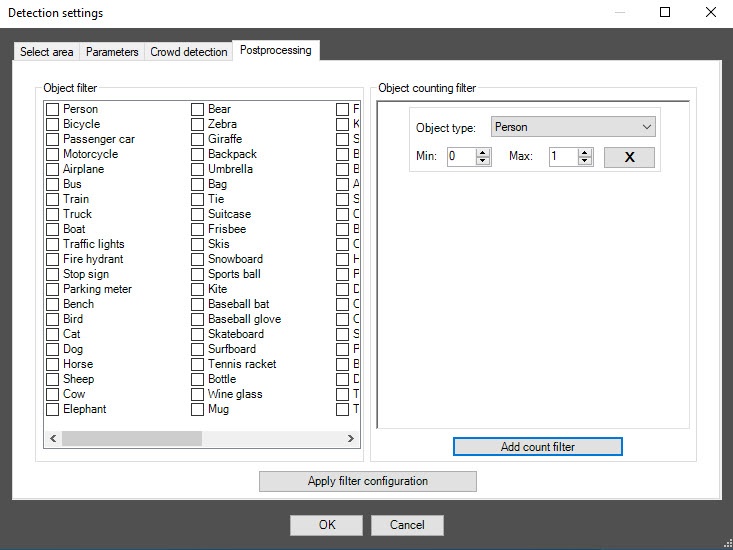
You can use this tab to configure object filters or object counting filters according to the option selected from the Detection filtering drop-down list in the basic settings of the detector.

| Info | ||
|---|---|---|
| ||
To remove the filter, click it again. |
| Info | ||
|---|---|---|
| ||
To remove the filter, click the cross to the right of it. |
Click the OK button to save all settings of the detector. The Detection settings window closes, and you return to the detector settings panel.
To save all changes, click the Apply button on the settings panel of the VI detection of crowd object.
| Info | ||
|---|---|---|
| ||
One detector can use only one of two event filtering options during operation: either the object filter or the object counting filter. To enable debug logging mode in the VI SDK and collect detailed information about the configuration of VI detectors, use the ViDetectorDebug=1 parameter of the HKEY_LOCAL_MACHINE\SOFTWARE\WOW6432Node\AxxonSoft\PSIM\DetectorExt registry key (for more details, see the registry key reference guide in Vertical solutions; for information on working with the registry, see Working with Windows OS registry). |
...

