...
- Go to the Camera state detection tab.
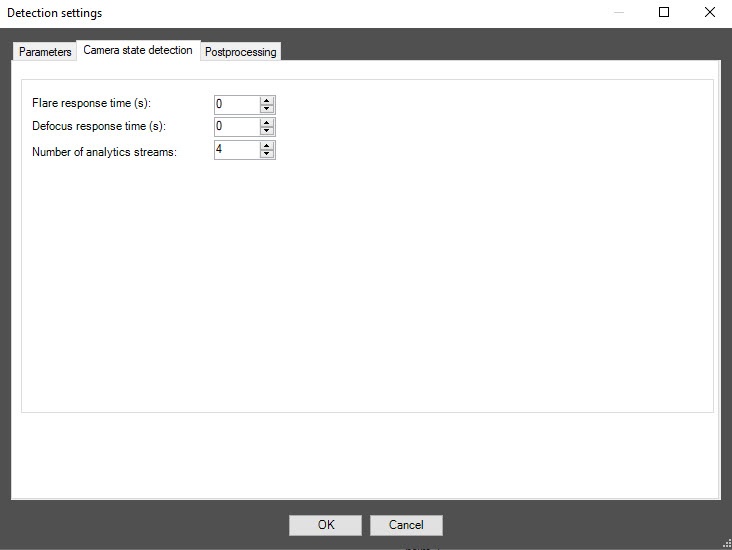
In the Flare response time (sec) field, specify the time interval in seconds after which the detector signals whether the video surveillance scene is backlighted or darkened.
In the Defocus response time (sec) field, specify the time interval in seconds after which the detector signals that the video surveillance scene is defocused.
- In the Number of analytics streams field, specify the number of video streams that are used for the neural network analytics. The default value is 4.
- To save the detector settings, click the OK button.
To save the applied changes, click the Apply button
The Postprocessing tab
You can use this tab to configure object filters or object counting filters according to the option selected from the Detection filtering drop-down list in the basic settings of the detector.
Object filter
- To enable the object filter, select Object filter from the Detection filtering drop-down list in the basic settings of the detector.
- Go to the Postprocessing tab.
- From the Object filter list on the left, select one or more objects. When these objects are detected, the detector doesn't generate an event, and the event isn't displayed in the event viewer or on the screen.
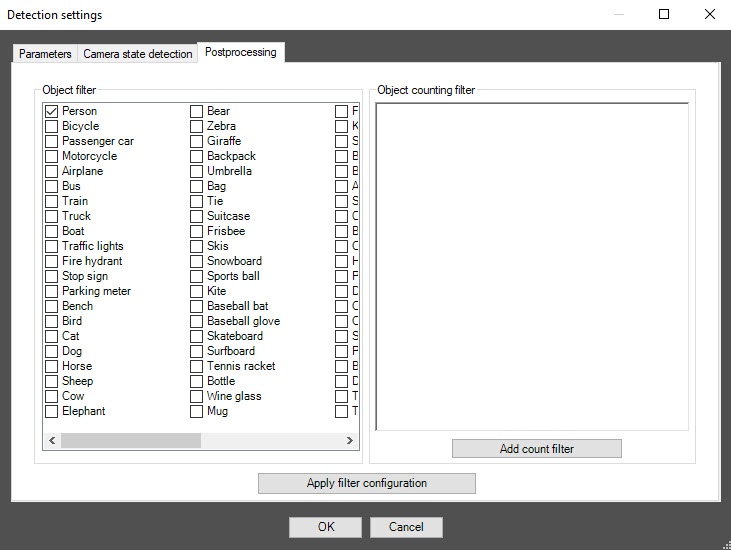 Image Added
| Info |
|---|
|
To remove the filter, click it again. |
- To apply the filter, click the Apply filter configuration button.
Object counting filter
- To enable the object counting filter, select Object counting filter from the Detection filtering drop-down list in the basic settings of the detector.
- Go to the Postprocessing tab.
- Click the Add count filter button. In the section on the right, select one or more object counting filters.
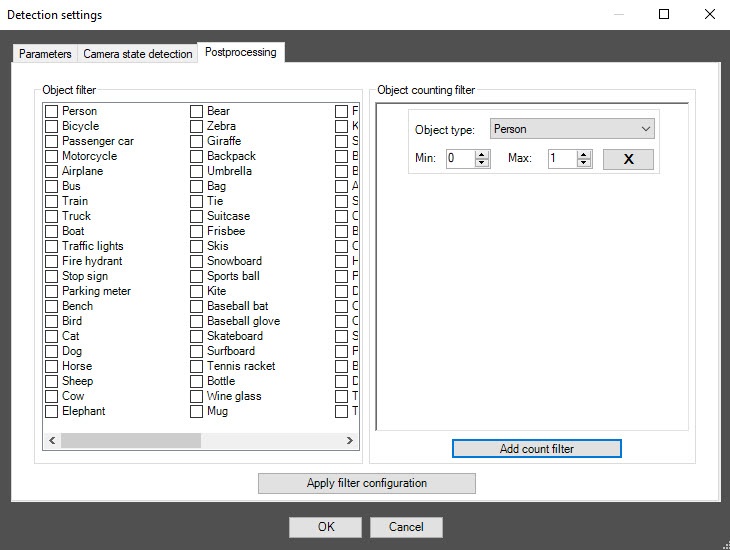 Image Added
- In the Min and Max fields, set the lower and upper threshold values for each object counting filter. If the number of objects of a given type in the detection area is within this range, the detector generates an event that is also displayed in the event viewer and on the screen. If the number of objects is greater or less than the set range, or there are no objects at all, then all events are filtered out and aren't displayed in the event viewer or on the screen.
| Info |
|---|
|
To remove the filter, click the cross to the right of it. |
- To apply the filter, click the Apply filter configuration button.
Click the OK button to save all settings of the detector. The Detection settings window closes, and you return to the detector settings panel.
To save all changes, click the Apply button on the settings panel of the VI detection of camera state object.
| Info |
|---|
|
One detector can use only one of two event filtering options during operation: either the object filter or the object counting filter. To enable debug logging mode in the VI SDK and collect detailed information about the configuration of VI detectors, use the ViDetectorDebug=1 parameter of the HKEY_LOCAL_MACHINE\SOFTWARE\WOW6432Node\AxxonSoft\PSIM\DetectorExt registry key (for more details, see the registry key reference guide in Vertical solutions; for information on working with the registry, see Working with Windows OS registry). |
...


