
Go to documentation repository


Page History
| Section | |||||||||||||||||||
|---|---|---|---|---|---|---|---|---|---|---|---|---|---|---|---|---|---|---|---|
|
General information
Export is the process of saving and transferring recorded videos and frames from Axxon One for later use. Export allows users to extract important moments related to security, monitoring, or event analysis. Export is available for users with the appropriate access level settings (see General information about users). If the client is connected to multiple domains, the export is available for cameras of those domains in which the current user has the appropriate permissions.
| Note | ||
|---|---|---|
| ||
When you export a video or frame for the first time, the export window opens in the minimal mode and uses the default settings:
If you change the default settings, you must re-encode the video image, which increases the CPU load and takes considerable time. During the next export, the configuration dialog window is displayed. This window stores the previously selected settings. |
Exporting frames from live mode
To export frames from the live mode, do the following:
...
Frame export is complete.
Exporting videos and frames from the archive mode
| Note | ||
|---|---|---|
| ||
|
...
| Note | ||
|---|---|---|
| ||
|
Quick export
You can perform quick export from the live mode (see Switching to Live mode) or archive mode (see Switching to the Archive mode). To do this, do the following:
...
Quick frame export is complete.
Frame print
You can print a frame for JPG and PDF formats from the live or archive mode.
...
After you click the Print button, the preview window where the file for export is displayed opens (see Export template).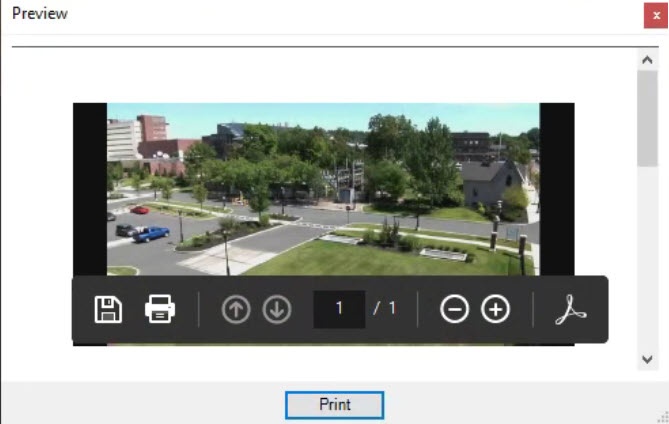
Simultaneous export of all incident recordings
Using the story board (see Story board), you can export simultaneously all found incident videos from the archives of different cameras by collecting them in the story board beforehand.
...
Exporting videos of the selected incidents is complete.
Setting the export area and privacy mask
In the archive or archive analysis mode, you can simultaneously set the export area and privacy mask.
Export area
Setting the export area allows exporting only the required part of the frame.
...
Setting the export area is complete.
Privacy mask
Setting a privacy mask allows hiding the predetermined areas of the frame in the exported file. You can set the unlimited number of privacy masks.
...
Setting a privacy mask is complete. The privacy mask is blurred on the exported frame or video.
Displaying the export status
After you start the export process, the status is displayed on the export panel located below the Axxon One settings panel. This panel is visible from the moment you start exporting until you close all notifications.
To complete the export process, click the Finish button. The duration of the exported file can be longer than specified because the key frame doesn't always occur at the beginning of the export interval. To cancel export, click the Cancel button. In this case, the file isn't saved.
...
If any error occurs during export, it is displayed on the error panel (see Control in Live Video mode).
Playback of exported videos in Movies and TV app
Due to the lack of G.711 and G.726 codec support in Windows 10's "Movies and TV" app, the app does not play audio in exported video.
You can use alternative video viewer applications to obtain the full playback.
Playback of exported videos in the Telegram app on iOS devices
Videos exported in MPEG4 format cannot be played back on iOS devices due to peculiarities of the Telegram app. We recommend exporting videos in other formats to play them correctly in the Telegram app on iOS devices.
Reset of the export settings after you update from Axxon Next 4.5.10 to Axxon One 2.0.2 and higher
After you update from Axxon Next 4.5.10 to Axxon One 2.0.2 and higher, the settings of the PDF template and Watermark settings in the Options section → Export template are reset. You must reconfigure them.
Overview
Content Tools