
Go to documentation repository


Page History
...
- By using the timeline. To do this, do the following:
- Open the required layout (see Selection and Slideshow of Layouts).
- Switch to the archive mode (see Switching to the Archive mode).
- Click the Timeline panel button.
- Place the timeline pointer at the beginning of the interval.
- Click the
 button.
 - Scroll the timeline and place the pointer at the end of the interval.
- Click the
 button.
- Click the
 button.
 - In the window that opens, click the Export archive item.
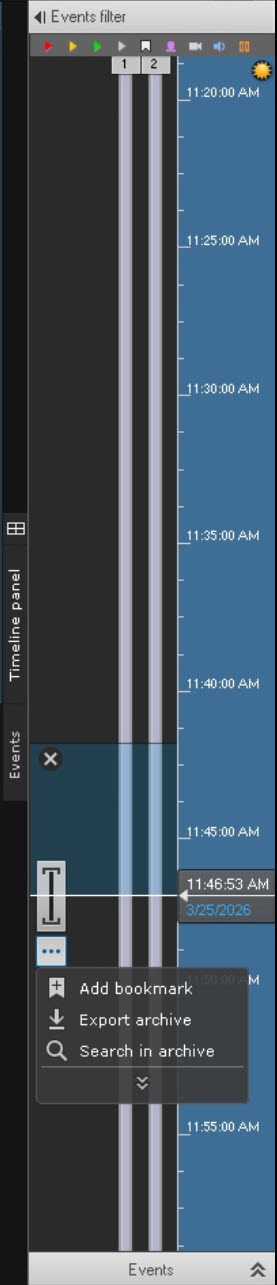
- In the Export window that opens, set the settings of the parameters specified in the table:
Parameter Value Description Export From [date], [month], [year], [hours], [minutes], [seconds] Specify the date and time interval for the exported video or frame
Info title Note - The date and time formats of the event in the file name correspond to the Windows OS settings.
- If video surveillance is performed in live mode, the frame that was at the moment when you clicked the button is exported. In this case, the From and To parameters aren't displayed.
- When you change the time range in the timeline or in the advanced navigation panel, the date and time values are updated automatically in the opened dialog window.
To Selected cameras [Camera short name].[Camera name] Select one or several cameras of the current layout. You can also add cameras from a different layout
Note title Attention! - If you select one camera when you open the export window, you cannot deselect it.
- If you select several cameras, there are no restrictions on deselection.
- If you don't select any cameras, the Export button is inactive.
- To select all cameras of the current layout, click the All from the current layout button.
Comment If necessary, enter a comment. It is displayed on the frame or when you play the exported video as titles Text overlay parameters Main titles Timestamp 
By default, a timestamp is displayed on the exported video or frame (the checkbox is set). If you don't need to display a timestamp, clear the checkbox

Camera short name By default, the camera short name isn't displayed (the checkbox is cleared). To display the camera short name on the exported video or frame, set the checkbox Camera name
By default, the camera name isn't displayed (the checkbox is cleared). To display the camera name on the exported video or frame, set the checkbox Camera geo coordinates By default, camera geo coordinates aren't displayed (the checkbox is cleared). To display camera geo coordinates on the exported video or frame, set the checkbox Username By default, the username isn't displayed (the checkbox is cleared). To display the username on the exported video or frame, set the checkbox Bookmark By default, the bookmark isn't displayed on the exported video or frame (the checkbox is cleared). To display a bookmark, set the checkbox
Note title Attention! You can set the value only in the archive or archive analysis mode. Export from the live mode is unavailable.
Font Arial,16 Select the required font, style, size, look, and set of characters from the drop-down list Font color Black By default, the black color is set. If you want to change the color, click the color rectangle and select a color from the palette Overlay method Select the overlay method from the drop-down list Hard subtitles The value is set by default. Text subtitles in the exported video are displayed as the embedded track for MKV, MP4, EXE formats or as the external SRT file for the AVI format. You can disable them when playing a video Hardcoded subtitles Embedded image-based subtitles. You cannot disable them when playing a video Event source titles Add event source titles If a camera is connected to POS devices to receive data, you can export it. By default, the checkbox is set. If you don't want to display event source titles, clear the checkbox Overlay method Select the titles overlay method from the drop-down list Hard subtitles The value is set by default. Text subtitles in the exported video are displayed as the embedded track for MKV, MP4, EXE formats or as the external SRT file for the AVI format. You can disable them when playing a video Hardcoded subtitles Embedded image-based subtitles. You cannot disable them when playing a video Format settings File type Select the file format for the exported video or frame from the drop-down list MKV Export of videos in the MKV format is performed without recompression JPG - Limited advanced settings functions.
- If you select only one camera, you can immediately print a file.
- The Export as single file checkbox is unavailable.
When you export in the PDF format, the settings from the domain options are used (see Export template). The date, time, and comment overlay a frame regardless of the main titles. If you add main titles, they are repeated on the exported frame
Note title Attention! Frames are exported only from cameras with archive recording. If a camera has no archive recording, a frame isn't exported regardless of the camera position on the layout.
PDF MP4 Export of videos in the AVI or MP4 format is performed with recompression by the codec selected in the settings. Due to the recompression, the export can take much longer than other formats. Also, it increases the load on the CPU, especially when you export several files at a time AVI EXE When you export videos in the EXE format, the compilation of the executable file is performed. The executable file contains a video, the tools for its playback, and necessary codecs. When you export in the EXE format, note the Windows OS limitation due to which you cannot run executable files larger than 4 GB. When you export videos from a fisheye camera, the entire panoramic view, which you can rotate to the required viewing angle in the player, is exported
Note title Attention! If you export videos from a fisheye camera in the MKV, MP4,or AVI formats, the selected area on a camera in the layout interface is exported.
Export as single file If you select several cameras for the MKV, MP4, AVI, EXE formats, you can export to a single file Video quality Video codec Select the required format of the video codec from the drop-down list Default When you export a video, the source codec that was used during the initial recording to the archive is saved MPEG4 It provides good image quality at a relatively low bit rate. It is widely used for videos and video stream MJPEG It is a sequence of JPEG images that are transmitted as a video stream. Each frame is encoded separately. It has a large file size compared to other codecs, which leads to high network bandwidth requirements h264 It provides high image quality at a relatively small file size in comparison with MPEG4 and MJPEG Compression level Select the required compression level for the exported video from the drop-down list Default When you export a video, the source compression level that was used during the initial recording to the archive is saved Minimum level The higher the compression level, the lower the detailing and image quality, which reduces the amount of data during transmission and storage Low level Medium/Low Medium level Medium/High High level Maximum level Frames per second Select the required frame rate from the drop-down list Original frame rate The value is set by default. When you export a video, its original frame rate is saved, providing the maximum quality and accuracy of playback
Note title Attention! If you change the default settings, the Frames skipping, fps parameter becomes unavailable.
1/2 The frame rate of the exported video is two times lower than the original one 1/4 The frame rate of the exported video is four times lower than the original one 1/8 The frame rate of the exported video is eight times lower than the original one Video special options Maximum file size, MB 4000 Set the maximum file size of the exported video in megabytes. When you reach the specified size, a new file is created. There are no restrictions on the file size Frames skipping, fps 0 Set the required value of the FPS skipping. The value must be in the range [0, 300] Video speed 0 If you need to change the speed of the exported video, set the speed rate. The value must be in the range [0, 128] Highlighting areas Add video analytics tracks of detected objects If you want to display the tracks of objects detected by the detector, select a camera from the drop-down list Add bookmark markers If you want to display the selected area on the exported video or frame, set the checkbox. By default, the checkbox is cleared
Note title Attention! - Yoy can set this value only in the archive or archive analysis mode. Export from the live mode is unavailable.
Confidentiality of objects Hide detected objects Select the required value from the drop-down list Don't hide If you don't need to hide the masked area in the exported video or frame Hide If you need to mask objects in the exported video or frame Invert and hide If you need to mask the area around objects
Info title Note When you select the Hide or the Invert and hide value, the export process can take a long time, regardless of the format. This is due to the necessity of video reencoding for face masking, which requires additional computational resources and time.
Password If you need to export a frame or video to the encrypted ZIP archive, set the archive password
Note title Attention! You must specify a password if you set the No value in the Allow unprotected export parameter (see Roles).
Export folder C:\Users\Documents\AxxonSoft\Export
Select a folder to which you want to export a video or frame
Info title Note By default, the export is performed to the folder specified during the export setup (see Configuring export options). If you change the folder, the new path for the exported data is saved until the client is restarted.
- Click the Export
 button.
- From the surveillance window in the archive mode. To do this, do the following:
- Open the required layout (see Selection and Slideshow of Layouts).
- Switch to the archive mode (see Switching to the Archive mode).
- Click the required camera.
- Place the pointer at the beginning of the interval in the surveillance window.
- Click the
 button.
 - Using the left mouse button, scroll the video to the right to the required moment.
- Click the
 button.
- In the upper right corner of the surveillance window, click the
 button.
 - In the Export window that opens, set the settings of the parameters specified in the table.
- Click the Export button.
...
Overview
Content Tools