
Go to documentation repository
...
The Traffic analysis monitor window has two tabs: Statistics and Events.
This tab displays the general statistics by the event types, including the number and type of vehicles from the Traffic analysis module.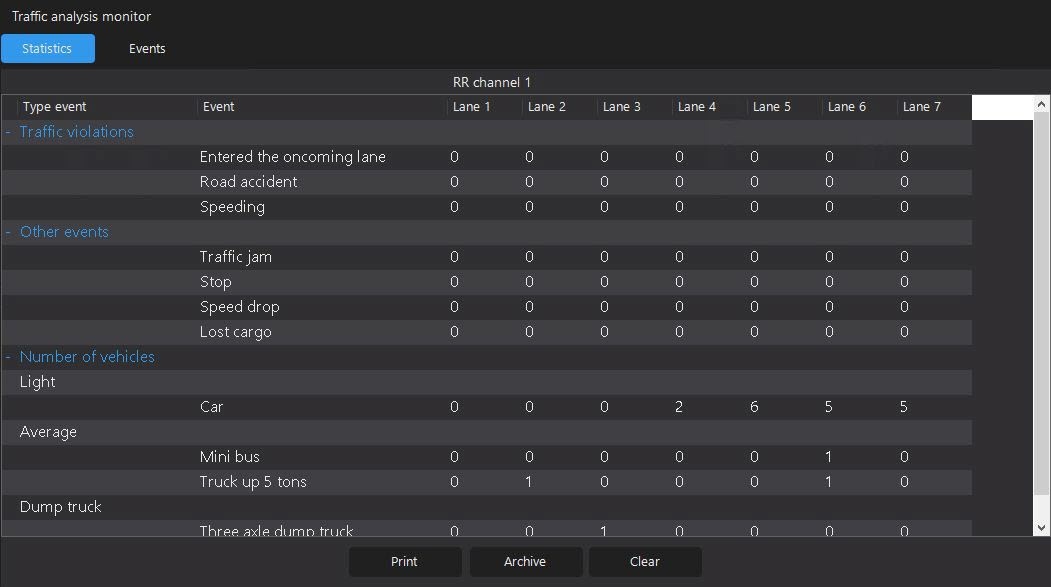
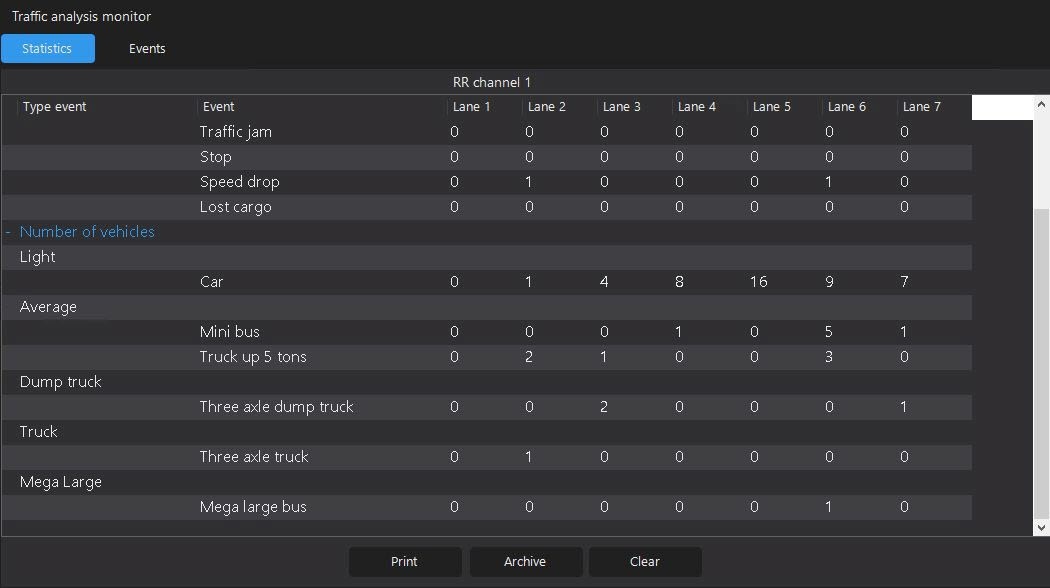
The window contains the Type event, Event columns, as well as all traffic lanes created at the stage of the road marking (for more details, see Specifying the road marking settings).
There are three buttons below the window: Print (prints a statistics), Archive (switches to the camera archive), and Clear (removes events from the list of the Traffic analysis monitor window).
When you use the Archive button, you can switch to the events archive from a camera, where you can configure the period and filters by the detector, by an event, and by the vehicle of this detector.
Use the Monitoring button if you want to switch to the monitoring mode from the archive viewing mode.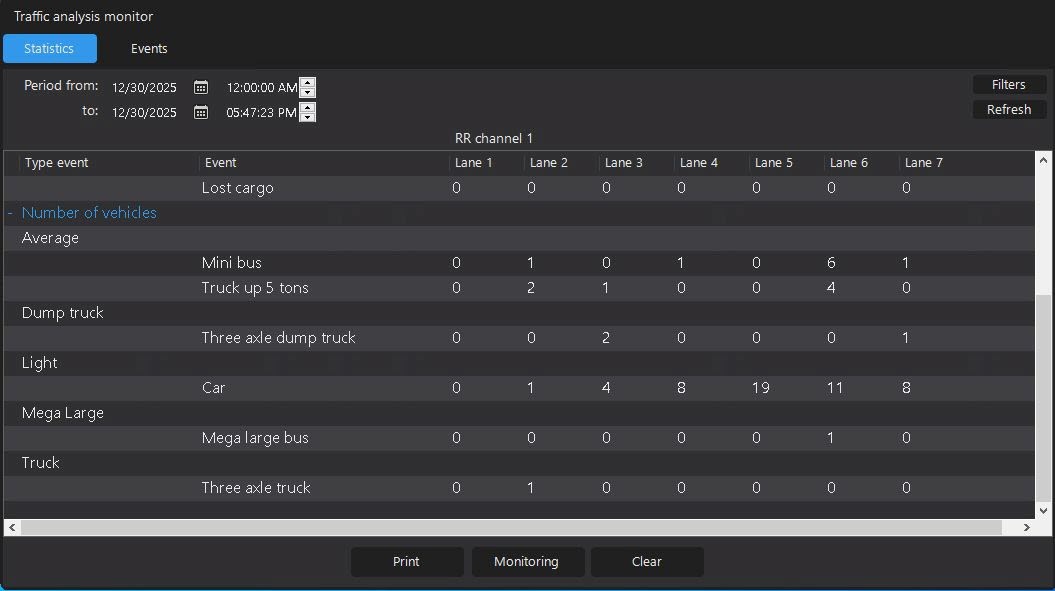
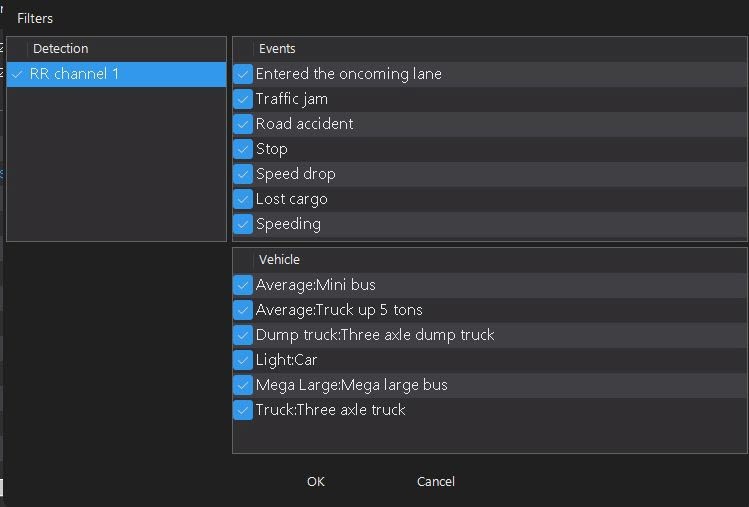
If you use the Refresh button, the data included in the sample is updated. The OK button is responsible for event filtering, and the Cancel button for filter resetting.
You can display the statistics data on the screen or print the Statistics of violations, events and vehicle access report by using the Print button (for more details, see Viewing and printing the event statistics in the traffic analysis monitor window).
This tab displays the list of events received from a camera.
The window contains the Object and Event columns with the PR channel number on which the event is detected.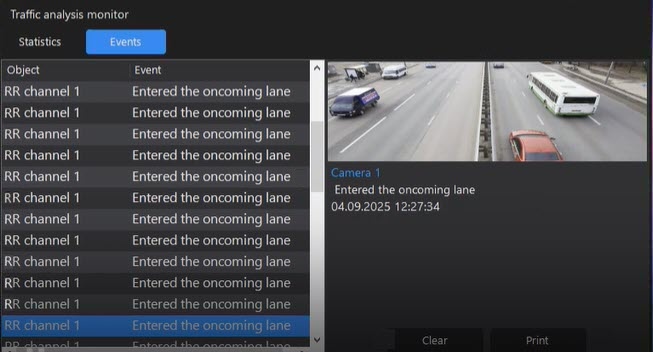
When you select an event from the list on the right side of the window, the details of this event are displayed: the camera name, the lane name, the event name, the date in the DD.MM.YYYY format, and the time of the event detection, as well as the photo from a camera that detects an event.
There are two buttons below the window: Clear to remove the information about the selected event from the right part of the window and Print to view and print a report by the selected event (for more details, see Viewing and printing the event information in the traffic analysis monitor window).

