
Go to documentation repository


Page History
If you set the transmission of user alarms to Server of control (see see Configuration for associating events with certain alarm groups section) to the Server of Control is configured, then video data can be added to these alarms. The video data transmission configurations can be created in Monitoring PSIM software in order to be added to any events when configuring alarm groups.
| Note | ||
|---|---|---|
| ||
| If video data (snapshots or videos) is added to an alarm, then the script for stopping camera recording is to be created (see Sample script for stopping camera recording section). |
, you can attach videos to alarms. In Monitoring PSIM, you can create configurations of the data transmission so that you can later assign them to any events when configuring the group of alarms.
To set configurations for the transferred video data, do the followingSet up the configurations for transferred video data as follows:
- Go to the settings panel of the Partition Of Control object.
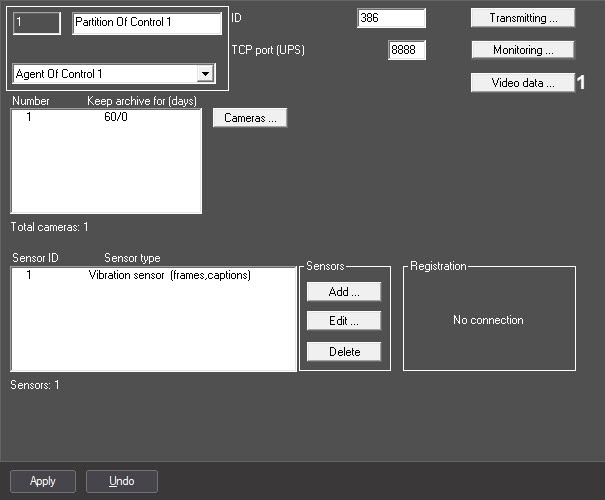
- Click the Video data… button (1). The Adding/Removing configurations for transferred video data box appears window is opened.
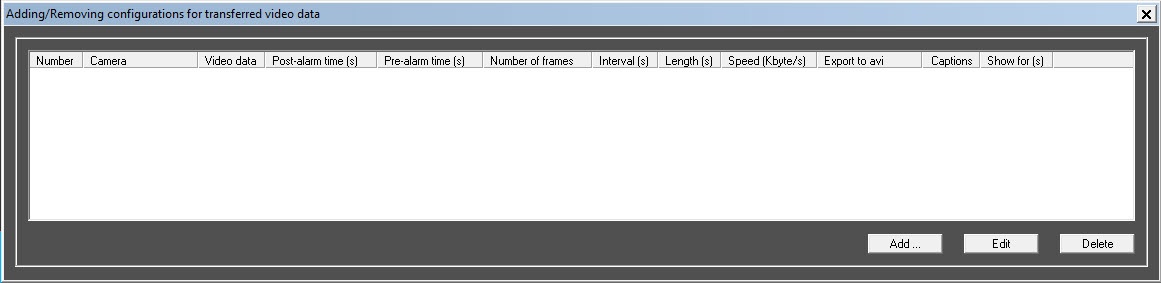
- To add a the new configuration for the transferred video data transmission configuration , click the Add… button. The configuration settings box appearswindow is opened.
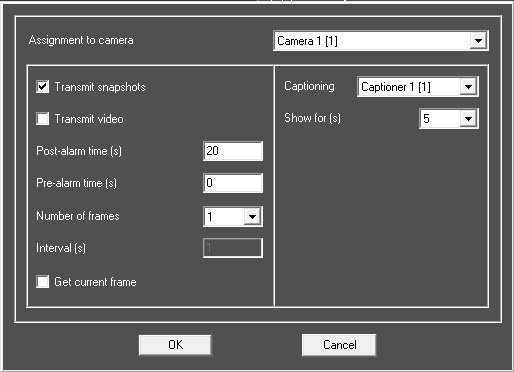
- From the Assignment to camera drop-down list (1) select , select the Camera object that will be is used for getting the video data.
- Configure the data transmission parameters (2). The data transmission parameters are the same as those for the video data transmitted along with sensor alarms (see see Configuring sensors section, steps 7-15).
- Set the Get current frame checkbox to attach the current video frame to the alarm without reaching the video archive. If the video subsystem is overloaded, the received video frame can differ with an alarm according to time. That is why we recommend using it for systems with a small load.
Info title Note There are two other ways to attach videos to alarms that imply receiving video frames and video clips from the archive. However, it can take a considerable time since the video archive isn't created at the moment when an alarm occurs.
- Without writing scripts: set the Automatic pause of recording by cameras checkbox (for more details, see Creating necessary Agent Of Control objects).
- Create a script to stop recording by a camera (see Sample script for stopping camera recording). You must clear the Automatic pause of recording by cameras checkbox. You can use this way if the automatic pause of recording by cameras doesn't suit a specific situation or the more complex processing mechanism is required.
- Click the OK button (3). The created configuration is added to the list.
- Click the Apply button.
Setting up the configurations for the transferred video data is complete.
...
Overview
Content Tools