The You can configure the Heat map detection module can be configured module using the System settings menu, on the Hardware tab, on the panel of the Heat map detection settings panel, using the Camera settingsobject that is created on the basis of the Camera object on the Hardware tab of the System settings window.
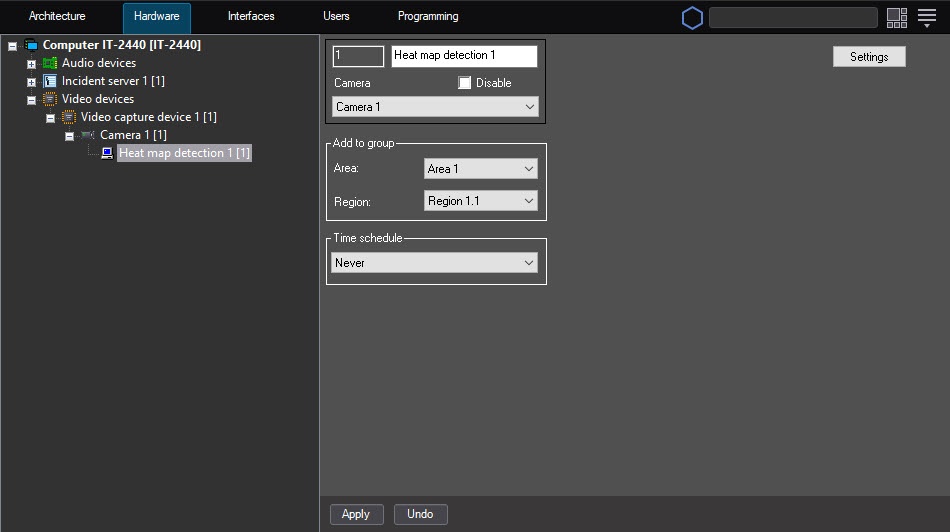
The To configure the Heat map detection module is configured as follows, do the following:
- Go to the settings panel of the Heat map detection settings panelobject.
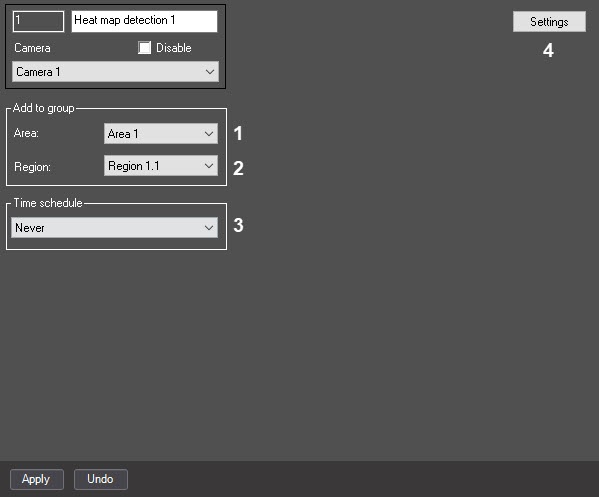
- From the Area drop-down list, select the Area object to display the list of those regions which that belong to this area (1).
- From the Region drop-down list, select the Region object to which this detection should be referred you want to refer this detector (2).
From the Time schedule drop-down list, select the corresponding time schedule during within which the detection will work detector operates (3).
| Note |
|---|
|
If no custom you don't create custom Time schedule objects is created in the system, then only two time time schedules are available—Always and Never. The Never time schedule is set by default, that is, so the detection tool will not work if the default settings are left unchangedthe detector doesn't operate. |
- Click the Settings button (4). The Detection settings window will openopens.
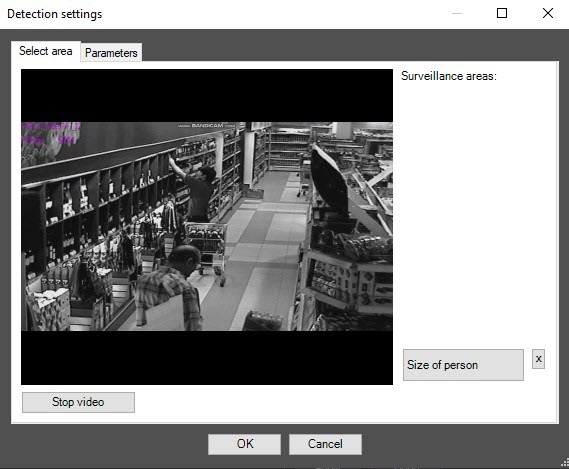
- Specify the surveillance area and the approximate size of people in the video imagesurveillance areas that you want to monitor using the detector:
- Click the Stop video button to capture the video image.
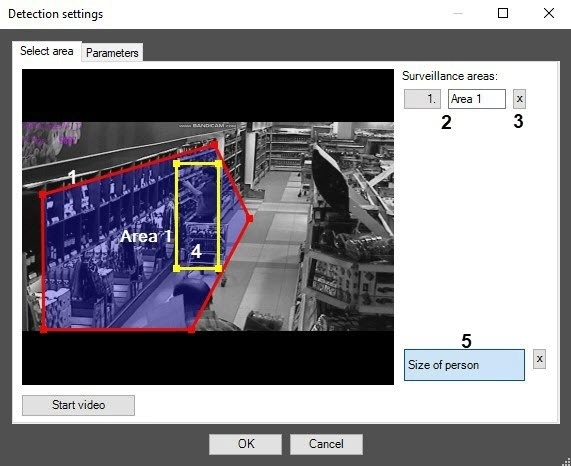
- On In the captured video image, specify the areas that you want to be analyzed monitor (1). To specify the areaan area, set the nodal anchor points of the interested area using the left mouse button. After setting you set the last nodal anchor point, click the right mouse button, and closing the curve will perform closing occurs automatically.
Surveillance areas are numbered in the order of creation starting from 1. Adding one. When you add an area at the right from of the video image, the corresponding button is displayed (2).
- To remove a selected an area, click the the
 button next to the surveillance area number (23).
- Set the approximate person size as followson the image in the following way:
- Click the Size of person button button (35).
- On the captured video image, set the approximate person size. To do this, use the left mouse button to select a the rectangular area (14).
- To remove the person size, click the
 button next to the Size of person button.
- Setting Set the module parameters:
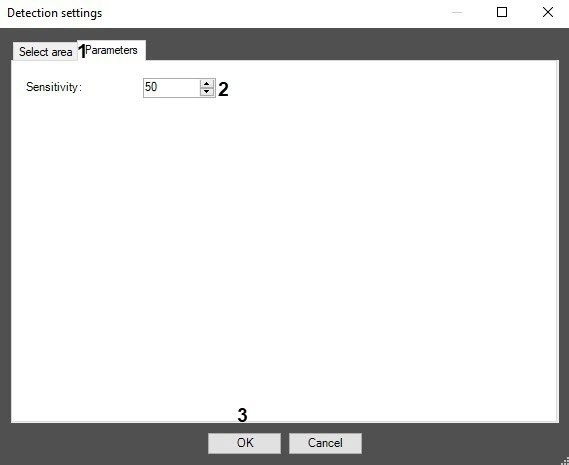
- Go to the Parameters tab of the Detection settings window (1) in the Detection settings window.
 Using the up-down buttons
 - In the Sensitivity field (2), enter the sensitivity value
of sensitivity parameter in the Sensitivity field (2). - parameter using up-down buttons.
The optimal value is selected experimentally by testing detection on triggering in the - the detector for event generation in required conditions. The value range is from 0 to 100. The more sensitivity, the more possibility of false
triggering- event generation. The less sensitivity, the more possibility of losing the event.
- Click the OK button (3).
Configuring the Heat map detection module module is completedcomplete.


