
Go to documentation repository


Page History
| Section | |||||||||||||||||||||
|---|---|---|---|---|---|---|---|---|---|---|---|---|---|---|---|---|---|---|---|---|---|
|
General information on how to configure preferred servers
You can select preferred servers that are always located You can set Preferred Servers, which will be displayed at the top of the list when you launch Client start the client (see Starting the client). Also, preferred Servers servers are used for automatic connection: it primarily uses the Servers , which in the first turn uses servers specified in the Automatic connection parameters group (see Automatic connection), and if these Servers servers are unavailable, then the system will try tries to connect to Servers the servers from the Preferred servers parameters group in , following the set order.
Configuring parameters of preferred servers
To set Preferred Servers, follow the steps belowconfigure preferred servers, do the following:
- Go to Settings → Options → Automatic connectionto the Settings tab → the Options tab → the Preferred servers item.
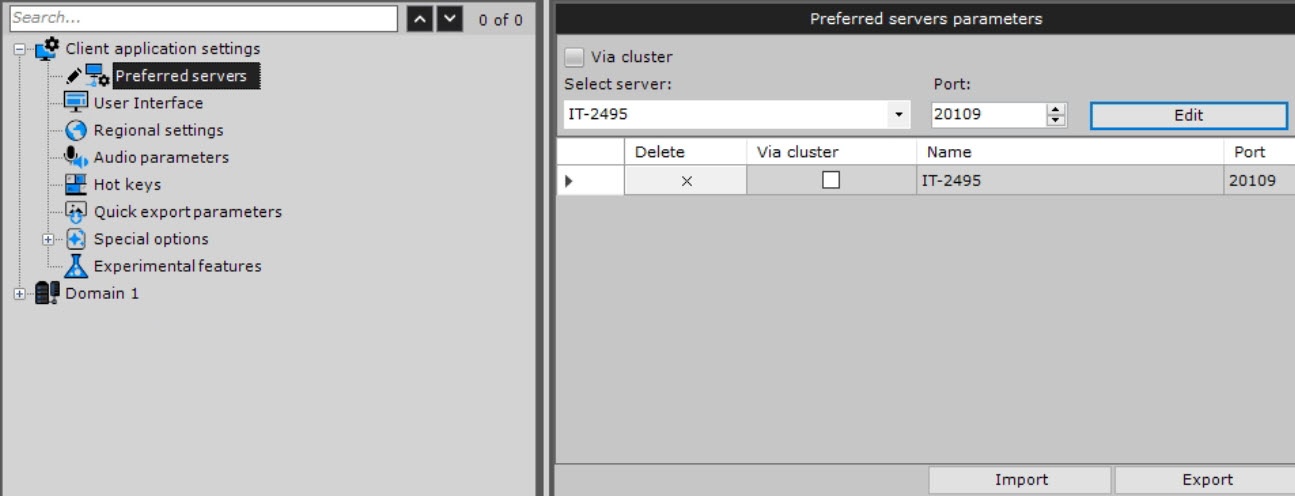
In the Preferred servers parameters group, select the Server from the list (1).
- Change the default port if necessary (2).
Click Add (3).
- Repeat the steps for all required Servers.
- Click Apply
 .
.
...
| title | Note |
|---|
...
- Set the required preferred server parameters that are specified in the table:
Parameter Value Description Select server Select the required server from the drop-down list Port: If necessary, change the standard port and click the Edit
button - Click the Add
 button. To remove the server, click the
  button.
 - Repeat actions for all required servers.
- Click the Apply
 button. To cancel an action, click the Cancel
  button.
Configuring preferred servers is complete.
Configuring the client's preferred server parameters to failover system nodes
To configure connection parameters to the failover system node, do the following:
- Set the Via cluster checkbox.
- In the Select server: field, enter the IP address of any cluster server.
- Click the
 button.
 - From the drop-down list, select the node that must be added to autoloading.
- Click the Add button.
- Click the Apply button. To cancel an action, click the Cancel button.
Configuring the client's preferred server parameters to the failover system node is complete.
Configuration export and import
You can save the list of preferred servers in the file of the JSON format by clicking the Export  button.
To load the file with preferred servers on another client, click the Import  button.
Overview
Content Tools