
Go to documentation repository


Page History
...
- Go to the Settings tab → Options →Regional settings.
- Specify the required settings listed in the table:
Parameter Value Description Localization Interface language English (United States) The default value. Select the required interface language of Axxon One from the drop-down list Calendar type Calendar type Gregorian The default value Short date format [date], [month], [year] The short date format is displayed The selected regional settings are applied after you restart Axxon One - Click the Apply
 button. To cancel the actions, click the Cancel
  button.
 - Restart Axxon One (see Stop the client, Starting the client).
After you restart Axxon One, the selected interface language is used.
To change the language of the events in the system log:
- On the server, go to Control Panel → Region.
Info title Note The setup is given for Windows 10.
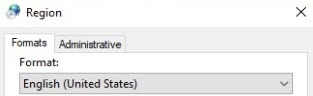
- From the Format drop-down list, select the required language.
- Go to the Administrative tab.
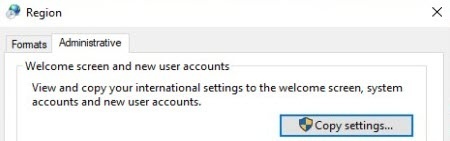
- Click the Copy settings button.
- Set the Welcome screen and system accounts checkbox.
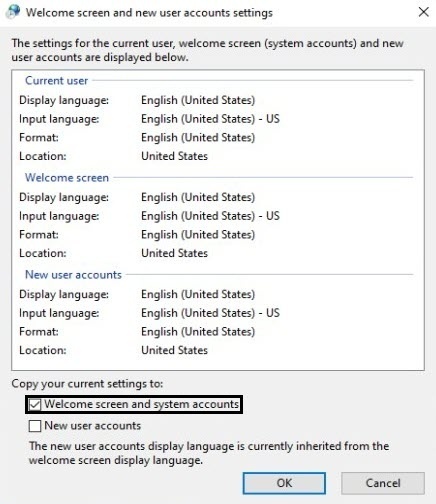
- Click the OK button in both windows.
- Restart the server (see Stop the server, Starting the server).
The language of the events in the system log is changed.
Overview
Content Tools