The You can configure the Barcode detection module can be configured using the System settings menu, on the Hardware tab, on the Barcode detection settings panel, using the Camera settingssettings panel of the Barcode detection object that is created on the basis of the Camera object in the Hardware tab of the System settings window.
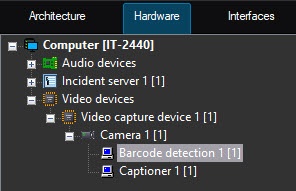 Image Modified
The To configure the Barcode detection module is configured as follows, do the following:
- Go to the settings panel of the Barcode detection settings panel object.
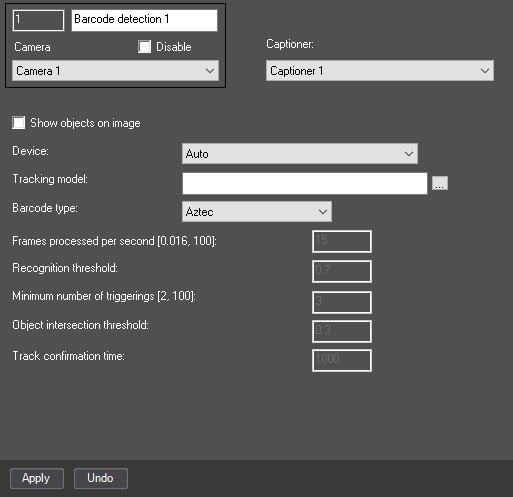
- From the Captioner drop-down list, select the captioner with the help of which result will be displayed in the monitor (1)
In the Skip repeated recognitions, s field, enter the time in seconds in which the repeated code is recognized (2).
| Info |
|---|
|
If there are different barcodes or QR-codes one after another, the recognition is performed instantly. If there are repeated barcodes, the new result will be displayed after the time period specified in the settings. |
- Click the Settings button (3). The Detection settings window will open.
Specify the detection surveillance area:- Click the Stop video button to capture the video image (1).
 Image Removed
 - Click the Area of interest button (2).
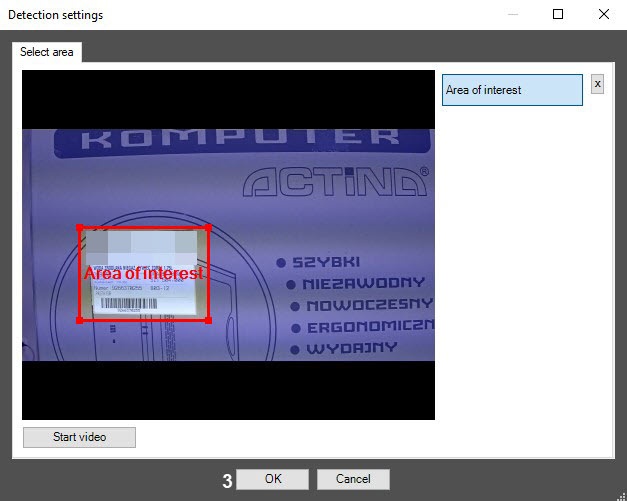 Image Removed
 On the captured video image, specify areas to be analyzed. It is possible to add only one area. When attempting to add the second area, the first one will be deleted. After area specifying, the remaining part of video image will be darkened.
| Info |
|---|
|
To remove the area, click the  Image Removed button next to the Area of interest button. Image Removed button next to the Area of interest button. |
| Note |
|---|
|
Barcode can be detected not only when the entire barcode or QR code is within the specified area, but also only a fragment of it. |
- , which helps to display a result on the monitor.
- Set the Show objects on image checkbox so that the detected object is framed during the live video.
- From the Device drop-down list, select the device on which the neural network operates. Auto—device is selected automatically: the NVIDIA GPU gets the highest priority, then goes the Intel GPU and after it the CPU.
- If you prepare the unique neural network for use, then click the
 Image Added button in the Tracking model field and specify its file in the opened Windows Explorer window. If you leave the field blank, default neural networks are applied. They are selected automatically depending on the selected device.
 - From the Barcode type drop-down list, select the barcode type for recognition:
- Aztec.
- DataMatrix.
- QR.
- Linear.
- PDF417.
- Other settings are additional ones and aren't available for editing by default. To enable them, use the EnableAdvancedSettings=1 parameter of the HKEY_LOCAL_MACHINE\SOFTWARE\AxxonSoft\Axxon PSIM\DetectorExt\BARCODE_DETECTOR registry key (for more details, see the Registry keys reference guide; for information on how to work with the registry, see Working with Windows OS registry).
- In the Frames processed per second [0.016, 100] field, specify the number of frames per second that the neural network processes in the range from 0.016 to 100. For all other frames, interpolation is performed—finding intermediate values by the available discrete set of its known values. The greater the value of the parameter, the more accurate the detector operation, but the higher the load on the processor.
- In the Recognition threshold field, specify the detector's sensitivity: the lower the value, the higher the sensitivity. The value range is from 0 to 1. If you enter a number greater than the maximum value of the specified range, this number automatically becomes the maximum value.
- In the Minimum number of triggerings [2, 100] field, specify the minimum number of events generated by the detector for displaying the object track. The greater the value of this parameter, the more time lasts from object detection to the display of its track. The low value of this parameter can lead to false events. The value range is from 2 to 100. If you enter a number greater than the maximum value or less than the minimum one of the specified range, this number automatically becomes the maximum value and the minimum value, respectively.
- In the Object intersection threshold field, specify in fractions how repetitive events are filtered. The value range is from 0 to 1. If you enter a number greater than the maximum value of the specified range, this number automatically becomes the maximum value.
- An event is considered repetitive if the ratio of intersection area to the area of combining two events is greater or equal to the specified event intersection degree. For better recognition, for example, at low fps, we recommend increasing the threshold value.
- In the Track confirmation time field, specify the time period in milliseconds after which a track is considered confirmed and disappears from a screen in the range from 0 to 1000.
- To save the settings, click the Apply button
Click the OK button (3) to save the changes and return to the settings panel of the Barcode detection.
| Info |
|---|
|
To return to the settings panel of the Barcode detection without saving the changes, click the Cancel button. |
On the Barcode detection settings panel, click the Apply button (4)- .
Configuring the Barcode detection module is complete.
...


