
Go to documentation repository


Page History
| Section | |||||||||||||||||||||
|---|---|---|---|---|---|---|---|---|---|---|---|---|---|---|---|---|---|---|---|---|---|
|
General information
| Description |
| Multi-camera tracker displays tracks of people's movements in real time on an interactive map. Tracks are recorded by cameras that are attached to the map | |
| Licensing | For the tracker to work, the |
| Multi-camera tracker and Similitude search license modules are required. To connect the modules, contact the manager of AxxonSoft | |
| Add-ons | For the tracker to work, you must install Neuro Pack add-on (see Installing DetectorPack add-ons) |
Configuration procedure
To configure the multicamera multi-camera tracker:
- Create a layout beforehand and add the necessary cameras to it.
- Create a map on this layout (see Adding a new map).
- Add the required cameras to the map (see Adding cameras).
- Calibrate cameras in immersion mode (see Configuring a camera in immersion mode):
- Set calibration points.
- Attach the image from the cameras to the map.
- Save the changes to the layout by clicking the Save button at the top of the screen.
- Go to Configuration management → Detectors.
- Create neural trackers for the required cameras and change the following parameters of the detector (see Configuring the Neural tracker):
- Similitude search—select Yes.
- Time of processing similitude track (s)—4 seconds (the value can vary).
- Minimum number of detection triggers—4 (the value can vary).
- Save the changes in the settings of the neural trackers.
- In the device tree, on the Detectors tab, click Create… → Multicamera Multi-camera tracker.
- In the tracker settings:
- In the Enable field, select Yes.
- In the Map list field, click the
 button and set the checkboxes next to the required maps.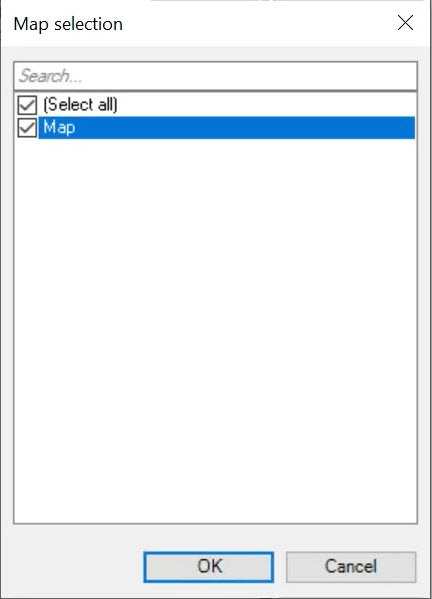
- Click the OK button.
- In the Detectors of Multicamera tracker Multi-camera tracker detectors panel, set the checkboxes next to the cameras whose tracks need to be displayed on the map. Make sure that the status of the selected cameras is Connected.
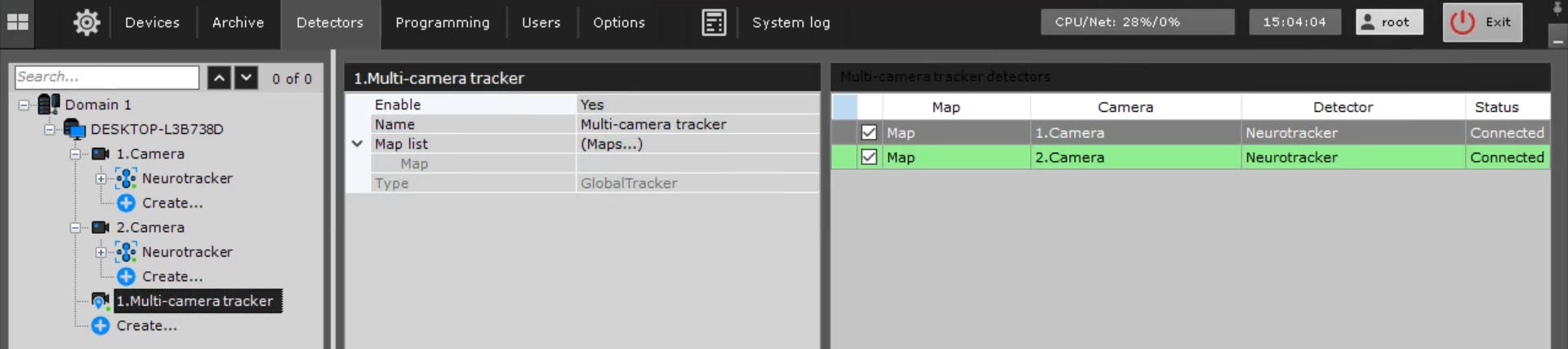
- Save the changes by clicking the Apply button
 button.
Configuration of the multicamera multi-camera tracker is complete. To check the operation of the tracker, go to the layout with the map.
...
- Click the name of the camera. The context menu of the surveillance window opens.
- Select Show detector data.
Info title Note If you create several detectors for the camera, the name of the item changes to Detector data. In this case, hover the mouse cursor over the Detector data item and set the checkbox next to neural tracker.
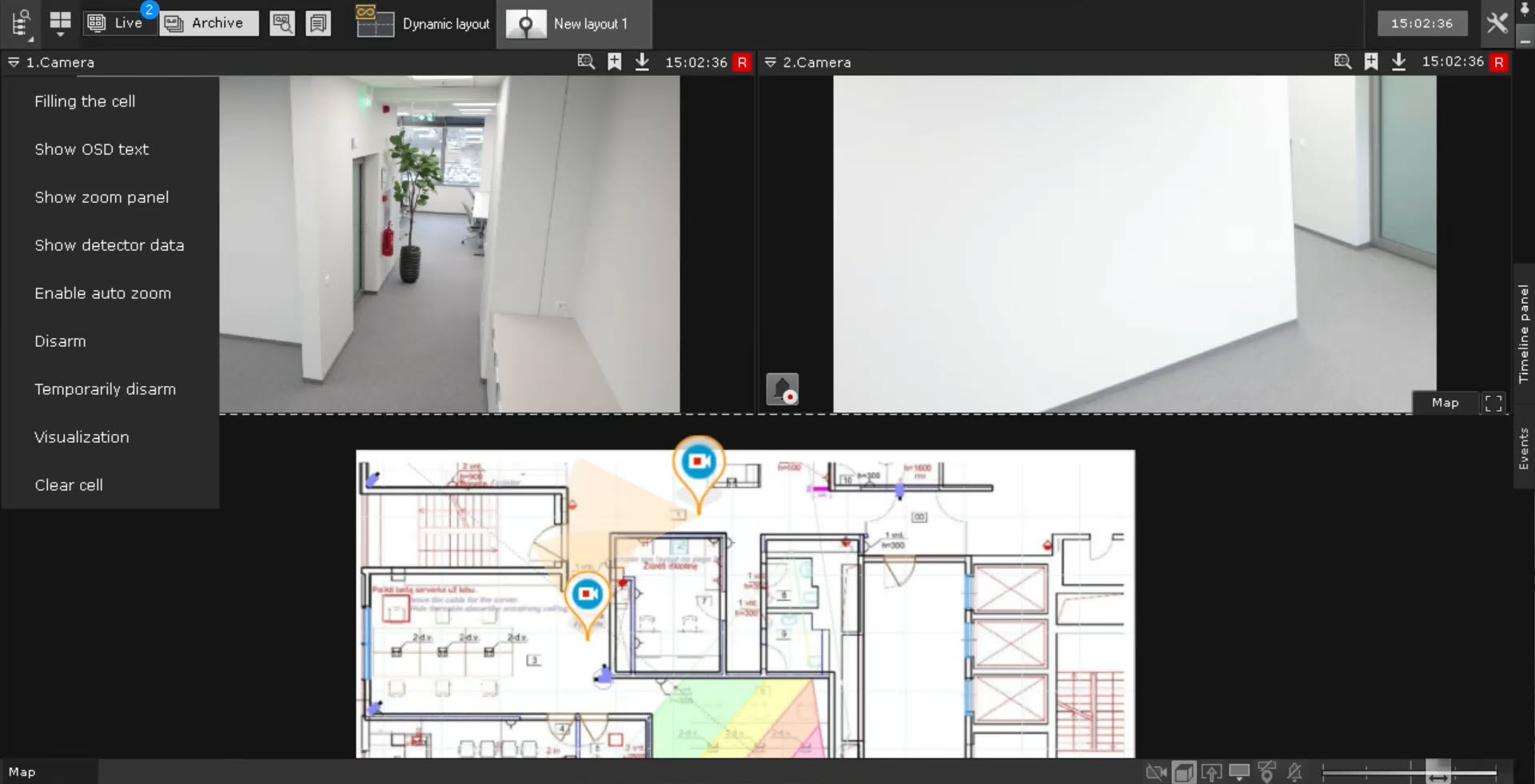
As a result, tracks of people's movements are displayed in the surveillance window.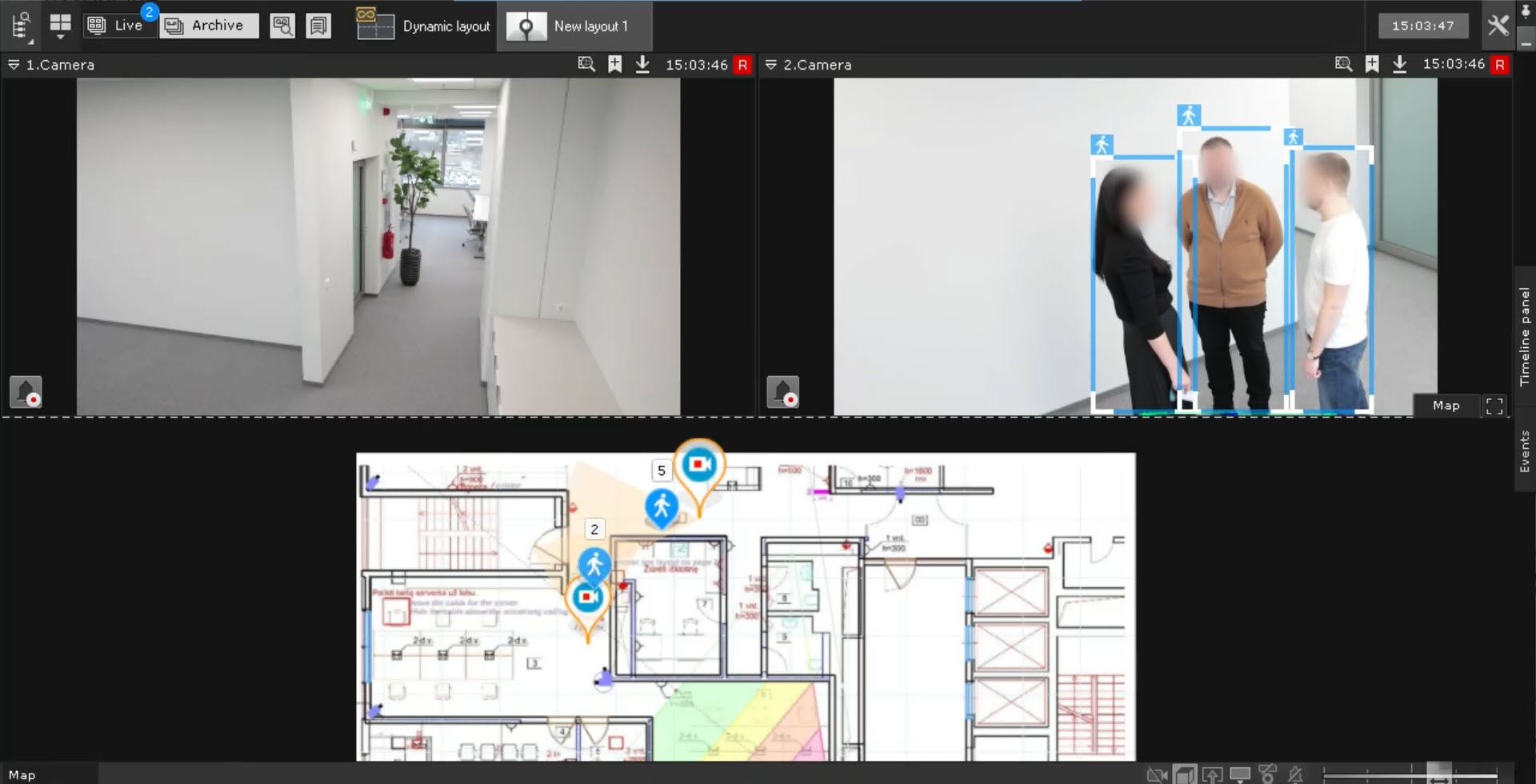
Overview
Content Tools