
Go to documentation repository


Page History
The startup of Axxon PSIM software can be launched automatically from using the Startup function , as soon as is performed automatically after you start the Windows OS services and shell start downloading.
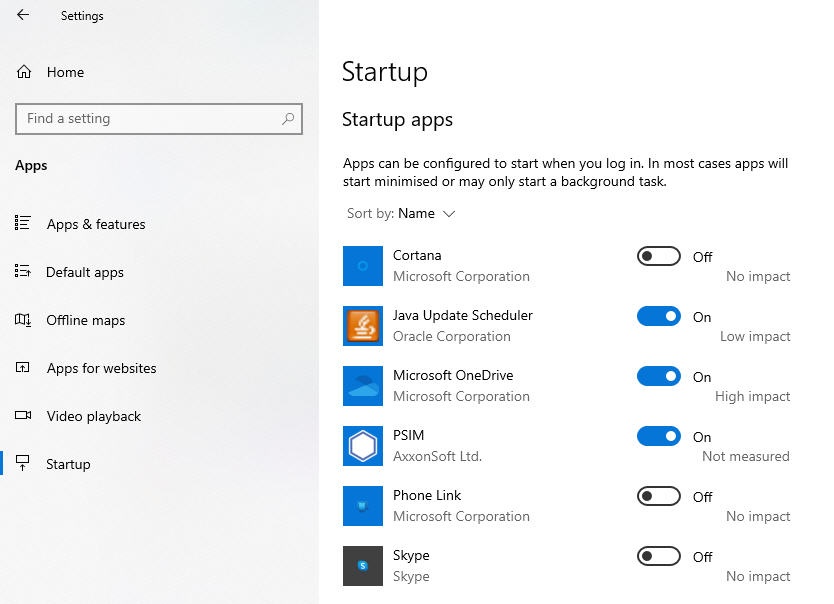
To configure the startup of Axxon PSIM system launch using the Startup function, you need to you must add Axxon PSIM to the Startup Apps apps list: Start → Settings → Apps → Startup. You can For information on how you can do it, refer to the Windows OS documentation (depending depends on the installed version); a . The link to for the relevant corresponding documentation will be is in the Startup window.
Example of Axxon PSIM added to Startup:
| Note | ||
|---|---|---|
| ||
In the Windows 8.1 and Windows 10 operating systems, for the proper operation of the Startup function, you must create a the string registry key with an arbitrary name in the branch HKEY_LOCAL_MACHINE\SOFTWARE\Wow6432Node\Microsoft\Windows\CurrentVersion\Run (if the OS is 6432-bit) or in the branch You must also completely Also, disable UAC completely as described in in OS settings for correct operation of remote administrator’s workstation or server. |
...
Overview
Content Tools