
Go to documentation repository


Page History
...
| Section | ||||||||||||||||||||
|---|---|---|---|---|---|---|---|---|---|---|---|---|---|---|---|---|---|---|---|---|
|
...
Functionality
The Display display manager is designed for managing the video walls and attracting the Operatoroperator's attention.
Functions
The Display manager provides display manager has the following featuresfunctions:
- Managing Management of the Video video surveillance monitor added monitors added to the various computers' displays.
- CreatingCreate, edit, editing and deleting Video surveillance monitor layoutsand delete layouts of the video surveillance monitor.Creating temporary Video surveillance monitor layouts
- Create temporary layouts of the video surveillance monitor.
Interface description
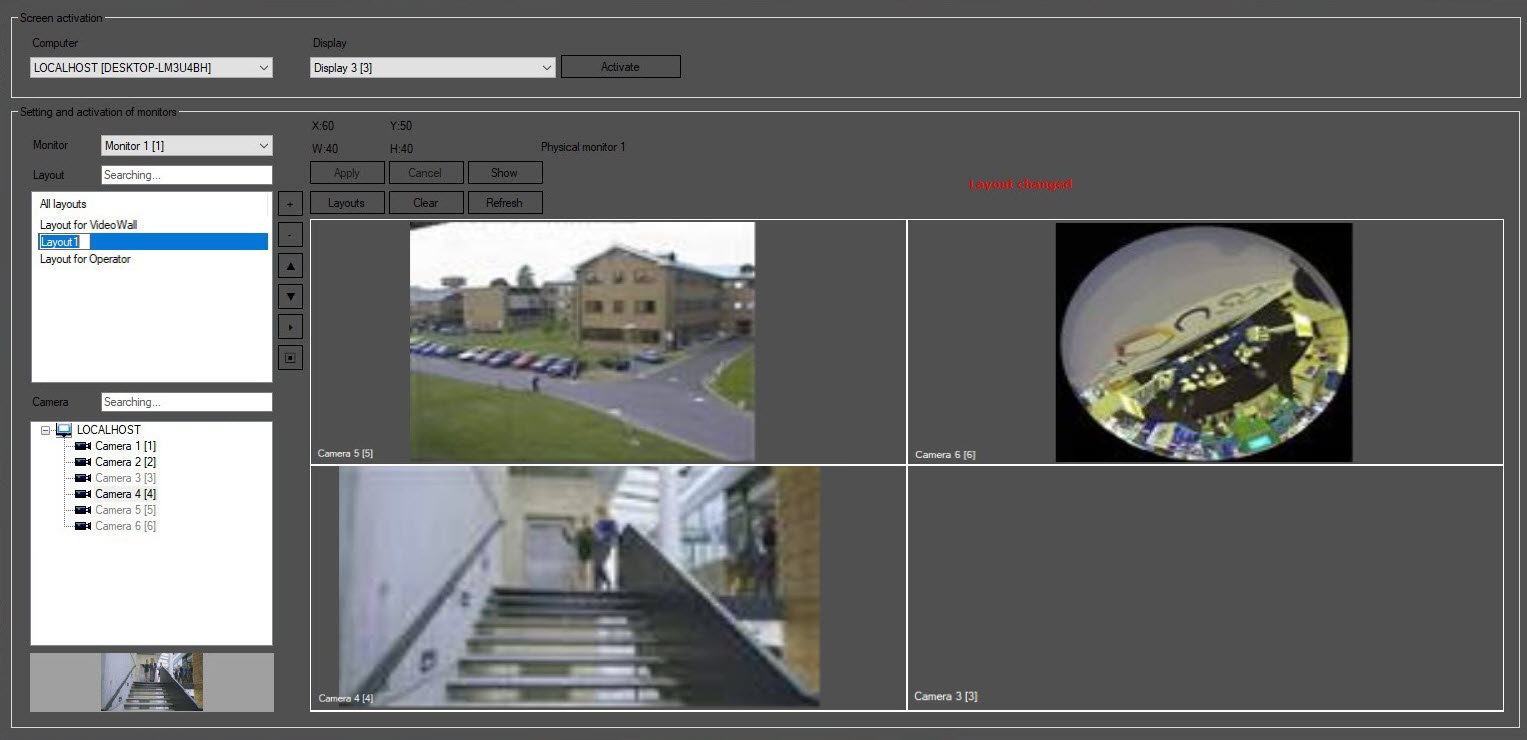
The Display manager interface of the display manager is shown in the figure:
The Screen activation group
The Screen activation group is used for selecting and activating the required Displaydisplay.

The Computer drop-down list is used for selecting a computer to which the required display is assigned. The You can specify the list of computers available in the Computer drop-down list is set during the system configuration - see configuration—see Configuring the Display manager.
The Display drop-down list is used for selecting the required display. In order for the display to be available in this list, it should must be assigned to a computer - see computer—see Assigning the displays to the operator workstations.
The effect of clicking Clicking the Activate button is similar to the Screens button on the Main selecting a display on the main control panel (see Main control panel). When you click this the Activate button, the interface windows created on the basis of the selected selected Display object are displayed on the desktop.
...
The Setting and activation of monitors group is group is used for configuring and applying the Video surveillance monitor layoutslayouts of the video surveillance monitor.
The Monitor drop-down list is used for selecting the required Video surveillance monitor, created on the basis of the Display object selected in the Screen activation group.

The layouts list is used for selecting the You can select existing layouts , as well as deleting them and creating the new ones (buttons - and +, respectively)delete and create new layouts in the layout list using the  and
and  buttons, respectively. You can search for layouts by name using the the Layout field. To change the order in which the layouts are displayed, use the
  and
and  buttons. To scroll through the layouts, use the ▼ and ▲ buttons.
  (start playback) and
  (stop playback) buttons or macros (see Examples of scripts with Cameras and Video surveillance monitor). For details, see Select, create, and scroll layouts.
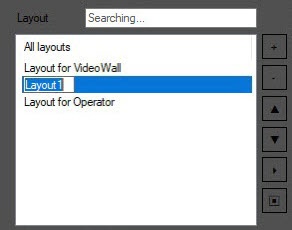
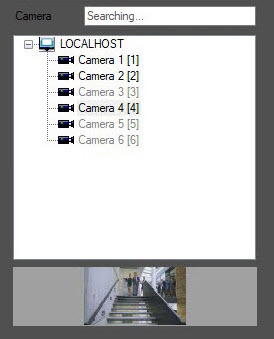
The cameras camera list displays the available video cameras. You can search for a camera by name or ID using in the Camera field. The cameras can be added You can add cameras to the layout only once. The cameras which that are already added to the layout are highlighted in gray. You can drag the cameras from this list onto the layout using the left mouse button. When dragging you drag the camera, the frame displayed on the camera at the moment when it was added to the layout will be is displayed on the layout.
Below the cameras list, the video preview from this camera preview is is displayed.
| Info | ||
|---|---|---|
| ||
If you add the camera was added to the Video video surveillance monitor during the current Axxon PSIM session, then it is necessary to restart the you must restart Axxon PSIM to display this camera in this list. |
The buttons for managing the layouts:
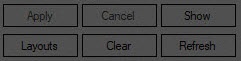
- Apply—save changes in the layout.
- Cancel—cancel changes and go to the last saved layout.
- Show—display the selected layout on the Video video surveillance monitor. The The layout is shown in its last saved version, and only if it needs to be displayed on the Computer computer selected for screen activation.
- Clear—remove all cameras from the layout.
- Refresh—refresh the frames in the camera preview windows on the layout.
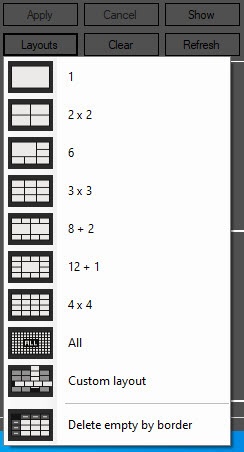
- Layouts—select a standard layout from the list:
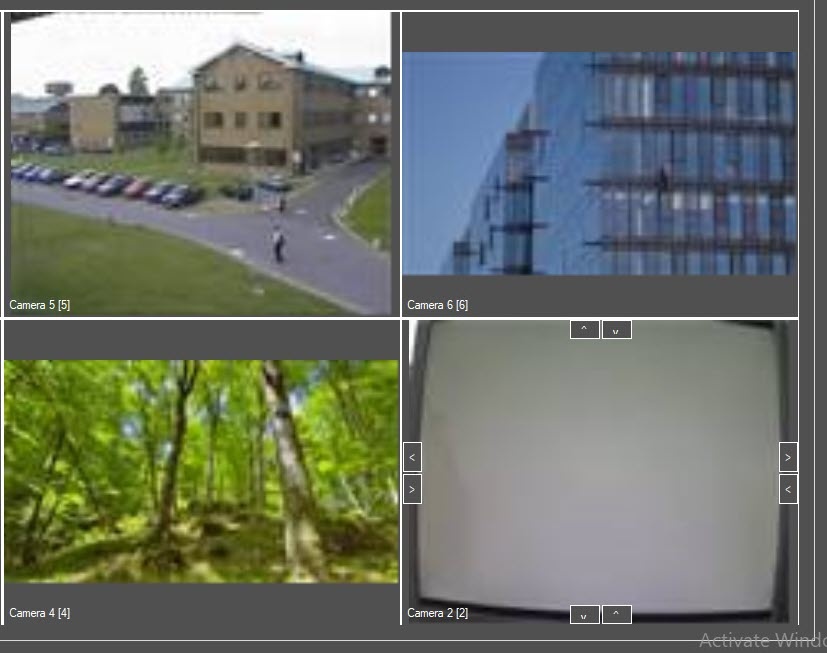
The layout creation panel allows you to get a visual idea of how the layout will look on the Video video surveillance monitor. On this panel, you can drag the Surveillance surveillance windows, add new rows and columns, delete extra empty cells along the border, and resize the Surveillance surveillance windows using the>the >, <, ∨, ∧ buttons. If the layout was is created using in the Display display manager, then the frames displayed on in the camera at the moment when it was the camera is added to the layout will be are displayed in the Surveillance surveillance windows. If the layout was is created using the Video video surveillance monitor, then in order to display these frames in the Surveillance surveillance windows, it is necessary to click on the Refresh buttonyou must click the Refresh button (see Configuring cells and adding Surveillance windows to a layout).
Overview
Content Tools