
Go to documentation repository


Page History
To view the report on the operator actions during event handling, select an event in the list and click the Interim report button:

As a result, the Operator actions report window opens:
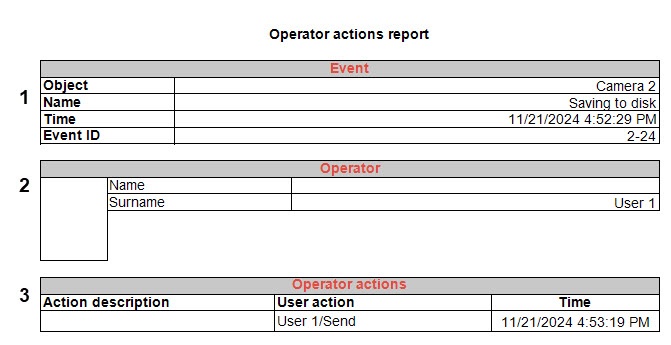
The report displays the following information:
The event, the object that initiated the event, the date and time the event occurred, and additional information about the event (1).
Info title Note The time format in the report depends on the localization of the Windows OS.
- Information about the operator who processed the event (2):
- Name corresponds to the value of the Name field in the operator account (see Registration of operator accounts);
- Surname corresponds to the value of the Name field in the operator account.
- Description and time of operator actions (3).
The report is also generated automatically upon completion of event handling if it is specified in the logic settings.
The action panel is located at the top of the window:

1—Print the report.
2—Open another report saved as a file.
3—Save the document in RSD or XML format.
4—Export the document to PDF, XLS, PNG, and other formats.
5—View the content.
6—Find text.
7—Update the report: a new report window opens with updated data. The current window also remains open.
8—Edit the report.
9—Enable scrolling mode.
10—Enable the dynamic scaling mode: the scale changes depending on the movement of the mouse up/down or scrolling the mouse wheel.
11—Reduce and enlarge the display scale.
12—View the selected part of the report on a larger scale.
13—Fit to page size.
14—Fit to page width.
15—Show in real size.
16—Select the display scale.
17—Enable one-page view mode.
18—Enable the mode of viewing the sequence of pages.
19—Go to the first/previous/next/last page.
20—Move back/forward.
Overview
Content Tools