Versions Compared

Key

  • This line was added.
  • This line was removed.
  • Formatting was changed.

...

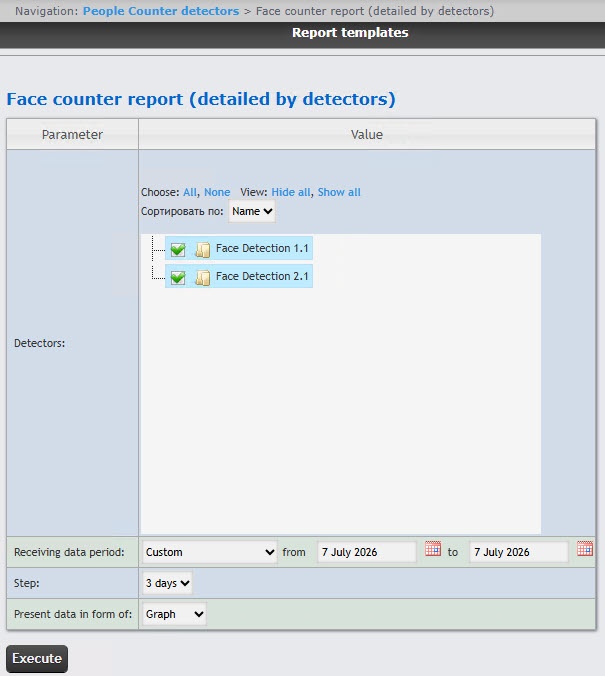
  1. Select the Face counter report (detailed by detectors) (see Selecting a Select the type of reports by Visitors counting detectors reports). As a result the dialog box for specifying the report parameters will be displayed.
  2. In the Detectors field, set checkboxes for those Face Detection objects, the information on which should be displayed in the report. Click All to select all found or available objects. Click None to deselect. Click Show all to expand the object structure. Click Hide all to hide the object structure.

  3. By default, the detectors list is sorted by name. To sort by number, select this option from the Sort by drop-down list. 
  4. From the From the Receiving data period drop-down list, select the time period for which the report should be created. If the Custom period is selected, enter the date of start and end periods for which the report should be created in the from and to fields using the Calendar tool. Click the  button near the corresponding field to use the Calendar tool.
  5. In the Step field, enter the time period, during which the data recieved from the face recognition server will be summarized. The list of the available intervals depends on the selected period.
  6. In the Present data in form of field, select the form in which the data will be presented in the report: Table or Graph.
  7. To create a report click Execute.

...