
Go to documentation repository


Page History
...
After you add objects to the map from the objects panel, when you left-click an object, a line is drawn that shows the object's location on the map. You can also use the context menu of the icons on the map to control cameras, inputs, outputs, macros, and ACFA devices.
| Anchor |
|---|
...
|
...
|
You can add a camera to the map in one of the following ways:
...
You can add an ACFA device to the map as:
| Display type | Visual example | Description |
|---|---|---|
| Default (ACFA device icon) |
| By default, the icon is displayed on the map for all ACFA devices. The icon is displayed together with other display types (Area, Line). To hide the icon on the map, clear the Default checkbox. Some ACFA devices can display multiple icon options (for example, Managing the access point of the Server "Sigur" integration module) |
| Area |
| For some ACFA devices, area display is available. You can configure the area as a polygon. To display the area on the map, set the Area checkbox |
| Line |
| For some ACFA devices, line display is available. You can configure the line as a polyline. To display the line on the map, set the Line checkbox |
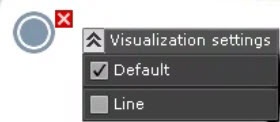
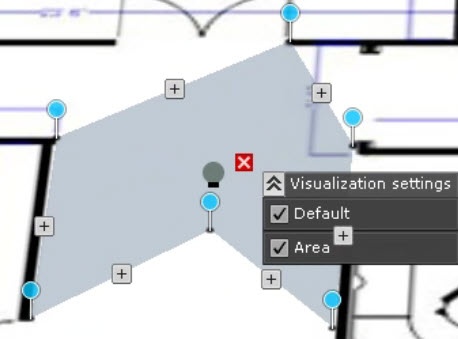
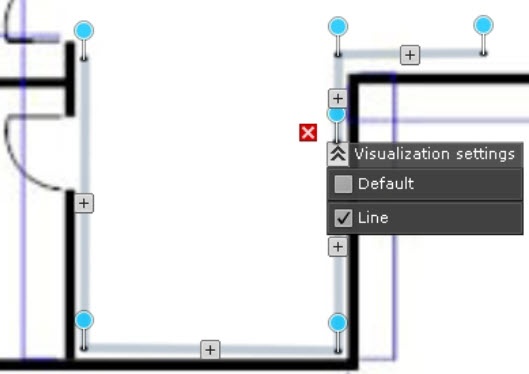
ACFA devices are added to the map.
...
You can change some settings of the map in view mode using the controls in the lower right corner of the screen.
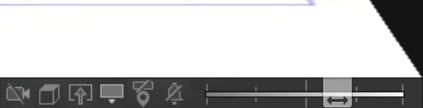
| Button | Function |
|---|---|
| Enable/disable the display of unavailable devices |
| Enable/disable the top view |
| Go to the layout with a camera |
| Go to immersion mode |
| Enable/disable 3D display of icons |
| Enable/disable the display of device names and IDs on the map |
| Enable/disable the vibration of the camera icon when an alarm occurs |
| Change the transparency of the video image. At the far left position of the slider, the video image isn't visible on the map; at the far right position, the video image isn't transparent |



Change the icon size
To change the icon size:
...
Overview
Content Tools