

Page History
...
| Section | |||||||||||||||||||||
|---|---|---|---|---|---|---|---|---|---|---|---|---|---|---|---|---|---|---|---|---|---|
|
If a new POS-terminal is to be integrated into POS Intellect, then provide AxxonSoft with essential information on this POS-terminal in one of the following ways:
...
- If the POS-terminal supports data transmission over Ethernet or via the COM port, then install Axxon Intellect on the computer and then install POS Intellect (if it is not already installed).
- Connect the POS terminal to this computer.
- Run POS Intellect.
Create a POS-terminal object and set up the connection between POS-terminal and POS Intellect – see Selecting the type of POS - terminal and setting the connection parameters.
Info title Note. The type of POS terminal is to be By default. - Shut down POS Intellect.
- Enable logging – see Enabling and disabling the logging function.
- Run POS Intellect.
- Start using the POS-terminal, i.e. issuing receipts. It is highly recommended to do all the operations including Cancel, Return, etc.
...
- If the POS-terminal supports data transmission over Ethernet or via the COM port, download the POS Terminal Data Collection Utility at the AxxonSoft web-site.
- Extract downloaded archive into any folder.
- Connect the POS terminal to the computer.
- Run the ProtocolLicenser.exe executable file. The Read protocol from service window opens.
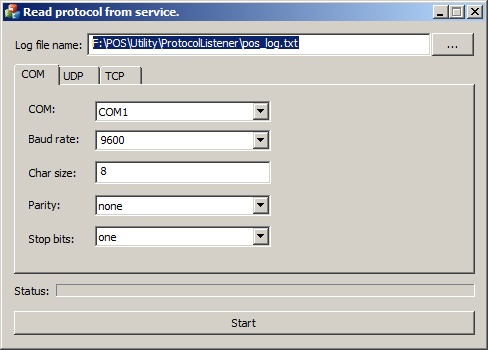
- In the Log file name field specify a full path to the folder where the file with gathered info is to be saved. By default, the file is stored in the folder to which the archive with the utility is unpacked.
- If the POS-terminal is connected to the computer via COM-port, specify connection parameters in the COM tab.
- If the POS-terminal is connected to the computer via Ethernet, specify connection parameters for TCP or UDP protocol in the corresponding tab.
- Click Start to run log collection.
- Start using the POS-terminal, i.e. issuing receipts. It is highly recommended to do all the operations including Cancel, Return, etc.
Process of gathering info is displayed via the Status progress bar.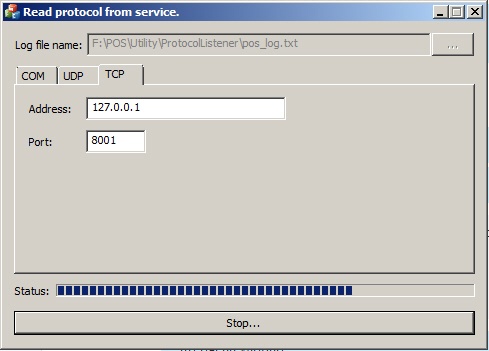
To finish log collection click Stop.
...
Overview
Content Tools