
Go to documentation repository


Page History
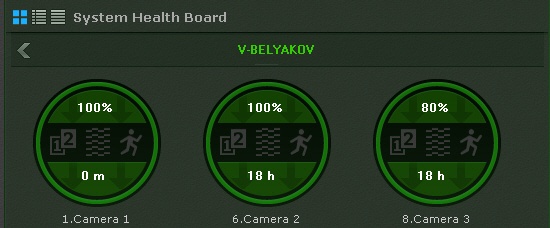
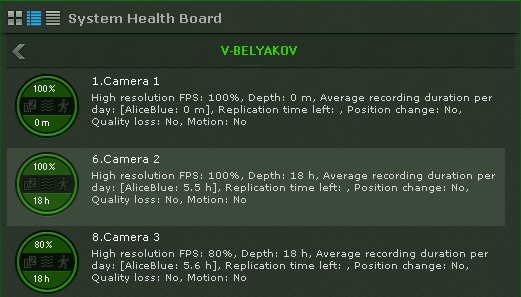
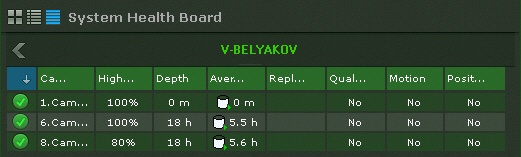
Dane na temat statusu kamer mogą być wyświetlane na trzy sposoby, zależnie od przycisku zaznaczonego w lewym górnym rogu panelu:
- jako diagramy;
- jako diagramy z tekstem;
- jako tabelę.
Information about the status of cameras can be displayed in three ways, chosen via the buttons in the upper-left corner of the board:
- as diagrams
- as diagrams with text
- as a table
| Info | ||
|---|---|---|
| ||
Disconnected cameras are displayed at the end of the list with dimmed brightness. |
Tables can be sorted by any column in any direction.
The following information is displayed for each camera:
| |
Odłączone kamery są wyświetlane na końcu listy; są one przyciemnione. |
Tabele mogą być sortowane po dowolnej kolumnie.
Następujące informacje są wyświetlane dla każdej kamery:
Procentowy współczynnik FPS wyświetlanego materiału wideo do wartości FPS zawartej w ustawieniach strumienia wideo wysokiej jakości kamery (zobacz: The percentage rate of actual video fps to the camera's high definition stream fps setting (see Obiekt typu Kamera).
- Status of detection tools (loss of quality, position change, motion)
- Depth refers to the number of hours or days from the start of the earliest video stored in any archive to the end of the most recent video (if archive recording is not configured for the camera, this section is colored gray on the diagram).
- narzędzi detekcji (utrata jakości, zmiana pozycji, ruch).
- Głębokość oznacza liczbę godzin oraz dni od startu najstarszego nagrania dostępnego w archiwum do końca najnowszego nagrania (jeśli archiwum nie jest skonfigurowane dla danej kamery, sekcja ta będzie wyświetlana w szarym kolorze).
Średni czas nagrywania (w godzinach dziennie) jest współczynnikiem całkowitego czasu nagrywania do wieku archiwum / czasu retencji nagrań (czasu od najstarszego dostępnego nagrania do czasu obecnegoAverage recording time, in hours per day, is the ratio of the total recording time to the age of the archive / retention time (time from the earliest stored video to now).
Info title Note For constant recording, this parameter value is equal to 24 hours. If the recording takes 50 percent of total time, the value is 12 hours.
- Remaining time for replication of the archive.
The camera status is measured based on the signal from the camera and stream rate:
- Normal – camera signal present, frame rate & to max from 70% to 100% The camera is colored green on the diagram and in the table.
- Borderline – camera signal present, frame rate & to max from 20% to 70% The camera is colored yellow on the diagram and in the table.
- Critical – no camera signal or frame rate & to max is less than 20% The camera is colored red on the diagram and in the table.
Information is updated every ten seconds.
If there is no signal from a camera, the appearance of the diagram changes accordingly.
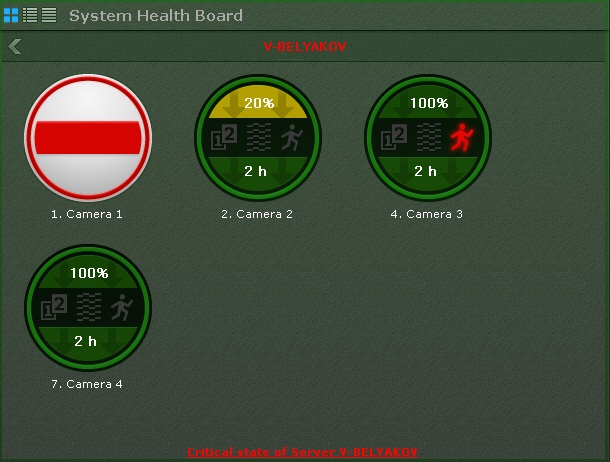
Information about detection tools is received in real time. Depending on the status of detection tools, the corresponding icons change color:
Informacja Dla ciągłego nagrywania wartość tego parametru to 24 godziny. Jeśli materiał jest nagrywany przez 50% całkowitego czasu, wartość to 12 godzin.
- Pozostały czas replikacji archiwum.
Status kamery jest określany na podstawie sygnału z kamer oraz strumieni wideo:
- Normalny – sygnał z kamery obecny, wartość FPS używanego strumienia kamery od 70% do 100% wartości z ustawień kamery. Kamera jest widoczna pod kolorem zielonym na diagramie oraz w tabeli.
- Graniczny – sygnał z kamery obecny, wartość FPS używanego strumienia kamery od 20% do 70% wartości z ustawień kamery. Kamera jest widoczna pod kolorem żółtym na diagramie oraz w tabeli.
- Krytyczny – sygnał z kamery nieobecny lub wartość FPS używanego strumienia wideo kamery mniejsza niż 20% wartości z ustawień kamery. Kamera jest widoczna pod kolorem czerwonym na diagramie oraz w tabeli.
Informacje są aktualizowane co 10 sekund.
Jeśli z kamery nie ma sygnału, wygląd diagramu zmienia się odpowiednio.
Informacje o narzędziach detekcji są otrzymywane w czasie rzeczywistym. W zależności od statusu narzędzia detekcji, odpowiednie ikony zmieniają kolor:
- Zielony – normalny status narzędzia detekcji
- Czerwony – narzędzie detekcji aktywowane
- Szary – narzędzie detekcji wyłączone
- Green – detection tool status is normal
- Red – detection tool activated
- Gray – detection tool disabled
Overview
Content Tools