
Go to documentation repository


Page History
To add a comment, click the  the
the  button. A dialog box opens for entering a comment will open.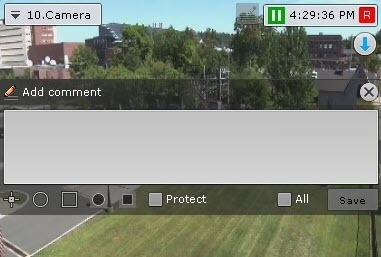
The number of characters in the comment is limited.
The following parameters can be configured:
- Position of a comment in the frame (—you can move the window with the comment is movable by dragging when you click the window title )and hold it with the left mouse button.
- Transparency of the comment window , by adjusting the
 is adjusted by moving the
  slider from left to right (, from opaque to maximum transparency).
 - Marking the area of interest in the frame, . You can mark the area with a dot (

 ), semicircle an oval (
 ), or rectangle a rectangular (
 ) area. To do so, do the following:
- Click the
relevant - corresponding button and then click anywhere in the frame. The selected element
is - will be displayed.
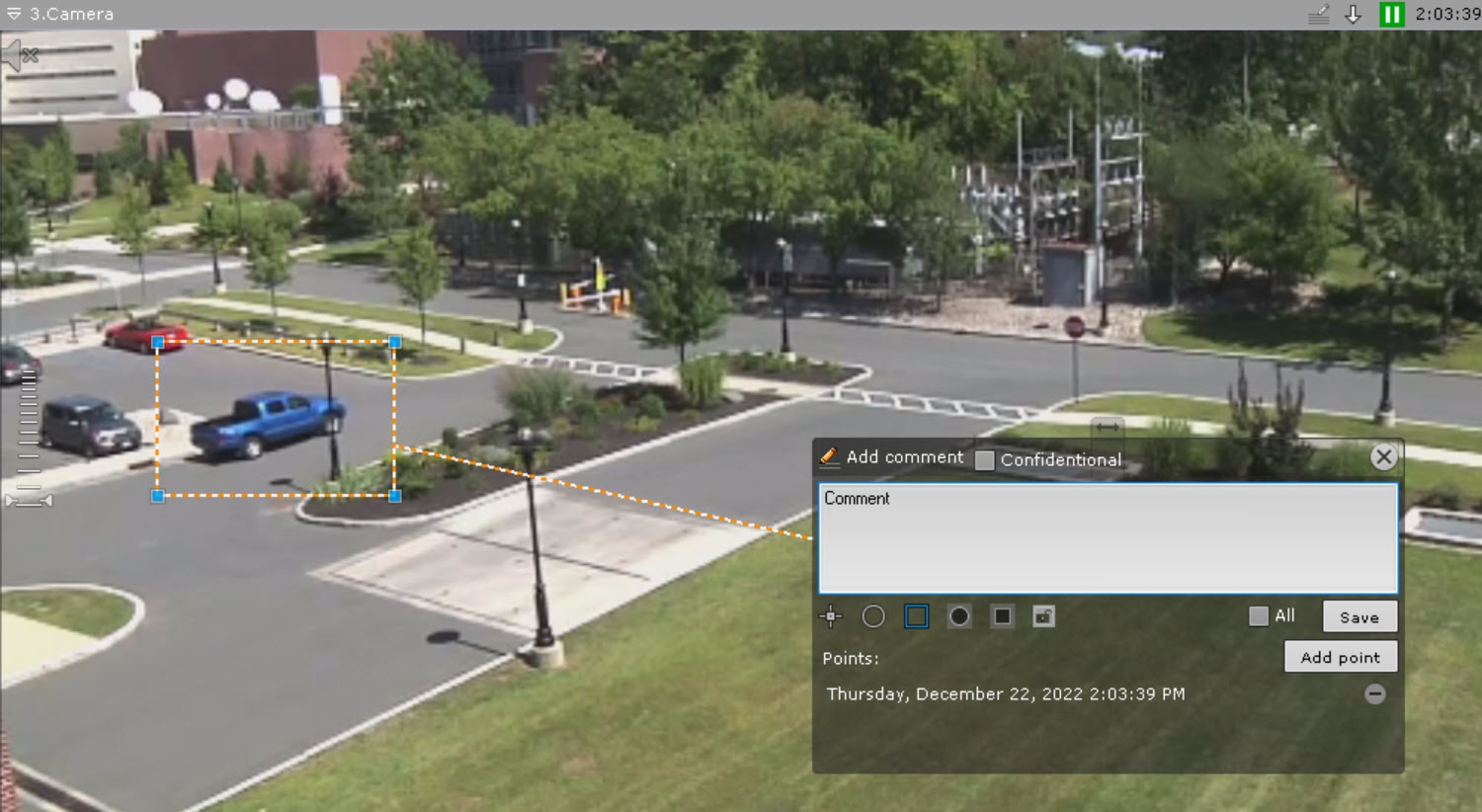
Drag - will be displayed.
- Move the element to the
necessary place in - required area of the frame. To do
so- this, left-click
and drag the edge of the area (or for a dot, click and drag the dot)- on the element and move the cursor without releasing it.
- Set the size of the element by stretching its anchor points.
Points will be displayed below the comment. You can set several points in different frames. To do this, go to another frame, move the element in it to the required area, and click the Add point button. To delete a point, click
 . As a result, one comment will be displayed for all added points.
Info title Note You can set points only for an oval and a rectangular area.
- Marking the privacy zone—the area of the frame that should be hidden. You can mark it with an oval (
 ) or a rectangular (
 ) area. To do so, do the following:
- Click the corresponding button and then click anywhere in the frame. The selected element will be displayed.
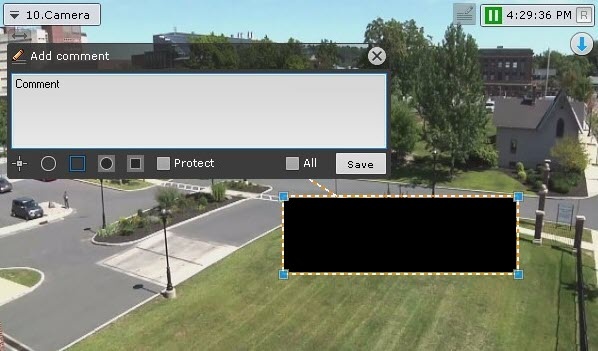
- Move the element to the required area of the frame. To do this, left-click on the element and move the cursor without releasing it.
- Set the size
by dragging the corner points - Click the corresponding button and then click anywhere in the frame. The selected element will be displayed.
- of the element by stretching its anchor points.
The Mask position will be displayed below the comment. You can set several positions in different frames. To do this, go to another frame, move the element in it to the required area, and click the Add button. To delete a position, click
. As a result, one comment will be displayed for all added positions.Info title Note The privacy zone cannot be set in real time.
Info title Note For one comment, you can specify either the area of interest, or the privacy zone.
- Protection of an archive interval with a comment from overwriting. To protect archive records with a comment from being deleted, click the
 button. To cancel protection, click the
  button (see Setting up record protection).
 - Adding a comment to all cameras on the layout—set the All checkbox.
To save the comment, click the Save button. Otherwise, click  to
to  to cancel.
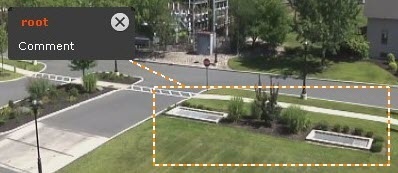
After being saved, a comment is displayed in the frame as specified. To delete the comment, before you perform any other command in the system, click the the button..

Overview
Content Tools