
Go to documentation repository


Page History
This keyboard is connected to Intellect Axxon PSIM as a standard joystick – see joystick—see Configuring the joystick for telemetry control. When connecting you connect the keyboard to the computer, it is necessary to you must press SET + 5 keys on it, in this case, it will be defined detected by the system as a USB gaming device.
There is no need to create a the Control panel object under on the basis of the Telemetry controller object.
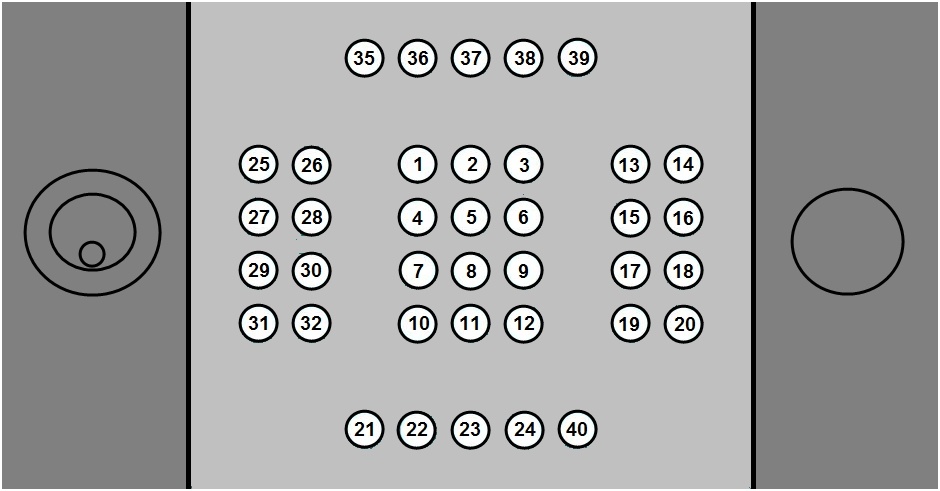
The figure below shows the correspondence of the key codes to the buttons on the keyboard.
| Note | ||
|---|---|---|
| ||
| External The external left joystick is not supported in IntellectAxxon PSIM. |
The right joystick allows controlling the rotation of the camera lens along the X, Y, and Z axes.
When pressing you press keyboard buttons, Intellect Axxon PSIM receives events of the following form:
TELEMETRY|1.1||joystick<1>,button <29>,tel_prior <1>,monitor <1>,speed <0>,cam <1>,operator <>,vy <0>,vx <0>
| Note | ||
|---|---|---|
| ||
| By default, the keyboard automatically sends ZOOM_IN and ZOOM_OUT commands to the Intellect Axxon PSIM when you press key 1 or 2 keys are pressed. For proper operation of the keyboard, it is necessary to you must reset the command values for the keyboard buttons. For this, create create empty string values 1, 2, 3, 4, 5, 6, 7 and , and 8 in the section HKEY_LOCAL_MACHINE\SOFTWARE\Wow6432NodeAxxonSoft\ITV\INTELLECTPSIM\Telemetry branch for the 64a 32-bit system (HKEY_LOCAL_MACHINE\SOFTWARE\Wow6432Node\ITVAxxonSoft\INTELLECTPSIM\Telemetry for 32a 64-bit system) on the computer to which the keyboard is connected. |
Actions are assigned You can assign actions to pressed buttons using a script or program (find more information on creating scripts in Programming Guide (JScript) The Script object. Programming using the JScript language). The example of this script can be downloaded here.
This example assigns the following actions to the buttons of the keyboard:
...
Key code | Action |
10 | Activate previous camera |
12 | Activate next camera |
13 | Focus in |
14 | Focus out |
15 | Enable |
autofocus | |
16 | Set the number of the preset |
18 | Delete the number of the preset |
21 | Activate layout |
with 1 camera | |
22 | Activate layout |
with 4 cameras | |
23 | Activate layout |
with 9 cameras | |
24 | Activate layout |
with 16 cameras | |
40 | Activate layout |
with all cameras | |
25 | Go to the live video mode |
26 | Go to archive mode |
32 | Start patrolling |
Overview
Content Tools