
Go to documentation repository
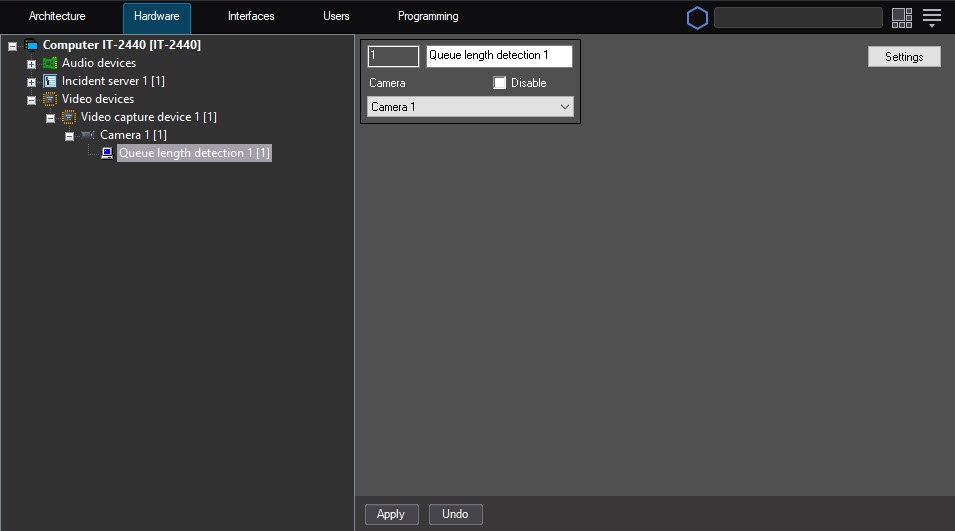
The To configure the Queue length detection module can be configured on the settings , use the settings panel of the the Queue length detection object created under object that is created on the basis of the Camera object in on the Hardware tab of the System settings dialog boxsettings window.
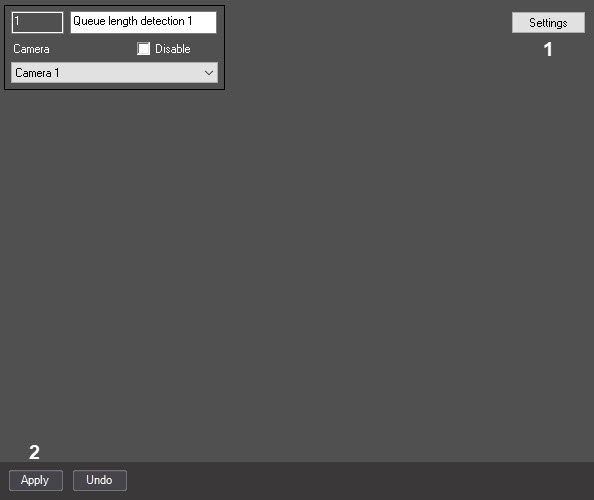
Configure To configure the Queue length detection module as followsdetection module, do the following:
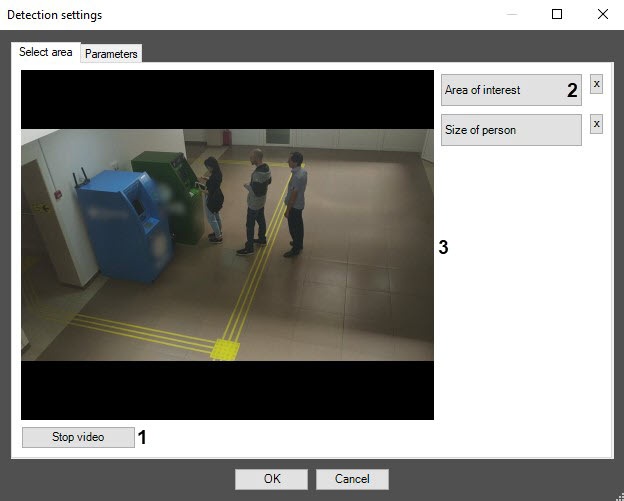
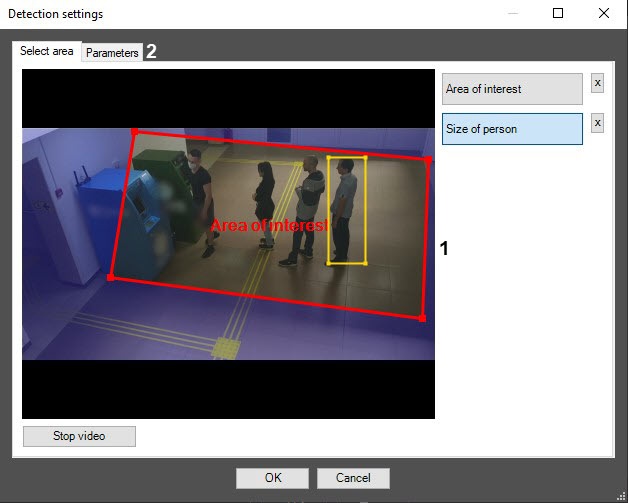
On the captured video frame (3), sequentially set the anchor points of the area
using the left mouse button, the situation of which you want to analyze (1).
You can add only one area
. When you try to add the second area
,
the first
one is deleted.
After you add the area, the remaining part of the video image
is darkened.
| Info | ||
|---|---|---|
| ||
To remove |
the area, click the |
button |
| Note | ||
|---|---|---|
| ||
Setting the Area of interest is |
the mandatory condition for the |
detector's operation. |
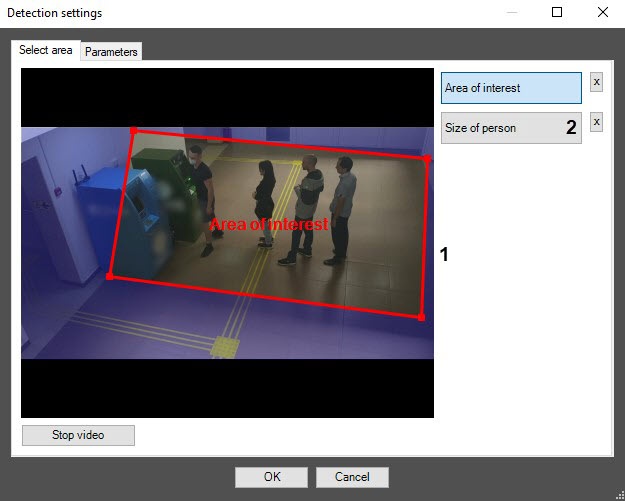
On the captured video image (1),
set the approximate size of a person. To do this,
click the left mouse button
and, by holding it, specify the rectangular area (1).
| Info | ||
|---|---|---|
| ||
To remove the person size, click the button |
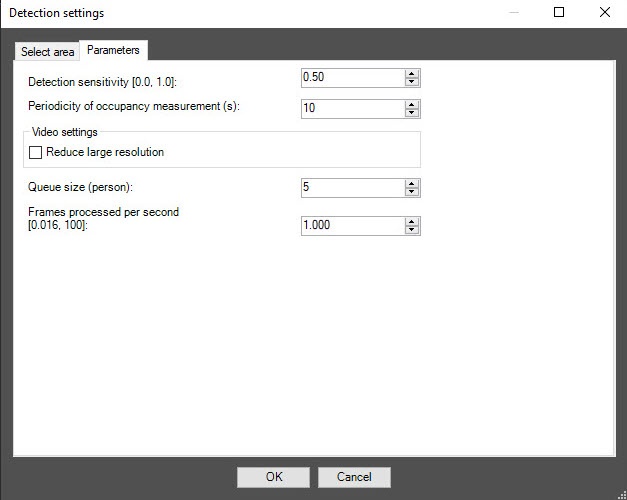
In the Periodicity of occupancy measurement
(s) field, specify
the time period in seconds for counting the number of people in the observed area
. The minimum value of this parameter is
the interval between frames of the analyzed video stream
but
cannot be less than one second
, the maximum is 3600 seconds. The value of the parameter depends on the scene characteristics. For example, if
the queue in the
camera FOV doesn't change for a long time,
the given parameter
can be reasonably large.
We don't recommend specifying the value of this parameter for more than 3-5 minutes for the correct operation of the algorithm on the average scene.
| Info | ||
|---|---|---|
| ||
The more often you measure the occupancy |
, the greater the load on the system. |
In the Frames processed per second [0.016, 100]
field, enter the number of frames per second that the
detector processes. The higher the value, the more accurate the
detector's operation, but the higher the load on the processor.
| Info | ||
|---|---|---|
|
You can find all events that are received from the Queue length detection object |
in |
the Event |
viewer interface window. For more details, see Obtaining traffic information in the area of interest. |
Click the OK
button to save the changes and return to the settings panel of the Queue length detection object.
| Info | ||
|---|---|---|
| ||
To return to the settings panel of the Queue length detection object without saving changes, click the Cancel button. |
Configuring the Queue length detection module is completedcomplete.


