To configure the Pose pose detection, do the following:
- Go to the settings panel of the Pose detection object that is created on the basis of the Person location tracker object.
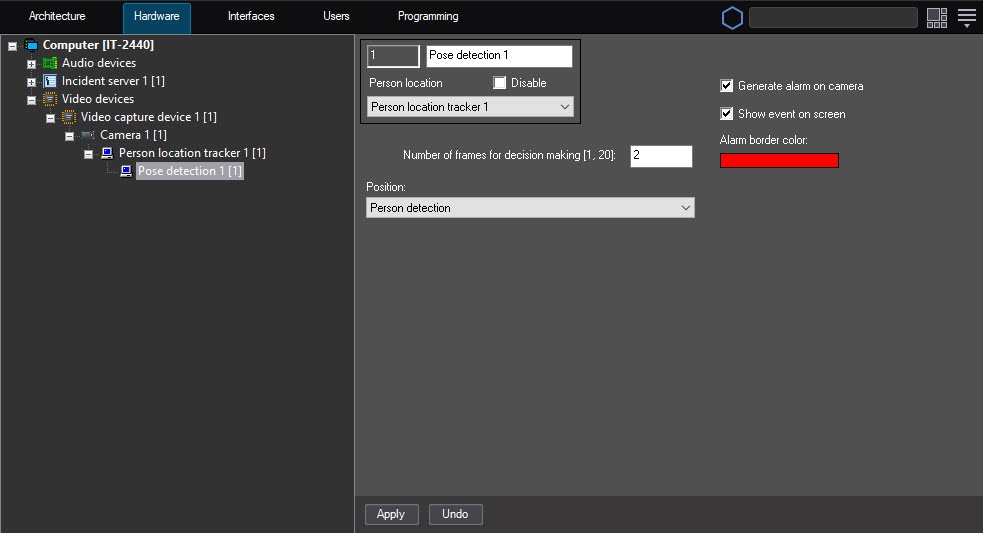 Image Modified
 - In the Number of frames for decision making [1, 20] field, enter the required amount of frames from 1 to 20 on which a person must be found in the specified pose to
trigger - generate the corresponding event. The default value
is - is 2.
- Set the Generate alarm on camera checkbox to
gererate - generate an alarm on the camera when the
detection tool - detector detects the specified pose. The checkbox is
clear - cleared by default.
- Set the
Display - Show event on screen checkbox to display an alarm border
on - in the
screen - monitor window when the
detection tool triggers- detector generates an event. You can specify the color of the alarm border in the next step. The checkbox is
clear - cleared by default.
- In the Alarm border color field,
specify - set the color of the alarm border using the color palette. The default color is red. Double-click the color field to open the Color palette. After
selecting - you select the border color, click the OK button to save the settings.
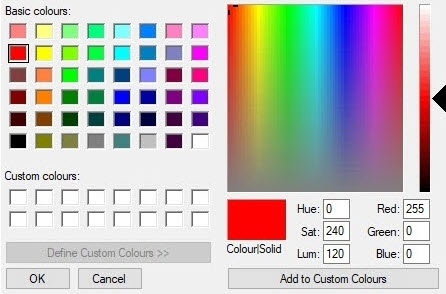 Image Modified
| Info |
|---|
|
The Show event on screen and Alarm border color parameter settings are absent for the close-standing people detector. When the detector generates an event, the alarm border doesn't appear in the monitor window, and events of the Close-standing people appeared are displayed only in the event viewer. |
- From the Position drop-down list, select the person position that you want to detect. Further settings depend on the selected option.
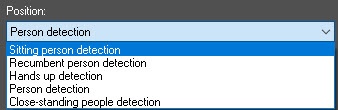 Image Modified
- Person detection—the
detection tool triggers - detector generates an event when there is a person in any pose in the frame.
- Hands up detection—the
- detector generates an event when there is a person with hands raised in the frame. A hand is considered raised if the forearm is parallel to the backbone and the wrists are above the shoulders.
- When you select this detector, the additional settings
- of the Working mode become available.
- It sets the hands' position at which the alarm event
- is generated.
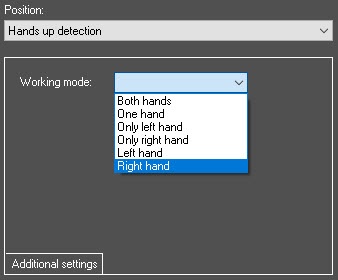 Image Modified
 Sitting person detection—the
detector generates an event when there is a sitting person in the frame.
You can adjust the perspective for this detector. To do this, do the following:
| Info |
|---|
|
You can also adjust the perspective for the Sitting person detection and the Close-standing people detection detectors. |
- Click the Settings button.
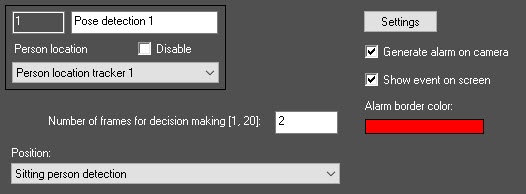 Image Modified
- In the Detection settings window that opens, click
- the Stop video button to capture a frame of the video image.
 Image Modified
 - Specify at least three calibration segments in different parts of the frame. To create
- the calibration segment, click and hold the left mouse button on the video image so that you can specify the
- required segment length
- . You can change the
- length of the already created segments using the anchor points. The calibration segments must be located at different angles to each other depending on the scene and the distortion of the video image.
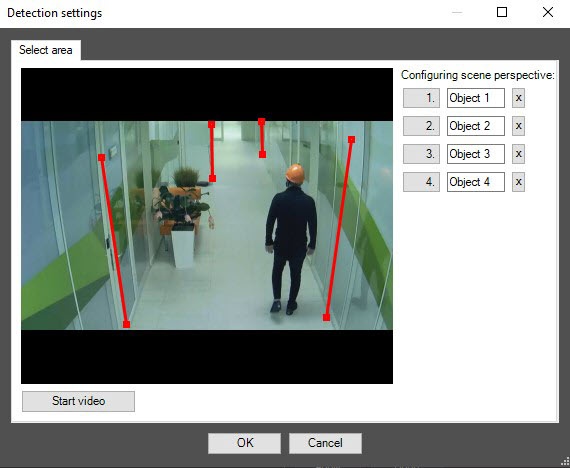 Image Modified
To delete the created segment, click the  Image Modified button.
- Click the OK button to save the settings of the perspective
- .
Recumbent person detection—the
detector generates an event when there is a recumbent person in the frame. You can exclude repeated
triggers of the
pose detector when there is a recumbent person
for one object by using the Recumbent.
SkipSitPeople registry key with the value 1
and the Recumbent.SkipSitPeopleTimeOffset
and Recumbent.
SkipSitPeopleAreaOffset registry keys. For more information on registry keys, see Registry keys reference guide. For
information on working with the registry,
see Working with Windows OS registry.
- Close-standing people detection—the
- detector generates an event when there are close-standing people in the frame. If you select this
- detector, the following additional settings
- become available:
- Calibration column length [0, 3]—sets the length of the calibration segments from 0 to 3 meters that
- are set when
- you adjust the perspective of the video image. The default value
- is 1.7;
- Distance sensitivity [0, 20]—sets the minimum distance between the people from 0 to 20 meters. If the distance between the people in the frame is equal to or less than the specified value,
- the detector generates an event. The default value is 2;
- Number of people to alert [2, 20]—sets the number of people who must break the distance for the
- detector to
- generate an event. Possible values are from 2 to 20. The default value is 2.
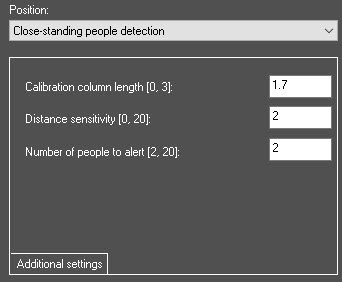 Image Modified
- Click the Apply
 Image Removed button
 - button to save the settings.
The Pose Configuring the pose detection is now configuredcomplete.


