Versions Compared

Key

  • This line was added.
  • This line was removed.
  • Formatting was changed.
Note
titleAttention!

You can specify the road lane borders by using the marking editing utility only. You cannot do that manually.

To work with the RR channel of the Traffic analysis module module, you must specify the road markings marking settings. To do this, do the following:
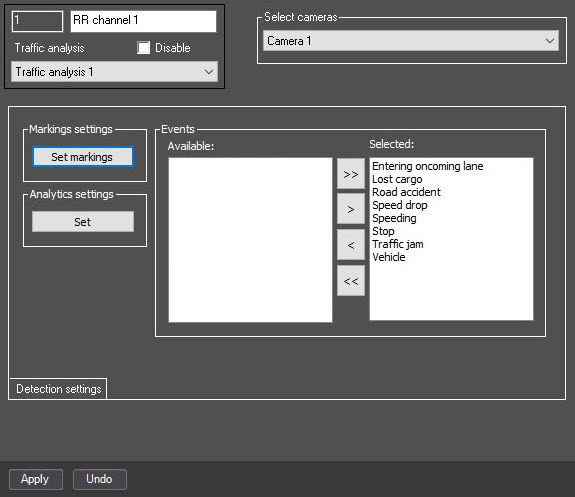
  1. Go to the settings panel of the Traffic analysis object RR channel object.
  2. Click the Set markings button on the settings panel to open the editing utility.
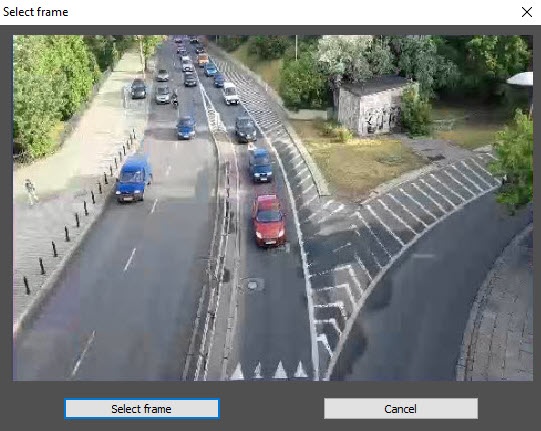
  3. In the Select frame window that opens, click the Select frame button to stop the video and specify the road markings marking in this frame.

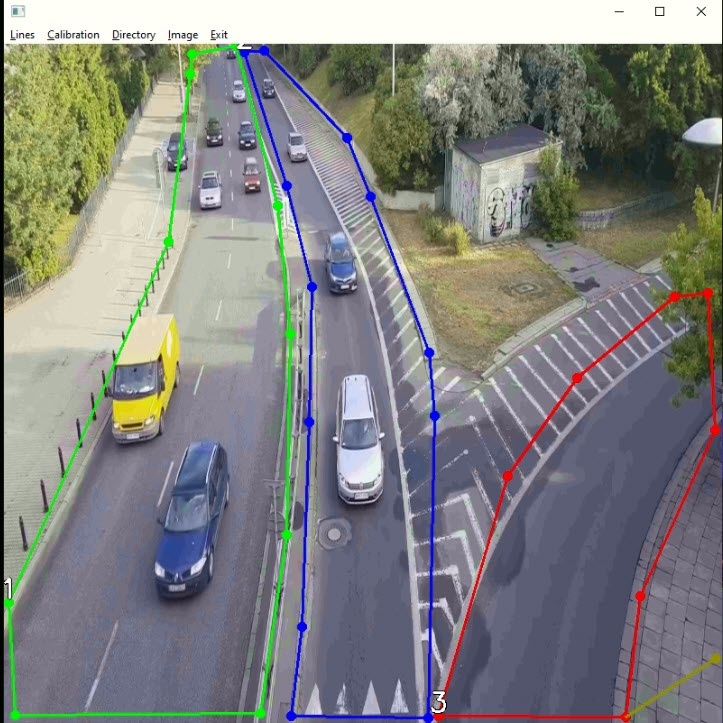
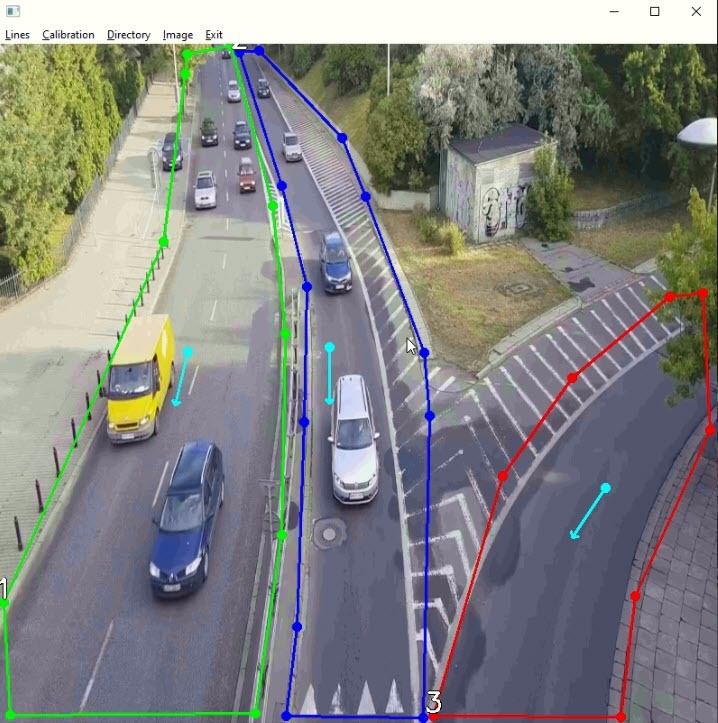
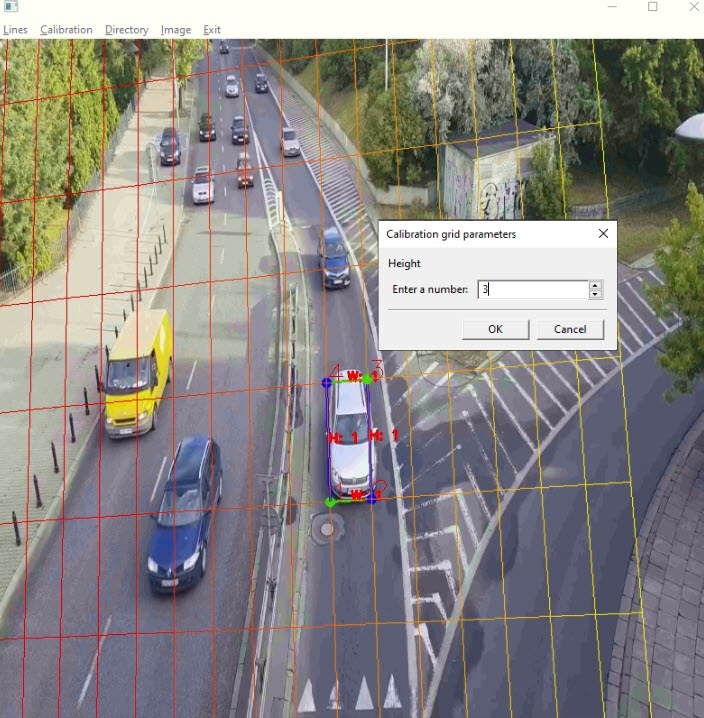
    A utility for editing road markings As a result, the marking editing utility opens.
  4. In the editing utility that opens, mark traffic lanes on the selected frame of the video:
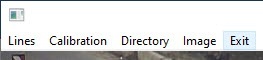
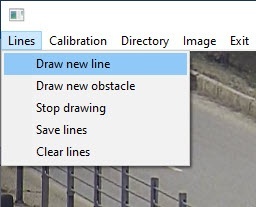
    1. Select the Lines Draw new line item in the menu line. Select Clear lines to delete a line.
    2. Mark the lane borders of the roadway.
    3. Repeat steps 4a and 4b as many times as there are lanes on the roadway.
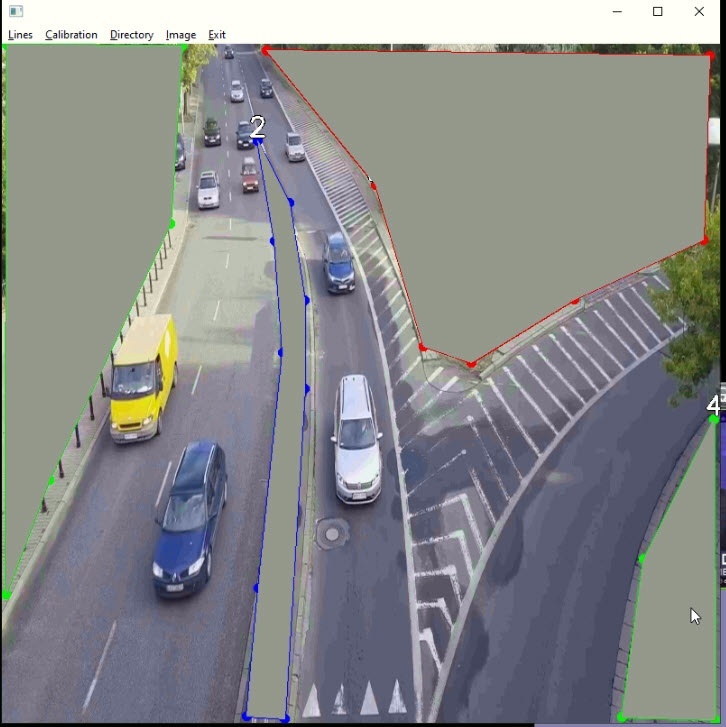
  5. Mark the borders of stationary static objects:
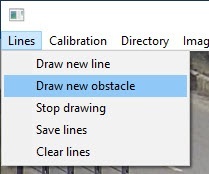
    1. Select the Lines Draw new obstacle item in the menu line.

    2. Mark the borders of stationary static objects.
    3. Repeat steps 5a and 5b as many times as there are stationary static objects in the frame.

  6. Mark Specify the direction of movement in on the lanes:
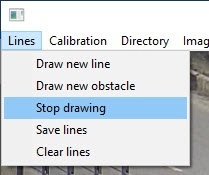
    1. Select the Lines Stop drawing item in the menu line.

    2. Point the arrows that appear on the lanes in the direction of traffic. This is required to generate an event of entering an oncoming lane.

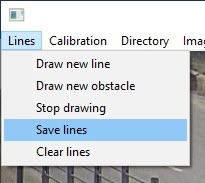
  7. Select the Lines Save lines item in the menu line to save the specified markings to a JSON file marking in the file of the JSON format next to an the EXE file.

  8. Calibrate dimensions:
    1. Specify pixels to correspond Set the correspondence of pixels to meters:
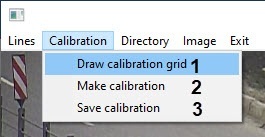
      1. Select the Calibration Draw calibration grid (1) item in the menu line to specify the dimensions of a the calibration grid;

      2. Double-click a dimension. A As a result, the window for editing the corresponding dimension of a the calibration grid opens: Height or Width;

      3. In the Enter a number field, specify a set the value in meters;
      4. Press the Enter key;.
      5. Repeat steps 8aii-8aiv for a the second dimension of a the calibration grid.
    2. Select the Calibration → Make calibration calibration item in the menu lineto calibrate the dimensions according to the calibration grid specified in step 8a (2);
    3. Select the Calibration → Save calibration calibration item in the menu lineto save the specified calibration to a JSON file in the file of the JSON format next to an the EXE file (3).
  9. Select the Exit item in the menu line to close the editing utility.

...

  1. Click the Apply button.

The road markings settings is complete.marking settings are set.
As a result, the Lane objects corresponding to the created lanes appear in the object tree.
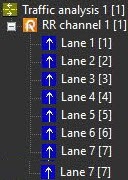
Image Added