
Go to documentation repository


Page History
Meta search is used for searching events based on text queries. For the correct operation of meta search, you must have the following:
- Active license key (see Types of licenses).
- Permissions to search in the archive (see Roles).
- Meta-detector that is configured and connected to the camera (see Meta-detector).
For meta search:
- Open the required layout (see Configuring layouts).
- Select the required camera.
- Click the Search button in the lower right corner of the surveillance window (see Switching to Search in archive).
- Set a search interval (see Setting a search interval).
- Click the
 button.
 - Select Meta search.
- Specify the parameters of the meta search listed in the table:
Parameter Value Description Meta search Text query Enter a text query in English (see Functions of the Meta-detector). If you don't enter a text query, the search doesn't return any results.
Examples of queries:
- Human and dog
- Running human
- Fallen human
Note title Attention! Optimal query structure:
- Object type (human, vehicle, and so on).
- Key attribute of an object (color, size, and so on);
- Surroundings (road, building, room, and so on);
- Additional scene specifications (angle, position in frame).
Examples: Woman wearing a black dress, White car pedestrian crossing top view.
We recommend using chatbots with artificial intelligence of the latest generation, such as ChatGPT-4o, that are able to:
- Generate optimized queries relying on the syntax of the BLIP-2 model (generate text descriptions from an image).
- Work with web links.
Similarity, % The value 60 is set by default. If necessary, change the numerical value of similarity in percentage. The value must be in the range [1, 99] 
You can use this button to decrease the numerical value 
You can use this button to increase the numerical value  /
/ 
By default, sorting by similarity
is set. To change the sorting to sorting by time , left-click the Sort by similarity icon. The icon changes to the Sort by time icon - Click the Search
 button. The search based on the specified criteria starts.
| Info | ||
|---|---|---|
| ||
You can stop the search process at any time. To do so, click the Stop |

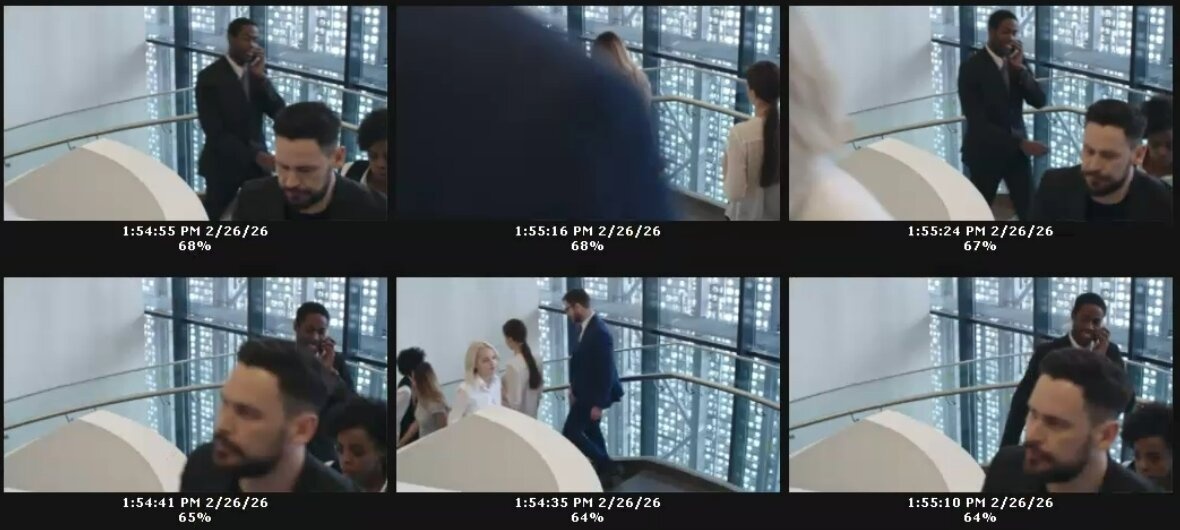
The search results panel displays frames that meet the specified search criteria:
Overview
Content Tools