Unable to render embedded object: File (books.jpg) not found.
Go to documentation repository

Page History
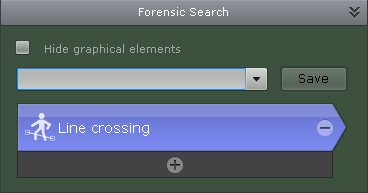
A search criterion is already selected when you switch to Forensic Search: the criterion is either the last one used (if a search was performed previously) or the default criterion Motion in Area.
To remove a search criterion, click the  button.
To add a criterion, click the  button and select the necessary criterion from the list.
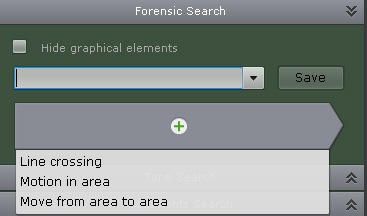
After this, you can add search parameters by using the button as well.
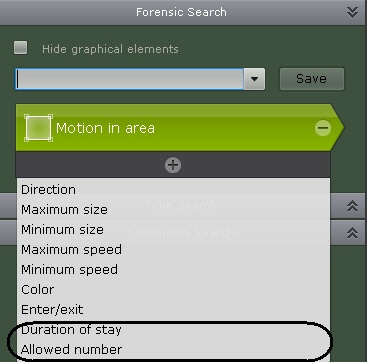
The subcriteria Loitering in area and Multiple Simultaneous Objects in Area are selected as parameters for the Motion in the Area criterion.
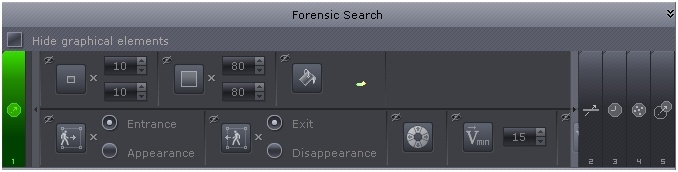
To select a criterion for Forensic Search, you can use one of five expanding tabs:
| Info | ||
|---|---|---|
| ||
| These tabs are displayed on the Forensic Search tab in the search control panel. |
- – Motion in an area
- – Object trajectory crossing a virtual line
- – Loitering in an area
- – Multiple simultaneous objects in an area
- – Moving from area to area
When you click a tab’s icon, the tab expands and the previously expanded tab collapses. One of the tabs is always expanded; the expanded tab is colored light gray.
Overview
Content Tools