| Note |
|---|
|
Before creating the To create the Report by potential violations, first you must first create and configure the POS terminal object in POS PSIM (see The POS terminal object setup). |
...
To create a report, select the Report by potential violations from the list of POS reports (see Select the type of general POS report) and edit report parameters in the form that opens.
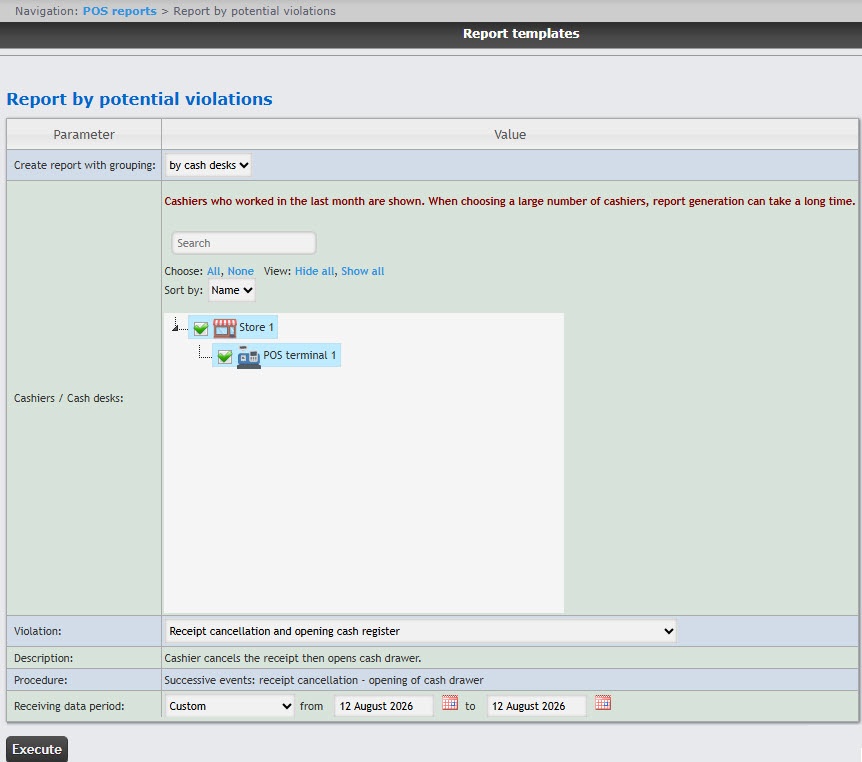
- From the Create report with grouping drop-down list, select the type of data grouping: by cashiers or by cash desks.
Select the cashiers or cash desks with potential violations you want to display in the report by setting the corresponding checkboxes in the list. Click All to select all available objects. Click None to deselect. Click Show all to expand the
object structure. Click Hide all to hide the structure.
By default, the list of cashiers or cash desks is sorted by name. To sort by number, select this option from the Sort by drop-down list.
| Note |
|---|
|
This field is mandatory: the report will not be generated if no value is selected. If you try to generate a report, a warning message will alert you that you must select at least one value from the list. |
- To use the search when selecting cashiers or cash desks, in the search field, start entering the cashier's last name or the name of the cash desk. The search works from the first character. The results are highlighted in a different color.
By default, the list of cashiers or cash desks is sorted by name. To sort by number, select this option from the Sort by drop-down list.
- Select potential violations
which - that must be displayed in the report. If all is selected, then all types of violations will be displayed in the report:
- Cancellation of all the goods in the check followed by the addition of positions on the same receipt
—cashier - —the cashier cancels all positions in the receipt, taking advantage of the
- customer leaving before the receipt printing. After that, the cashier adds the goods of the next customer on the same receipt or closes the receipt with a minimal sum. Money
- gotten for the purchase from the first customer goes to the category of unaccounted money surplus.
- Unauthorized reduction in the price of the goods—cashier enters price manually to reduce the price of goods (while selling to accomplice).
- Unauthorized increase in the price of the goods—cashier enters price manually to increase the price of goods. If a customer left before receipt printing, the cashier returns the correct price of the good and receives unaccounted money surplus.
- Intended ignoring some goods
- —the cashier includes only one good with the smallest price (e.g., package) from all positions of goods. The rest of the goods the cashier misses without payment.
- Intended change of how the goods look—cashier reads the barcode from another
- good or from a prepared label instead of
- the good that lies on the counter. If the price of the added position is less than the price of the purchased good, the cashier can give
- the accomplice an expensive good at a low price. Goods
- that are to be inspected in this type of violation are determined
- during inventory.
- Erroneous double scanning—cashier erroneously scans the same goods two times. Doesn't perform cancellation of extra
- goods. Cheating in accounts is performed.
- DISABLED: Unintended change of how the goods look ("Enter product code" number needed)—as a result of error while
- manually entering the code of goods due to the cashier error, some goods can be sold as another.
- Ignoring some goods while scanning
- —the barcode of goods is not scanned, but the cashier doesn't pay attention to it and starts processing the next goods. As a result, the goods are sold without payment.
- Errors while canceling the quantity of goods—cashier makes an error while entering the quantity of goods (e.g., enters 56 instead of 5), cancels this operation, and forgets to enter the correct number and starts to process the next goods. As a result, the goods are sold without payment.
- Cash register reset by the cashier—cashier restarts the cash register when the administrator is absent.
- Not giving the receipt to the customer
- —the cashier settles the account with the customer and doesn't give them a receipt.
- The receipt is not closed
- leaves, the cashier can cancel goods, discount goods, and
- perform other actions to make an unaccounted money surplus.
- Recounting contents of the cash register
- —the cashier recounts money when the administrator is absent. Probably with the purpose of taking out an unaccounted money surplus.
- Intended reduction in the number of the goods
- —the customer leaves before the receipt printing.
- The cashier reduces the quantity of goods (e.g., from 2 items to 1 item) and prints the receipt. Then takes the money surplus for 1 item of goods.
- Cancellation of the receipt when the administrator is absent
- —the key of the administrator is freely moved between cashiers.
- Intended ignoring some goods using the "Product info" button
- —the cashier presses the "Product info" button. Scans goods
- and determines a price. Receives cash. Doesn't print the receipt
- and takes the money surplus.
- Receipt cancellation and opening cash register
- —the cashier cancels the receipt, then opens the cash register.
- The Description field has the description of the violation and is filled in automatically when the violation is selected.
- The Procedure field has the description of the procedure by which the violation is determined
, - and is filled in automatically when the violation is selected.
From the Receiving data period drop-down list, select the period
for which the report must be created.
If you select the Custom period
, enter the
dates of the start and end periods for which the report must be created in the from and to fields using the Calendar tool.
 Image Removed button near the corresponding field to use the Calendar tool.
- Click the Execute button.
As a result, a summary table of potential violations according to the specified parameters is displayed. Only those cashiers (cash registers) that you selected and for which there is data are displayed.
...
You can enable the analysis of cash registers in the background. To do this, in the C:\Program Files (x86)\Axxon PSIM\Modules\Wt2\Web.config file, set the value of the PotentialViolationsEnabled key to 1:

| Info |
|---|
|
By default, the analysis of cash registers in the background is disabled, and the value of the the PotentialViolationsEnabled key is 0. If there are many cash registers and their analysis is not completed before the end of the user session, then increase the value of the timeout parameter in the C:\Program Files (x86)\Axxon PSIM\Modules\Wt2\Web.config file. The value of the timeout parameter is set in seconds.
 Image Modified Image Modified |
The Report by potential violations is created.


