
Go to documentation repository


Page History
...
The order of the map tabs is changed.
| Info | ||
|---|---|---|
| ||
When you open a layout that was shared by another user, at first the maps are displayed in the order specified by the current user. The remaining maps are displayed in the order specified by their owners. |
Change the tilt of the map surface
...
- Go to the map edit mode.
- Go to immersion mode.
- Left-click the video image to add connection points. You must add at least six connection points. To delete a connection point, hover the cursor over it and click the
 button. The calibration is recalculated if you delete a point. After you add all connection points, you can adjust their positions by dragging them with the left mouse button pressed. To reset all connection points, click the Reset changes
  button.
Note title Attention! When you set a point on the video, the following rules must be met:
- All connection points must lie on the same horizontal plane. We recommend placing the points on the floor or on the ground.
- We don't recommend placing three points in a straight line.
- The points must demonstrate the perspective of the plane.
- When you set the sixth point, it is possible that the second connection point cannot be placed in certain locations. This happens because the system cannot determine the correct viewing angle to display the video and the map with the set connection points. Most likely, you set the connection points incorrectly.
- If calibration is available, the Apply calibration
 button appears after you add a sixth point (or more), allowing you to calibrate the connection points on the map.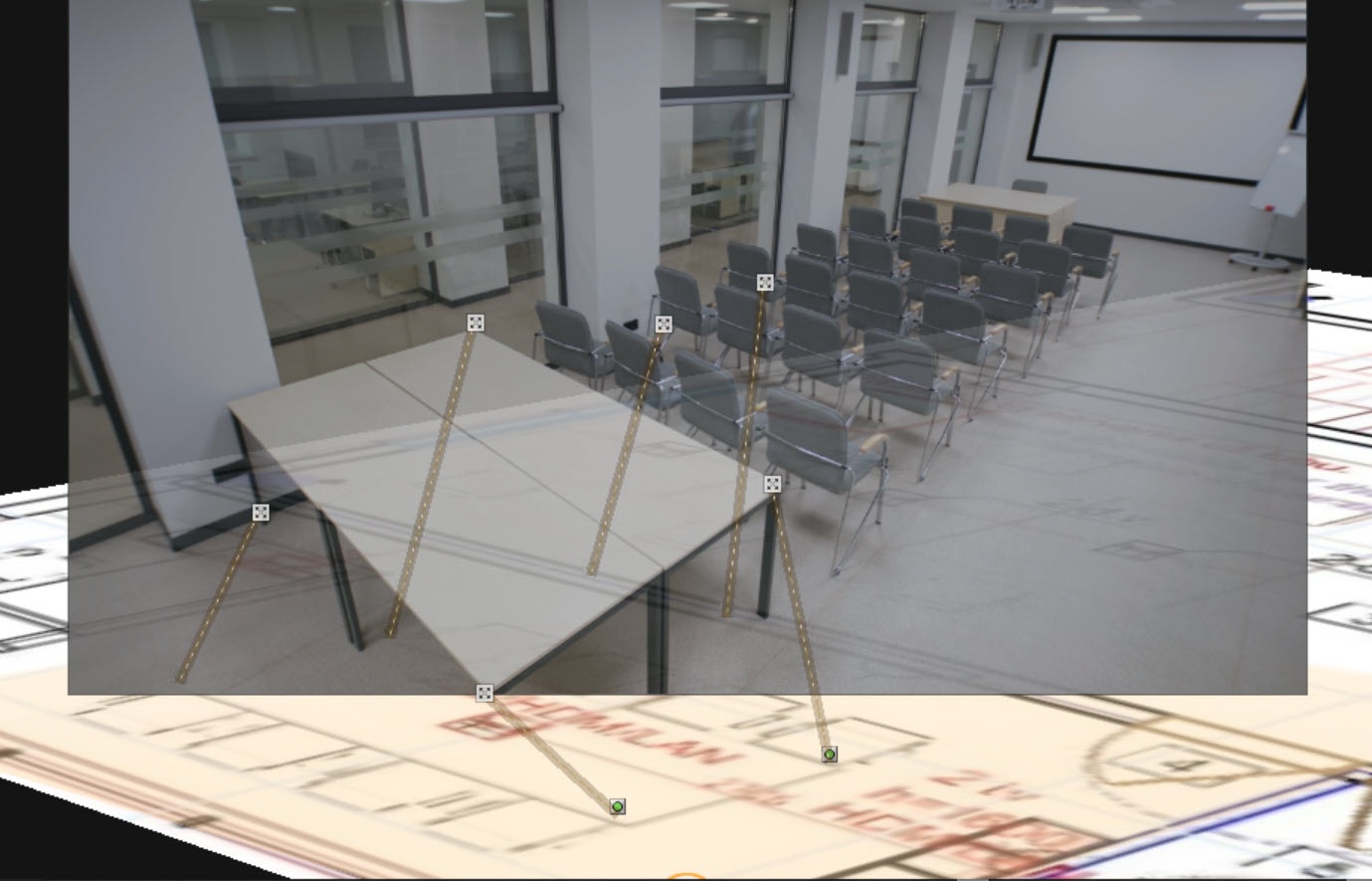
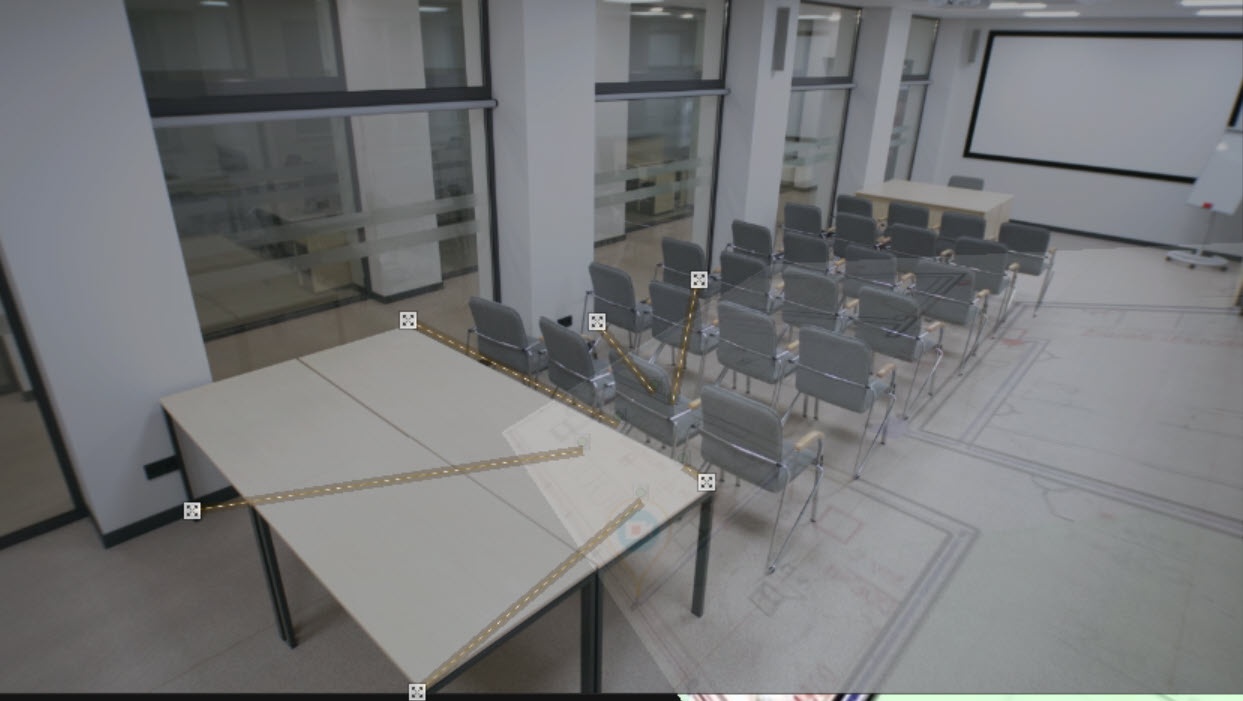
- Click the Save
 button. To cancel actions, click the Cancel
  button.
Note title Attention! The specified connection points are reset if you perform any of the following actions before you save the changes and exit:
- If you change the place of the camera's icon on the map.
- If you change the angle of the display area on the map.
- If you change the camera's field of view on the map.
After you update from previous versions to Axxon One 3.0/3.1 or higher, the connection points used to link the camera to the map are reset. You must set the connection points again.
...
Overview
Content Tools