
Go to documentation repository
...
| Note | ||
|---|---|---|
| ||
To ensure the proper operation of the IntLab software module, additionally download and install the appropriate LP number recognition algorithms (SDK) from the official AxxonSoft website. If the IntLab SDK was installed in a non-default folder, then for the IntlabSDKx32Path registry key (if the SDK x32 was installed), or IntlabSDKx64Path key (if the x64 SDK was installed), set the corresponding path to the folder in which the IntLab SDK was installed (for more details, see Registry keys reference guide, for more information about working with the registry, see Working with Windows OS registry). |
Setting up the IntLab program module is done in the following way:
Go to the IntLab module object settings panel, which is created on the basis of the LPR Channelchannel object.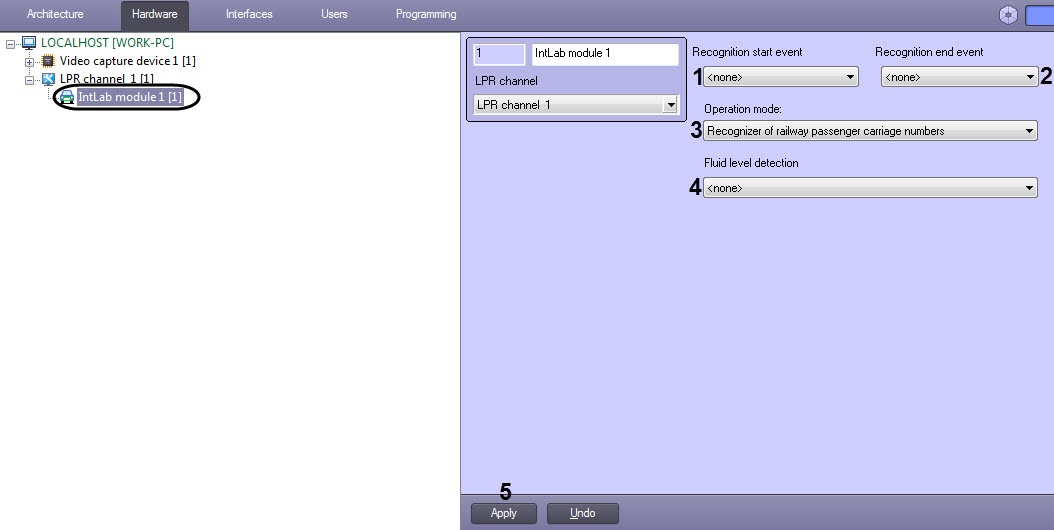
Select the macro from the drop-down list of the Recognition start event (1) on which the LP recognition will be started.
| Info | ||
|---|---|---|
| ||
LP number recognition may also start with the subtitles information added to a video. To do so, it is necessary to specify the 1 value for the ReadRayFromTitles registry key (for more details, see Registry keys reference guide, for more information about working with the registry, see Working with Windows OS registry). |
Select the macro from the drop-down list of the Recognition end event (2) on which the LP recognition will be completed and the result will be given.
| Info | ||
|---|---|---|
| ||
| For more details on working with macros, see Creating and using macros. |
From the Operation mode drop drop-down list, select the mode of numbers recognition (3).
| Mode |
| Recognizer of railway passenger carriage numbers |
| Recognizer of railway freight carriage numbers |
| Recognizer of UIC railway carriage numbers |
| Railway container number recognizer |
If the use of the auxiliary recognition channels (IntLab subordinate modules) is required, the auxiliary channels are to be configured (see Setting up the auxiliary recognition channel of the IntLab module).
...
Setting up the IntLab program module is completed.
| Info | ||
|---|---|---|
| ||
When the Auto - Intellect software is restarted for the first time after configuring the IntLab module, the folder will be created on the following address:
This folder will contain the following files and folders:
|
...

