
Go to documentation repository
| Note | ||
|---|---|---|
| ||
To enable the displaying of the cashier statistics, create the Statistics by cashiers report, you must first create and configure the POS - terminal object should be created and configured in the Intellect in POS PSIM (see The POS - terminal object setup), and you also must configure this report should be configured (see Setting up the Statistics by cashiers report). |
In order to display the cashier statistics do the following:
. |
| Info | ||
|---|---|---|
| ||
You can use templates when you create a report. To add a new template, click Report templates→New template and fill in the Name and Description fields. The template will use the selected parameters of the current report. Templates work the same way as templates in the scheduler and can be used interchangeably. When you create a response using a template, click Report templates at the top of the page and select the required template from the list of saved templates (the required template is highlighted). As a result, the parameters of the current report are updated according to the selected template. |
To create the Statistics by cashiers report:
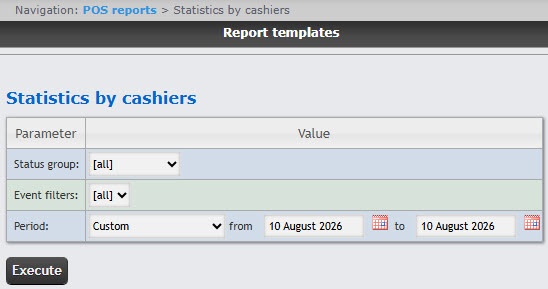
Specify the Status group of the events you want to display in the report
. If [all] is selected, the report will include all events regardless of their statuses.
From the Period drop-down list, select the time period of the cashier data
.
If you select the Custom period
, enter the
dates of the start and end periods for which the report
must be created in the from and to fields using the Calendar tool.
 button near
 Example of a Statistics by cashiers report:
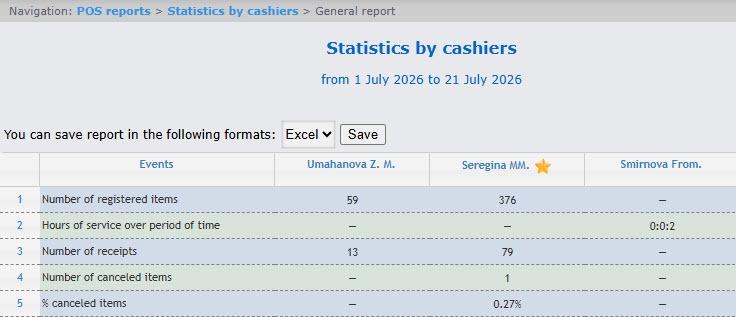
This is a summary table of events for all cashiers. In the cashier name column, the total number of events registered for this cashier will be is indicated. To view a detailed report on the selected event for the cashier, click on the corresponding value in the table.
In order to save a the Statistics by cashiers report in .xls format, click the Save button.

