
Go to documentation repository


Page History
...
General information about configuring Automatic connection
| Note | ||
|---|---|---|
| ||
To configure and use the Automatic connection feature, you need an active license key (see Types of licenses). |
This setting is used to automatically connect:
- the Client client to the Server server without having to re-enter the Server server name, username, and password when starting the app;
- the Client to Servers belonging client to servers that belong to different domains (see Cross-System client);
- the Client client to the nodes of the FailOver failover system (see see Configuring Failover VMS).
If you connect automatically, the Servers specified in the Automatic connection parameters group will be used first. If these Servers are unavailable, the system will try to connect to the Servers from the Preferred servers parameters group following the set order (see Selecting Preferred Servers).
Configuring Automatic connection
Configuration of automatic connection
To configure automatic connection, do the following:
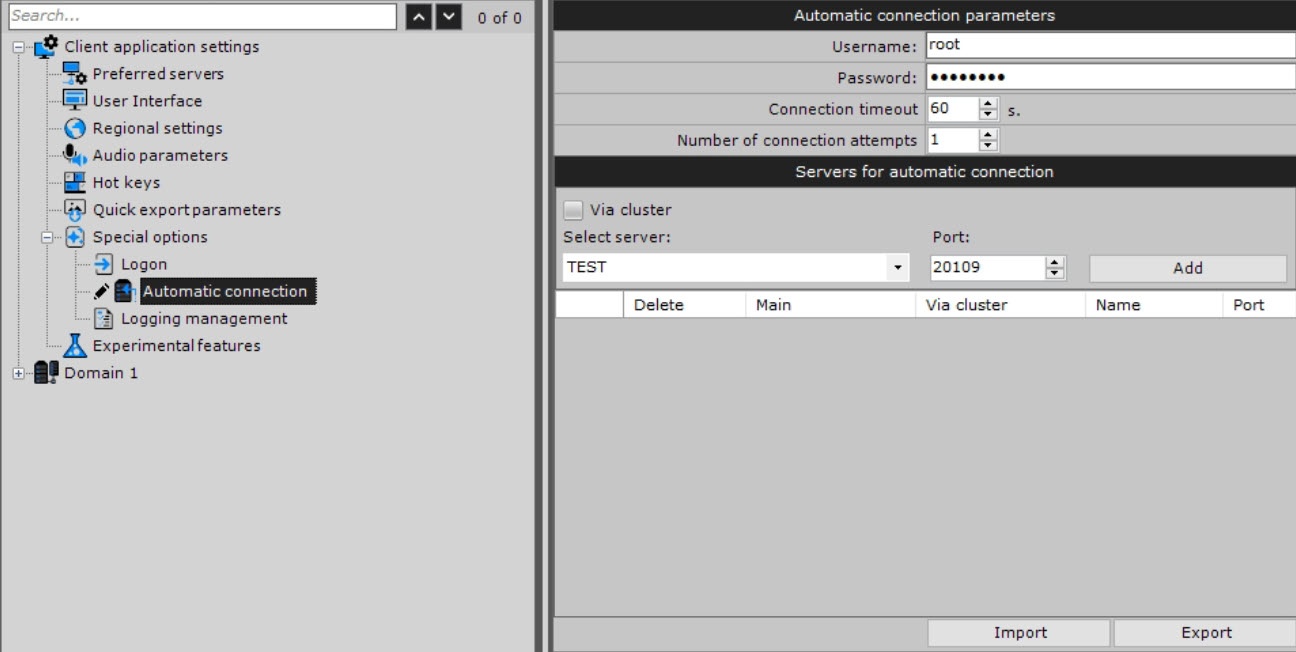
- Go to the Settings tab → the Options tab → Special options → Automatic connection.
- Specify the required settings listed in the table:
Parameter Value Description Automatic connection parameters Username Enter the username and password for automatic authentication when connecting to the servers. If you leave these values blank, you must log in manually when you start the client
- Select the Options tab (1) → Automatic connection (2).
 From the drop-down list (3), select the connection protocol.
 Note title Attention! The Cross-System
Client client connects to all
Servers servers using a single username-password pair that must be created in each domain (
see see Cross-System client).
Password In the Connection timeout field (5), specify the wait period Connection timeout The default value is 15 seconds. Specify the time in seconds to wait for a successful connection before considering the attempt unsuccessful. The default value is 60 seconds, the maximum value is 300 seconds (5 minutes). If When you use this setting, an automatic connection attempt will occur attempt to automatically connect is made immediately. If connection failsunsuccessful, the Server will wait server waits for the period of time specified by the user (timeout) and repeat the connection attempt.user-specified timeout period and then retries to connect. The value must be in the range [5, 300] Number of connection attempts The default value is 1. Set Specify the maximum number of automatic connection attempts to automatically connect after the specified timeout (6).Specify the Servers to which you want to connect. For each Server, do the following:- Select a Server from the list or enter the Server IP address (7).
- Specify the port for connecting to the Server (8).
Info title Note If you leave the Port field blank, the standard port 20109 will be used for connection.
Click the Add button (9) . The value must be in the range [1, 100] Connection type Normal connection Provides connection to one server, while other servers serve as backups. If the main server is unavailable, connections to the backup servers are made sequentially. All servers must be in the same domain
Cross-system connection Provides simultaneous connections to several servers that belong to different domains. The main server connects first, followed by other servers (regardless of the availability of the main server). All servers must be in different domains
Servers for automatic connection Select server Select the server from the drop-down list or enter the IP address of a server Port The default value is 20109. Specify the port to connect to this server. If you leave the field blank, the connection is established via the standard port that is set by default - Click the Add
 button.
Description of the protocol and recommendations for selection are given in the table.
You must select this protocol for a Server with a large number of cameras and which has several Clients working with it
The multicast scheme is used to transmit data to a group of recipients. This protocol is best suited for a Server with a large number of cameras and which has many Clients working with it.
Attention! This protocol must be supported by all network elements, including switches

| Info | ||
|---|---|---|
| ||
|
...
|
...
|
...
|
...
|
...
|
...
|
Configuration of automatic connection of the Client client to Servers servers is complete. The next time you start Axxon One, it will connect connects to the selected Serversservers.
Configuration of automatic connection of the
...
client to servers that belong to different domains
When you use the Cross-System Clientclient, select the main domain after adding you add all Servers servers to the list. To select the main domain, set the the Main checkbox in checkbox in the corresponding column of the Server server that is on the domain.
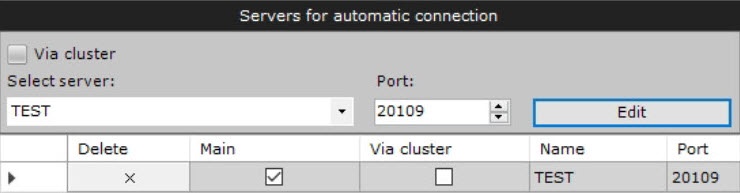
When connecting, the Client client will use the parameters (maps, layouts, user permissions) of the main domain.
Configuration of automatic connection of the
...
client to the nodes of the
...
Failover system
If you want to configure automatic connection to a node of the FailOver failover system, do the following:
- Set the Discover Via cluster checkbox (1).Enter
- In the Select server field, enter the IP address of any Server
- server of the cluster (2) and click
- .
- Click the
 button.
 - From the drop-down list (3), select a node that you want to add to autoloading.
- Click the Add button.
- Click the Apply
 button. To cancel the actions, click the Cancel
  button.
Configuration of automatic connection of the Client client to the node of the FailOver Failover system is complete.
...
Configuration of automatic connection
...
to the backup server
To automatically connect to the backup server if the main one is unavailable server in the N+1 cluster configuration, do the following is unavailable:
- In the Automatic connection parameters group, enter the IP address and port of the main server , as well as and the name of the node.
- Click the Add
 button.
 - Set the checkboxes in the Main and Discover cluster Via cluster columns.
- In the Preferred servers parameters group, select Select a backup server from the list or enter its IP address and node name.
- If necessary, change the default port for the backup server in the Port field.
- Click the Add button.
- Click the Apply buttonApply button.
Configuring the Configuration of automatic connection with to the backup server is complete.
...
Change the
...
server port
To change the port of an already added Server, do the followingserver:
- From the Select the Server from the list again (1).
 server drop-down list, select the server.
 - In the Port field (2), specify a new numberport.
- Click the Edit button (3).
Changing the port of the added Server server is complete.
...
Export and
...
import of the configuration of automatic connection
To save the configuration of automatic connection to Servers and preferred Servers (see Selecting Preferred Servers) to servers to a JSON file, click the Export  button.
To load the configuration on the Clients, do the followingclients:
- Click the Import
 button.
 - Click the Apply button.
Loading of configuration is complete.
Overview
Content Tools