The Handrail handrail grip detection is used to detect safety violations when a person is walking on stairs and doesn’t hold the a handrail with their hands.
To configure the Handrail handrail grip detection, do the following:
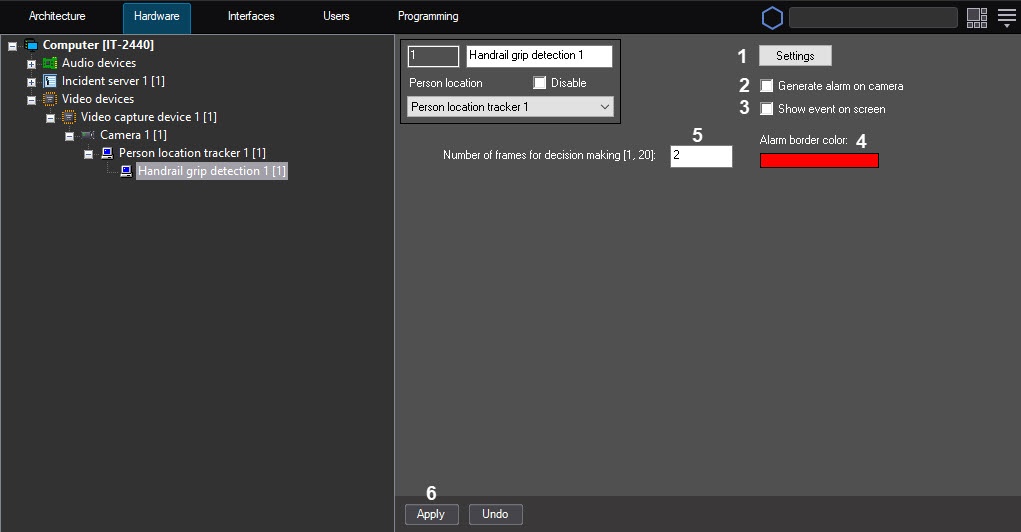
- Go to the settings panel of the Handrail grip detection object that is created on the basis of the Person location tracker object.
- Configure the handrails handrail and steps step areas. For this, do the following:
- Click the Settings button (1). The As a result, the Detection settings window opens.
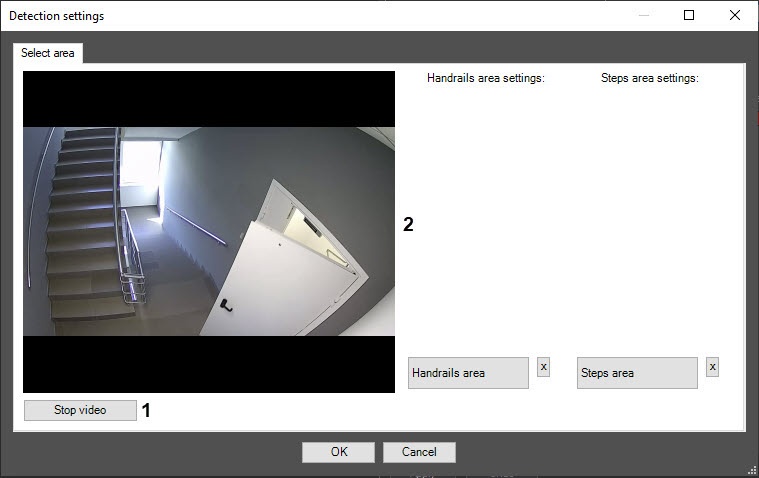
- Click the Stop video button (1) to capture a frame of the video image (2).
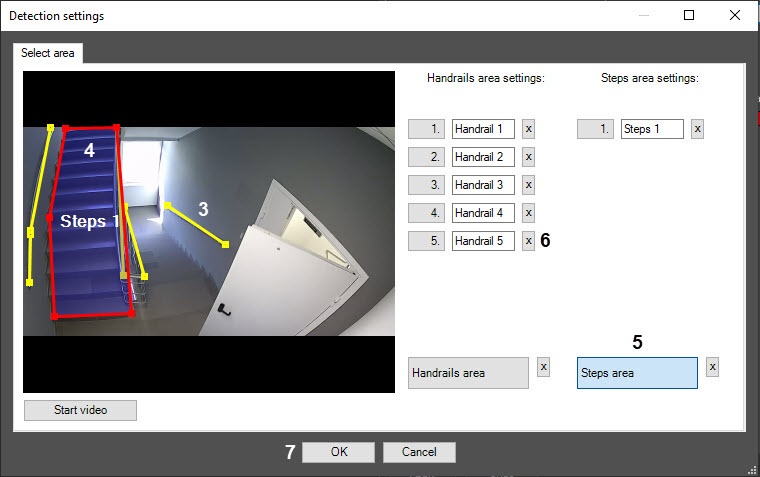
On the captured frame, set at least one handrails handrail area (3) and at least one steps step area (4). To add an area, enable the corresponding Handrails area or Steps area button by clicking it. The active button is highlighted in blue (5).
| Info |
|---|
|
- For the Handrail handrail grip detection to work, you must create at least one handrails handrail area and at least one steps step area. Otherwise the detection tool won’t , the detector doesn't work.
- To delete an area, click the
 button to the right of the corresponding steps step or handrail area (6). button to the right of the corresponding steps step or handrail area (6). - If the a handrail in the frame is curved, you must specify it with several lines.
- The accuracy of specifying the handrails handrail and steps step areas increases the accuracy of the detection.
- If the a handrail is wide, it is recommended to specify the handrail then we recommend specifying a line in the middle of the a handrail.
- The object location of the object in the steps ladder area is determined by the middle of the lower extremities (the middle between the ankles. If they aren’t visible, then the middle between the knees).
|
- Click the OK button (7) to save the changes and return to the detector settings panel of the detection tool.
- On the settings panel of the detection tool, set Set the Generate alarm on camera checkbox (2) to on the detector settings panel to generate an alarm on camera when the detection tool is triggereddetector generates an event. By default, the checkbox is clearcleared.
Set the Show event on screen checkbox (3) to display an alarm border on the screen when the detection tool is triggeredscreen when the detector generates an event. You can specify the color of the alarm border in the next step. By default, the checkbox is clearcleared.
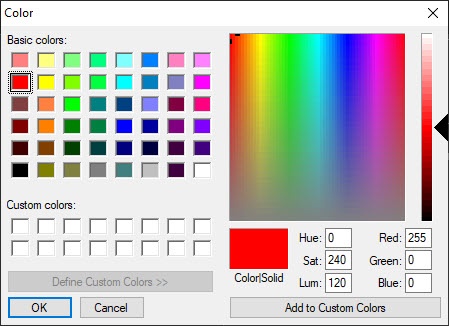
In the Alarm border color field (4), specify set the color of the alarm border using the color palette. The default color is red. You can open the Color palette by double-clicking the color field. After selecting you select the frame color, click the OK button to save the settings.
In the Number of frames for decision making ([1, 20)]field (5), enter the required number of frames from 1 to 20, on which a person is walking on the stairs and doesn’t hold the a handrail , to generate the corresponding event. The default value is is 2.
- Click the Apply button (6) to create a detection tool the detector with the specified settings.
Configuring the Handrail grip detection is complete.


