
Go to documentation repository


Page History
| Info | ||
|---|---|---|
| ||
The SADP settings of the Hikvision controller will be illustrated by |
...
an example of |
...
the Hikvision 26X controller. SADP settings for other Hikvision controllers are similar. |
To configure the Hikvision SADP, do as follows:
- Go to the Hikvision 26X object configuration panel.
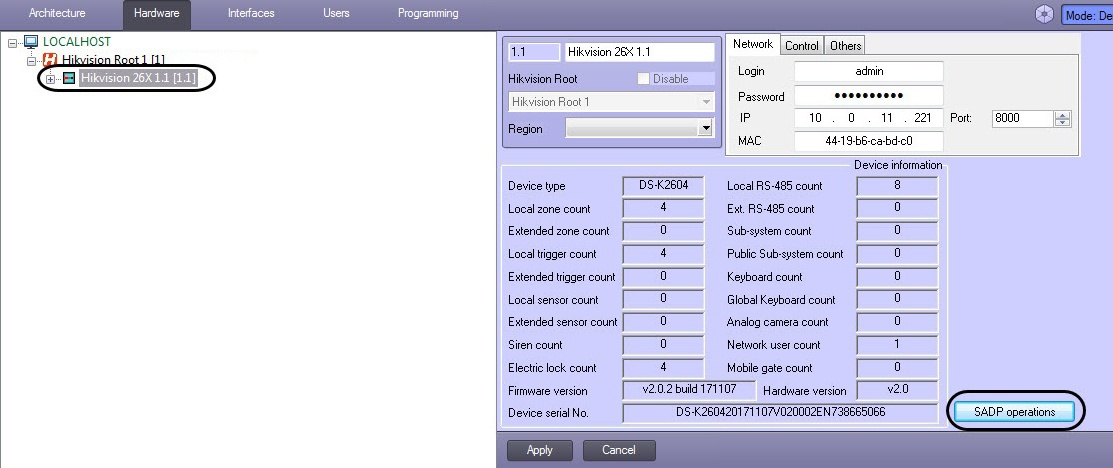
- Press the SADP Operations button. The SADP Settings Setup window opens.
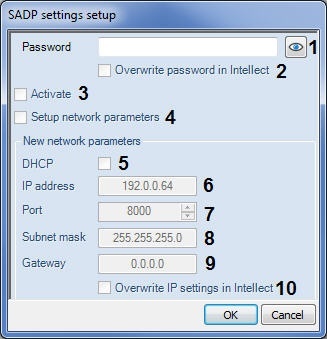
- In the Password field (1), enter a new password for the Hikvision controller.
- Check the Overwrite Password in Intellect (2) box to automatically overwrite the old password in the ACFA Intellect integration module with the new one; otherwise you need to do it manually (refer to Network settings of the Hikvision controller).
- Check the Activate (3) box to activate the controller in case it has been reset to factory settings. The password entered on step 3 becomes the master password for the Hikvision controller.
- Check the Setup Network Parameters (4) box to enable changing network settings.
- Check the DHCP box (5) to enable DHCP.
- In the IP Addressaddress field (6), enter the new IP address of the Hikvision controller.
- In the Port field (7), enter a new connection port number for the Hikvision controller.
- In the Subnet mask field (8), specify the mask for a subnet where the Hikvision controller will be located.
- In the Gateway field (9), specify the connection gateway for the Hikvision controller.
- Check the Overwrite IP Settings in Intellect box (10) to automatically overwrite the old network settings in the ACFA Intellect integration module; otherwise you need to do it manually (refer to Network settings of the Hikvision controller).
- Click the OK button to apply the settings.
Hikvision SADP settings are now completedconfigured.
Overview
Content Tools