
Go to documentation repository


Page History
| Section | |||||||||||||||||||
|---|---|---|---|---|---|---|---|---|---|---|---|---|---|---|---|---|---|---|---|
|
...
|
Export a period of Axxon PSIM main archive
Export of the archive period allows exporting video recordings videos for a specified period into on a single AVI file.
Export of the archive period is performed via the playback control panel.
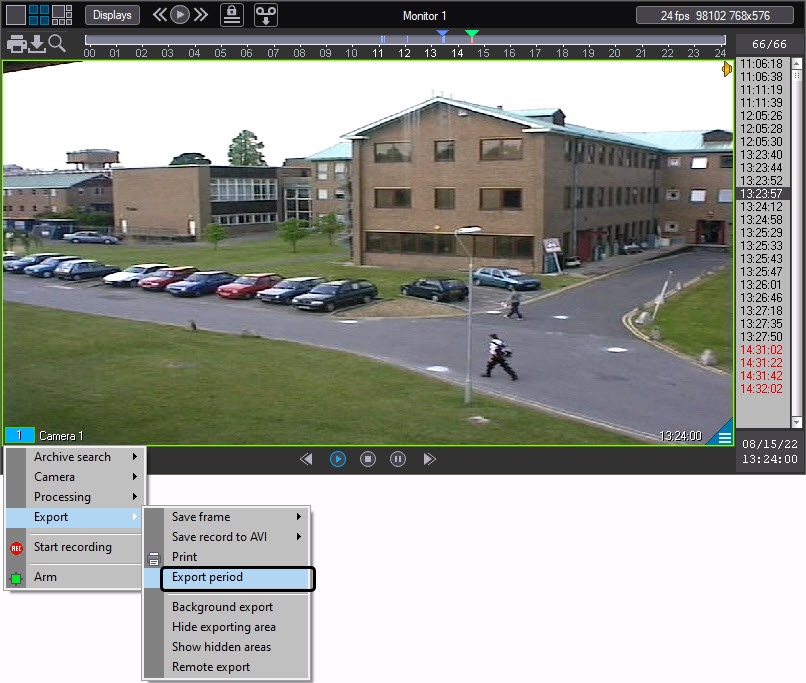
To export the archive period, select the Export period item in the Export submenu of the Viewing tile feature menudo the following:
- Go to the archive mode (see Archive browsing modes).
- In the function menu of the surveillance window, select Export → Export period.
Set In the export parameters in the displayed Export period to file boxwindow, set the export parameters:
- Date and time of the beginning of recording.
- Date and time of the end of recording.
- record start and end (1).
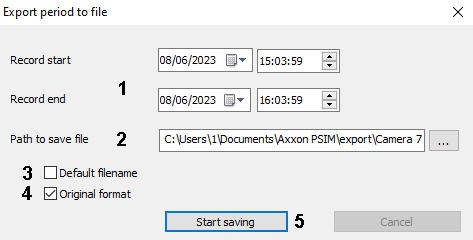
Full
Thepath to the
filefolder to which the
recordingvideo will be exported (2). You can set it manually or select it using the
 button—a standard Windows Explorer window opens. Optionally, you can specify the name of the file to be created, with the .avi extension. An example of a path with a given file name: C:\Users\1\Documents\PSIM\export\videoexport.avi.
By default, the file is exported to C:\Users\%current username%\Documents\PSIM\export\. The file name is generated as follows: <Camera name><Start date and time specified in the export window>_<Episode number>.avi. For example, "Camera 1 2022-12-02 15-57-22_001.avi". If you set the Default filename checkbox (3), this field is unavailable for editing, but you are still able to select a folder for a video using the button.Info title Note The default export folder path is set using the ExportDir registry key located at HKLM\SOFTWARE\WOW6432Node\AxxonSoft\PSIM\Video\AviExport (see Registry keys reference guide).
If you want to save the record in the format in which the archive is stored
to be saved in the same format as the archiveon the disk, set the Original format checkbox
checked — the video will be(4). The record is saved in AVI format.
Info title Note. The By default, the Original format checkbox is not set on default , and export is performed in the specified format (see Export of video recording with soundaudio and Export of silent video recordings sections). If you close the Export period to file window will be closed and without clearing the Original format checkbox won't be deselect, export will be performed in original format without , the record is exported in the original format, ignoring the codec settings. To perform export a record with recodingencoding, open and then close the Export period to file window and close it , or set 0 the value to of the NativeFormat parameter to 0 in the HKEY_LOCAL_MACHINE\/SOFTWARE/WOW6432Node\AxxonSoft\/PSIM\/Video registry section.
...
- Click the Start saving button (5).
To stop video exportingthe export process, click the Cancel button. In case when When video saving is cancelled, the AVI file will contain only that part of the archive that has already been exported by at the moment of stopcancelling.
| Info | ||
|---|---|---|
| ||
If captions are were added to the video image (see Configuring the captions showing), they will be are present in the exported frame. The caption size is set on the Captioner object settings panel and may change during export if the frame video. You can set the caption size when configuring the Captioner object. The size can change if the video resolution is reduced. To enable the adaptive title caption size, use the ExportFontAdaptive registry key parameter (see Registry keys reference guide). |
| Info | ||
|---|---|---|
| ||
The final file is not to be bigger than size of the resulting file must not exceed 2 GB. |
Export
...
a period of an archive located on the edge storage
Exporting a period of an archive from the edge storage happens is performed in the same way as exporting from the primary a period of Axxon PSIM main archive, except for the following differences:
- To export a period of an archive from the edge storage, you must switch to the edge storage playback mode.
- Files will be exported in a are exported to the format supported by the edge storage, not necessarily .avi.
- If the edge storage does not support exporting video recordingsexport, then the period of the archive cannot be exported. In this case, Export period the function menu of the surveillance window, the Export period item won't be available in the Export submenu will not be available in the Video Surveillance Window's feature menu.
Overview
Content Tools