...
- Go to the settings panel of the Crowd detection (VA) object that is created on the basis of the Camera object on the Hardware tab of the System settings dialog window.
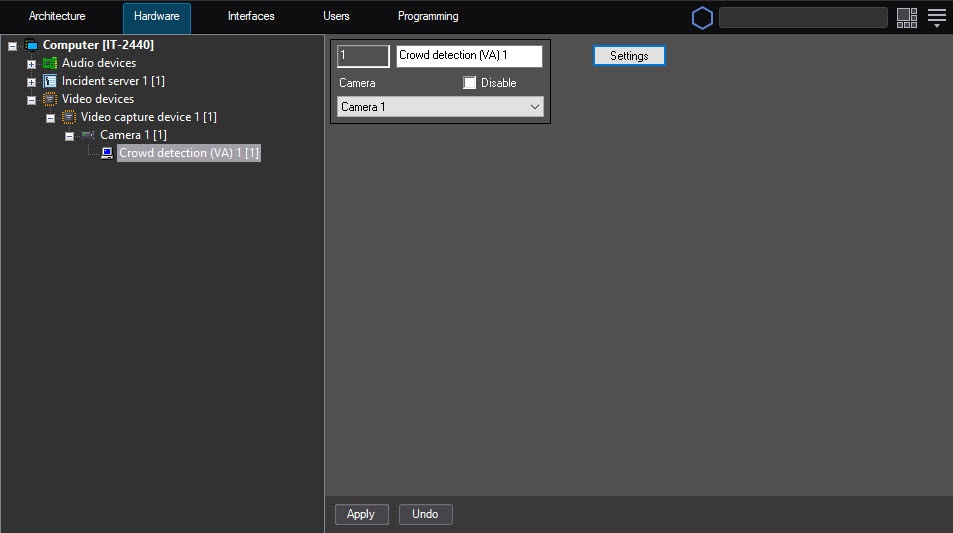
- Click the Settings button.
The Detection settings window will openopens.
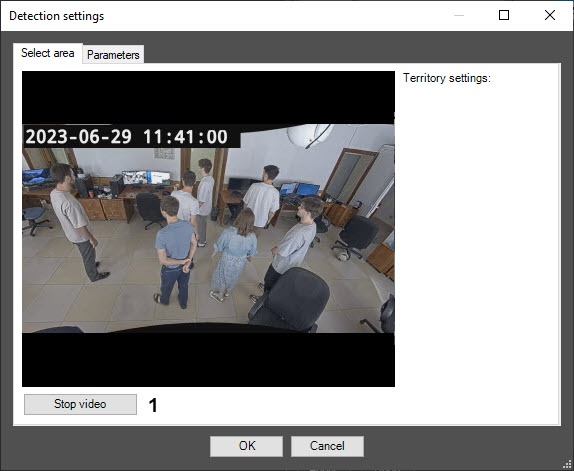
- In the Detection settings window on the Select area tab, specify the surveillance areaareas. For this, do the following:
- Click the Stop video button to capture a frame of the video image (1).
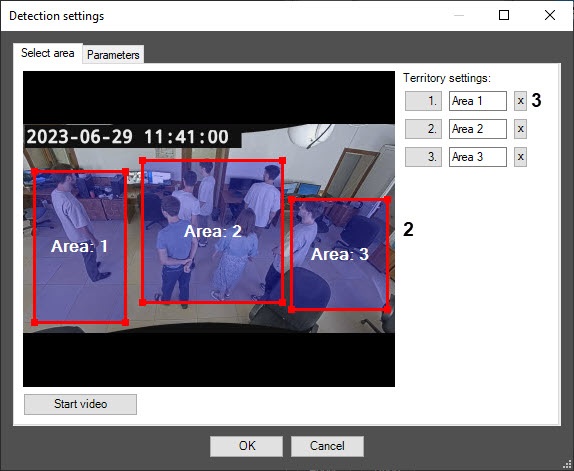
On the captured frame (2), left-click to specify the areas, the situation in of which must be analyzed. You can add up to three areas. They will be are highlighted with a red frame.
| Info |
|---|
|
To delete an area, click the  button next to the corresponding area (3). button next to the corresponding area (3). |
- On the Parameters tab, configure the neural network settings:
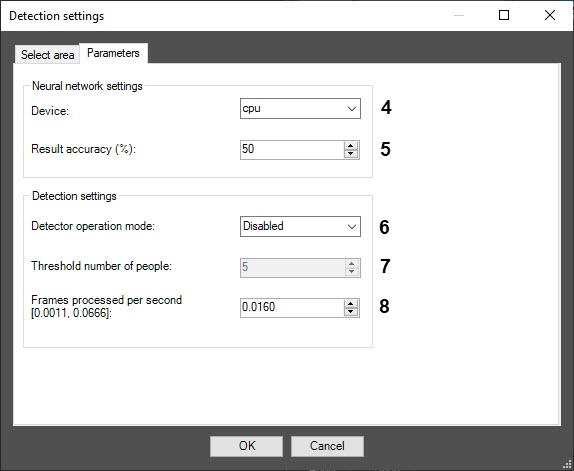
- From the Device drop-down list (4), select the device on which the neural network will runoperates: cpu—central processor or gpu—NVIDIA graphics processor.
- In the Result accuracy (%) field (5), enter an integer value in the range from 10 to 100 as a percentage. The larger the value, the more accurate the result, but the time of frame processing increases. The default value is 50%.
- Configure the detection tool detector settings:
- From the Detection operation mode drop-down list (6), select the condition under which the detection tool will triggerdetector generates an event. detection tool triggers
- detector generates an event at an interval that depends on the number of frames processed per second specified at step 5c;
- If threshold exceeded—the
detection tool triggers - detector generates an event if the number of people detected in the frame exceeds the threshold value (step 5b);
- If threshold not reached—the
detection tool triggers - detector generates an event if the number of people detected in the frame doesn’t exceed the threshold value (step 5b).
- In the Threshold number of people field (7), enter the number of people detected in the frame to trigger the detection tool so that the detector generates an event at step 5a. The default value is 5.
In the Frames processed per second [0.0011, 0.0666] field (8), enter the number of frames per second that the detection tool will processdetector processes. At the minimum value of 0.0011 the video image will be is analyzed once every 15 minutes, ; at the maximum value of 0.0666—once 0666, once every 15 seconds.
| Info |
|---|
|
You can see all events received from the Crowd detection (VA) object in the Event viewerinterface window. When you create the crowd detection (VA) detector, it starts in a separate process (the IsProcessObject=1 parameter value of the HKEY_LOCAL_MACHINE\SOFTWARE\WOW6432Node\AxxonSoft\Axxon PSIM\DetectorExt\CROWD_ESTIMATION registry key. For more details, see the registry key guide on the Vertical solutions page; for information on how to work with the registry, see the Working with Windows OS registry subsection). |
- Click the OK button to save changes and return to the settings panel of the Crowd detection (VA) object.
- On the settings panel of the Crowd detection (VA) object, click the Apply button.
Configuring the Crowd detection (VA) module is complete.


