
Go to documentation repository


Page History
...
Layout—is the set order of positioning videos from cameras and information boards in the client interface. You can configure layouts after you connect to the domain server. The options for creating, editing, copying, and removing layouts are determined by the access level settings in the Layouts editing parameter (see Roles).
The created Сreated layouts are available when you connect to any server within the domain. Changes made by one user (selecting or editing a layout) don't affect the interface of other users. To provide access to the layout, use the share function (see Sharing layouts).
...
The layouts panel is located in the upper part of the interface. It automatically displays all available user layouts. When the client connects to several domains, the layouts of the main domain are available for selection.
| Info | ||
|---|---|---|
| ||
If you create a layout with alarm cameras |
Creating a layout
To create the new layout, do the following:
...
The duplicated layout is created. The new layout with the name of the following serialnumber is added to the list. You can rename it and edit it.
Deleting a layout
...
After it, when you select the area an area on the panorama (similar to the Areazoom function, see Control using Areazoom), this area is displayed on the panel.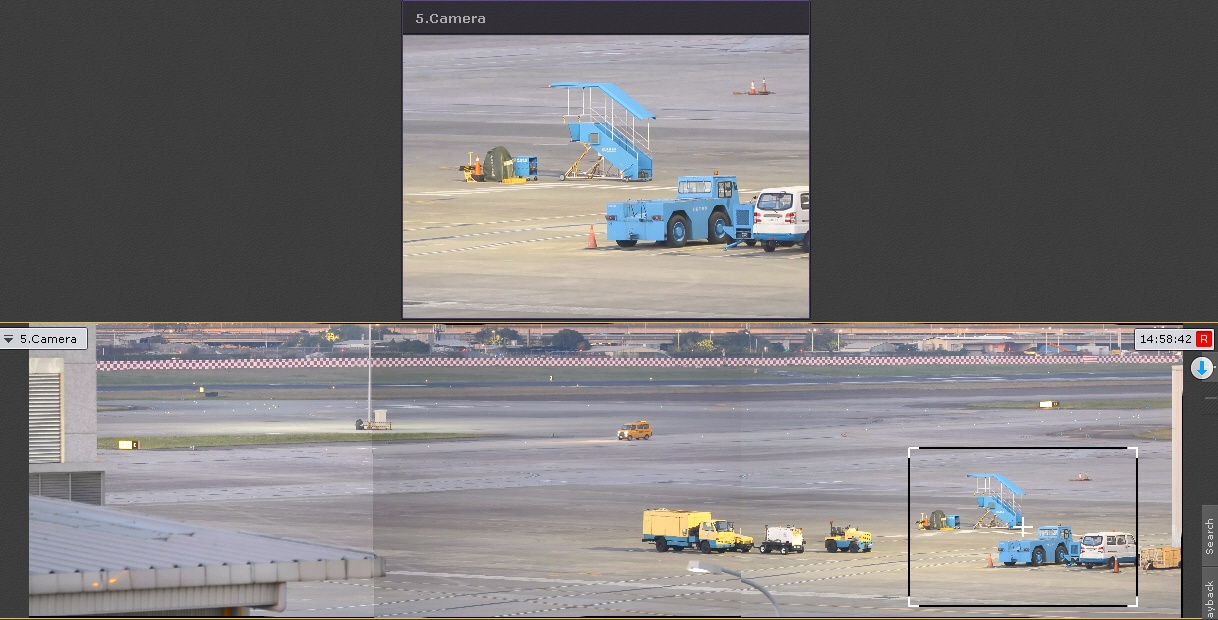
...
The layout received from another user is marked by the special icon. When you point the mouse cursor at it, the username is displayed. The users who get gets the access can:
- Use this layout for editing and viewing (see The layouts panel). You can edit the layout only if the corresponding Allow editing right is granted.
- Delete it from your list (see Deleting a layout). Only the layout's owner can completely delete it from the system. This action makes the layout unavailable for all users. If any user has the opened layout during the moment of its removal, the system automatically switches to another layout.
- Duplicate this layout (see Duplicating a layout). The copy becomes the personal user layout.
Special layouts
Special layouts automatically create their composition on the basis of system events or the user's actions. There are three available types:
...

...

...

...
Switching between domains on the layout
When you use the Cross-System client (see Cross-System client), you can switch between the available domains on the current layout by using the drop-down list that is located in the upper left corner next to the camera search field (see Camera Search Panel).
When you use the Cross-System client, the system supports creating and saving the layouts that contain cameras from different domains. To configure it, do the following:
- Switch to the required domain.
- Create the new layout and add cameras of the current domain on it.
- Switch to another domain and add the required cameras to the same layout.
- Save the layout.
The layout is saved on the domain that is selected at the moment of its creation regardless of whether there are cameras of this domain on the layout or not. When you connect to this domain for the next time without accessing other domains, the saved layout is displayed empty.
| Info | ||
|---|---|---|
| ||
The Cross-System client is used to connect devices that are in one network. When you connect via the Axxon Datacenter,you can use the technic domain. When you use the cloud connection, there are no network limitations. |
Special layouts
Special layouts automatically create their composition on the basis of system events or the user's actions. There are three available types:
| Layout | Descripton |
|---|---|
| Displays the cameras marked by the user during the working process (see Marked cameras) |
| Automatically displays cameras that detect unprocessed alarm events (see Alarm cameras) |
| Allows getting the custom set of cameras for analysis in the live video mode (Dynamic layout) |
Creating a special layout
To add the special layout to the common list, do the following:
- Click the Open layout control menu
 button in the upper left corner of the panel.
 - Select the required type of special layout in the menu.
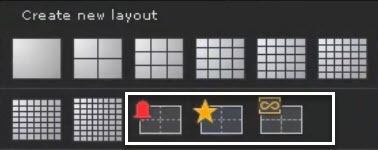
The layout is created and added at the beginning of the list on the panel.
Configuring the template for layouts with alarms and marked cameras
By default, these layouts use the 3x3 format. You can limit the number of the displayed cells by specifying the fixed template. To do this, do the following:
| Info | ||
|---|---|---|
| ||
A layout with alarm events can dynamically adjust to the current number of alarm cameras. You can display all alarm cameras or those that correspond to the setting specified via other layouts. |
- Go to the editing mode of the required layout (see Switching to the layout editing mode).
- Click the Open layout control menu button in the upper left corner of the panel.
- Select one of the standard templates (1, 4, 9, 16, 25, 36, 49, 64 cells) in the menu. For the layout with alarm events, the maximum template size is 25 cells.
To return to the automatic 3x3 format, you must reselect the installed template.
Turning the standard layout to the alarm layout
You can configure any existing standard layout to display active alarms. To do this, do the following:
- Go to the editing mode of the required standard layout (see Switching to the layout editing mode).
- Click again the Open layout control menu button.
- Click the Enable alarm monitor mode item in the menu. To cancel this action, select the Disable alarm monitor mode item.
The layout gets the appropriate  icon and starts displaying cameras with alarm events.
| Note | ||
|---|---|---|
| ||
For a layout in the Alarm monitor mode, the settings from the domain options are used (see Alarm processing). |
Alarm cameras
A layout automatically displays the cameras that currently detect alarm events. The display is performed in the current client or on one or several monitors.
Camera positions on the layout:
In the dynamic mode:
Cameras are added starting from the upper left angle and following the chain down.
If you don't have enough space to display an ordinary camera in the current grid, the system switches to the grid with a large number of cells. The maximum value is 25 cells.
When you remove a camera from the layout, the chain of cameras that followed the removed camera shifts to exclude empty cells between cameras.
When you specify the display ability of existing cameras on the layout with a lower grid size, the system switches to the lower grid size.
In the fixed template mode:
- Cameras are added starting from the upper left angle and following the chain down.
If you don't have enough space for display, new cameras appear only after you free up space in the grid (when the user processes an alarm (see Assessing an alarm event) if the response time or the period of any camera display expires (see Alarm processing)).
- When you remove a camera from the layout, the shift of the displayed camera chain doesn't occur. When a new camera appears, this chain is displayed in the topmost free cell.
- When the user specifies the fixed template, the camera display countdown restarts for all alarm cameras displayed on the layout.
The principle of operation:
- If in the options (see Alarm processing) the specified time for the camera display on the layout is lower than the operator response time to the new alarm, then you can remove the alarm camera from the layout after the camera display time expires on the alarm
Creating a special layout
To add the special layout to the common list, do the following:
- Click the Open layout control menu button in the upper left corner of the panel.
- Select the required type of special layout in the menu.
The layout is created and added at the beginning of the list on the panel.
Configuring the template for layouts with alarms and marked cameras
By default, these layouts use the 3x3 format. You can limit the number of the displayed cells by specifying the fixed template. To do this, do the following:
...
To return to the automatic 3x3 format, you must reselect the installed template.
Turning the standard layout to the alarm layout
You can configure any existing standard layout to display active alarms. To do this, do the following:
...
The layout gets the appropriate icon and starts displaying cameras with alarm events.
Alarm cameras
A layout automatically displays the cameras that currently detect alarm events.
The principle of operation:
- New alarms occupy free cells on the
- layout.
- During the first 10 seconds, the cell with the new alarm is highlighted by the red frame.A
- by the red frame.
- If there are no free cells, new alarms are transferred to the waiting list. The time counts down after a camera gets on the layout from the waiting list.
- An alarm doesn't disappear from the layout while the alarm assessment window is opened until the timeout expires. If you switch to another camera without assessment, the processing timer restarts the countdown.
- The camera is removed from the layout after processing an event (see Assessing an alarm event) or after the set timeout expires (see Alarm processing).
- :
- when the user completes assessing all active alarms for a camera;
- when the time limit of camera presence on the alarm layout expires regardless of the number of accumulated active alarms;
- when the operator response time for the newest alarm expires. Active alarms that were at the moment of layout opening are also taken into account.
- You can display a camera again after its removal only if a new alarm occurs
- If there are no free cells, new alarms are transferred to the waiting order. An alarm doesn't disappear from the layout while the alarm assessing window is opened until the timeout expires. If you switch to another camera without assessment, the processing timer restarts the countdown
- .
Limiting alarm sources for the specific layout
...
Slideshow—the automatic cycle switching between the selected layouts with the set interval. There is one slideshow created in the system by default, which includes all standard layouts created by the user. Special layouts aren't included in the automatic slideshow. The switching interval is three seconds by default. To change the interval, you must go to the the Options tab → the User interface item, and in the Slideshow period, sec s parameter, set the required value (see Configuring the slideshow parameterssee User Interface).
To create the new set of layouts for the slideshow, do the following:
...
Creating the slideshow is complete. To start the slideshow, click the Open layout control menu button in the upper left corner of the panel, and in the window that opens, click the Start slideshow item. To stop the slideshow, click the Stop slideshow item.
Autozoom
Autozoom—the function of the automatic digital zoom function of the area with moving objects.
...
Overview
Content Tools