


Page History
| Note | ||
|---|---|---|
| ||
For detailed information on how to configure the Vauban VERSO Visor server, please refer to the the VAUBAN SYSTEMS VISOR® User Guide. |
In order to configure the minimum required settings, which allow communication between between the Vauban VERSO Visor server and Axxon One, you may do the following:
- Run the Visor app with administrator 's
- priviliges and select a language.
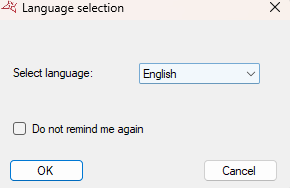
- Select the desired
- required installation . Alternatively
- , or create a new one:
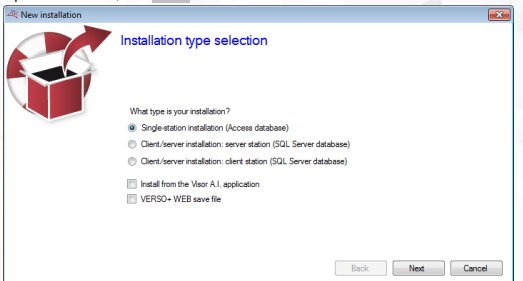
- Select Single-station installation as the installation type.
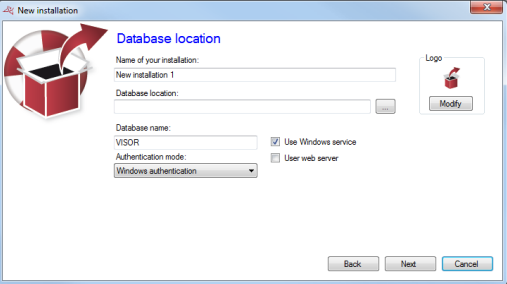
- Specify the name of your installation
- If necessary, specify the location of the database. Otherwise, the default location
will be - Select Single-station installation as the installation type.
- is used.
Info title Note
Please ensure - is used.
Ensure that VISOR has read and write access to the directory.
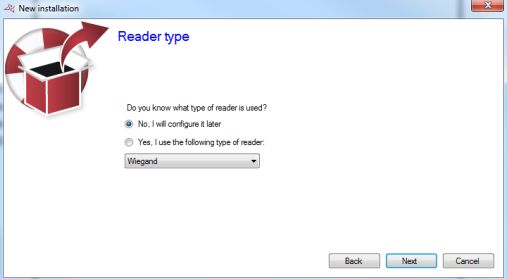
- Select the reader type. This
will lock - locks the type of readers for all units and extension modules in the installation.
Info title Note
In case where - locks the type of readers for all units and extension modules in the installation.
If "The ACCESS component is not installed on your PC" error appears during installation,
you may try the do following:
- Uninstall Microsoft Access Runtime 2013 (if present).
- Download and install AccessRuntime_x86.exe from the
official Microsoft page: https://www.microsoft.com/en-us/download/details.aspx?id=39358 - Microsoft official website.
- Open the installation. If
- When you open the installation is opened
- for the first time .
- , VISOR with ask
- asks to set up the Administrator manager password:
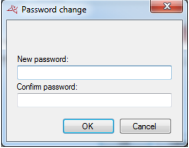
- Create and configure a
- the Central unit. Do the following:
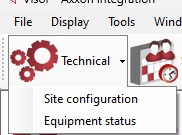
- Go to the Technical tab.
On the list, select both - Select both Site configuration
, and - and Equipment status from the list.
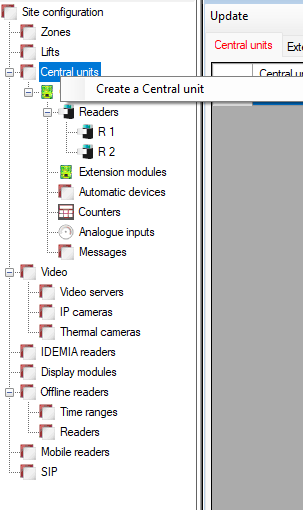
- Select Central units with the right mouse button, and then select Create a Central Unit option.
- In the
newly displayed - and Equipment status from the list.
- window that opens, the module configuration options
will appear- are displayed.
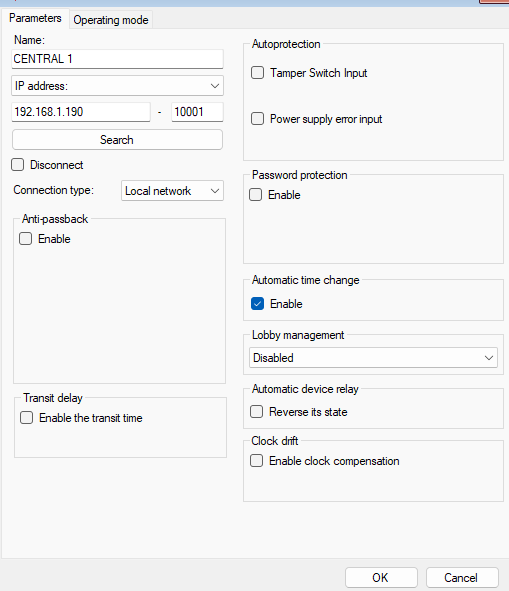
- If your controller is connected to the local network together with the computer on which Visor is installed, you can select Search to find and add new devices.
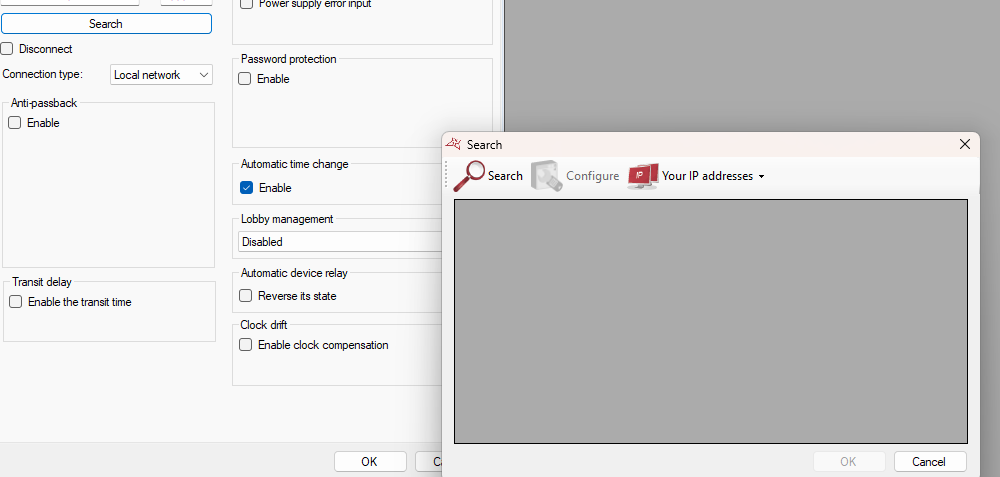
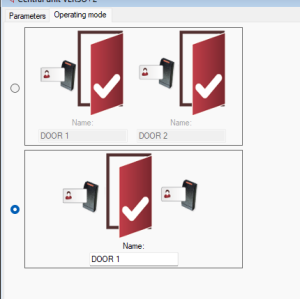
- In the Operating mode tab,
define - are displayed.
- select the way readers
should - must be assigned to doors.
Info title Note After the controller is added to the system, the current status of the device
will start being - must be assigned to doors.
is reported:

The preview of live events
will be is shown below:

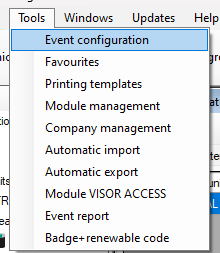
- If it is necessary to edit event configuration, open the Tools tab at the top of the screen
; then select - . Then select the Event configuration option.
A window
will be shown, listing all the events defined - . Then select the Event configuration option.
- opens. This window lists all events specified in the Vauban system.
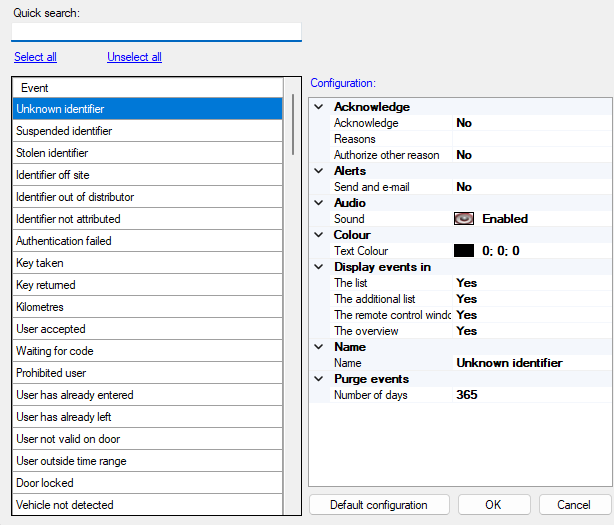
- opens. This window lists all events specified in the Vauban system.
- Configure the Web server, which will be used to communicate with Axxon One. Do the following:
- Open the Favourites window.
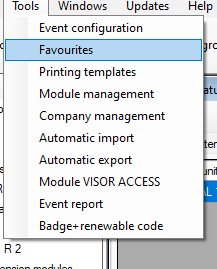
- Go to the External connections tab.
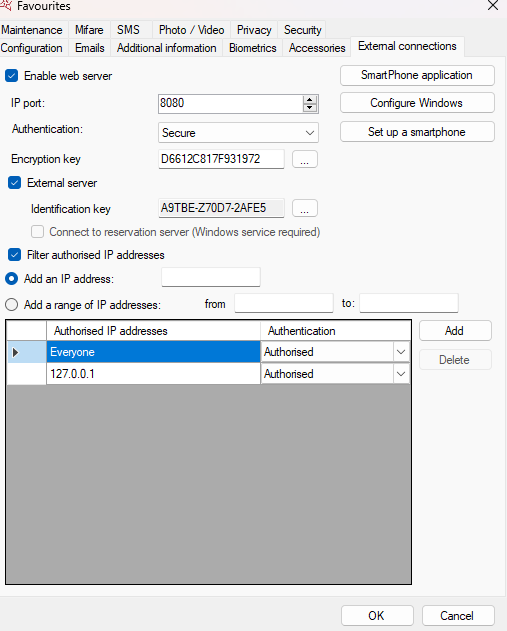
- Make sure that the Enable web server checkbox is
checked - Open the Favourites window.
- set.
Set up IP port which - Specify the IP port, which will be used for communication with the Axxon One server.
- Select the Authentication mode.
Info title Note If you choose the Highly Secure or Very Highly Secure mode
is chosen, you will need to enter your login and password in the configuration on
the the Axxon One side in order for the communication to be possible.
- If you choose to keep IP filtering enabled, add the IP address of the Axxon One server to the list of autorized IP addresses.
Configuration of the minimum required settings, which allow communication between between the Vauban VERSO Visor server and Axxon One is complete.
For more details regarding the operation of of the Vauban VERSO Visor server, please refer refer to the manufacturer's documentation.
| Info | ||
|---|---|---|
| ||
In rare cases, the AES communication failure error might be encountered can appear while working with with the Vauban VERSO Visor server. |
