
Go to documentation repository


Page History
| Section | ||||||||||||||||||||
|---|---|---|---|---|---|---|---|---|---|---|---|---|---|---|---|---|---|---|---|---|
|
...
Generating a report on alarms as system failures
In Monitoring PSIM, you can build generate a report on alarms as failures (see System see Report on system failures) by specifying the beginning of the alarm, its ending, and its duration. For this, the alarms must have starting and finishing events. To build such generate such a report on alarms as failures, do the following:
- On the Control Agent side, add the interception of starting and finishing events. The format of the message must strictly correspond to the following template: <Event name> [<id> ] - <name>, where instead of the <id>, you must specify the object number, and instead of the <name>, the object name.
Example of a "starting" event.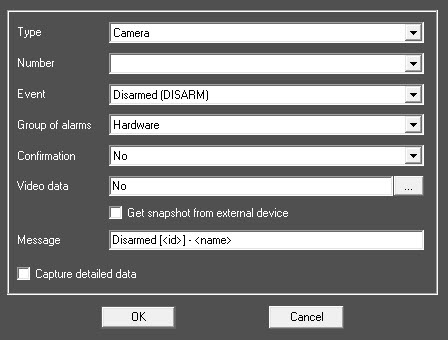
Example of a "finishing" event.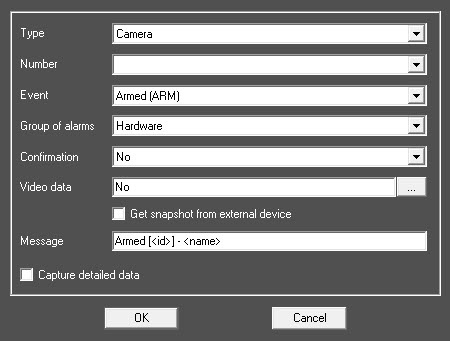
As a result, there is a list of two events.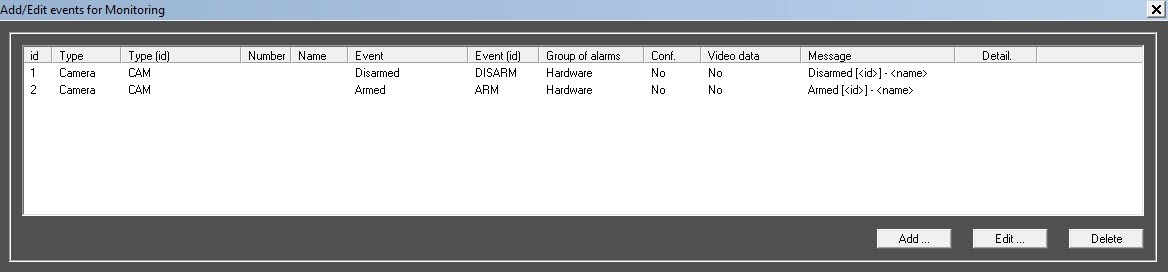
Info title Note On the Control Server side, these alarms are registered as short-term.
- On the Control Server side, create the Monitoring reports interface object.
- On the toolbar of the Monitoring reports object, click the System failures button.
The corresponding configuration form appears, in which you must:- Set the Alarms as failures checkbox.
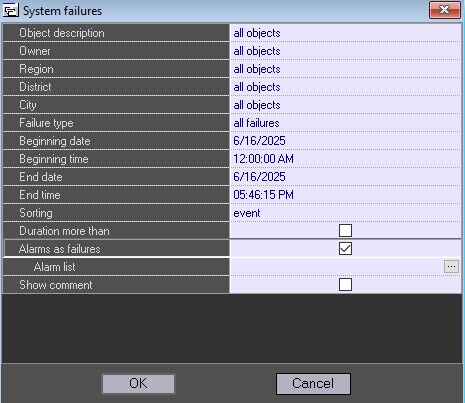
- Click the
 button to open the Alarm list window.
 - In the Alarm list window:
- Click the
 button to add an entry.
 - In the Failure name field, specify the name of the failure, as it must appear in the failure report.
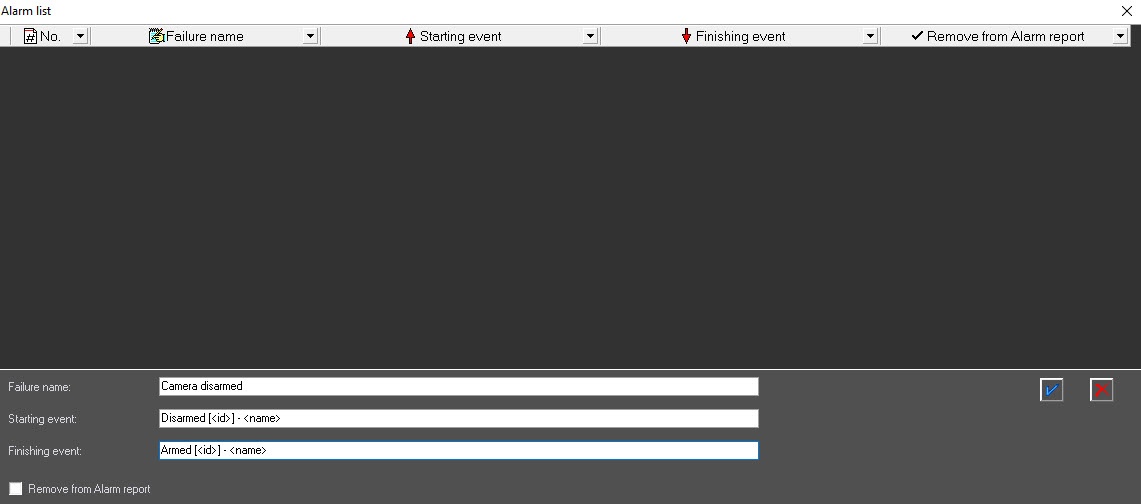
- In the Starting event rowline, specify the name of the starting event in full accordance with the template, as in step 1.
- In the Finishing event rowline, specify the name of the finishing event in full accordance with the template, as in step 1.
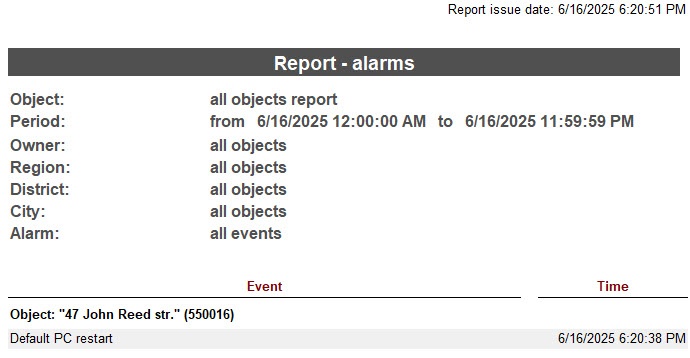
- Set the Remove from Alarm report checkbox to prevent displaying the display of starting and finishing events while building when generating the "Alarm" report.
- Add an entry by clicking the
 button.
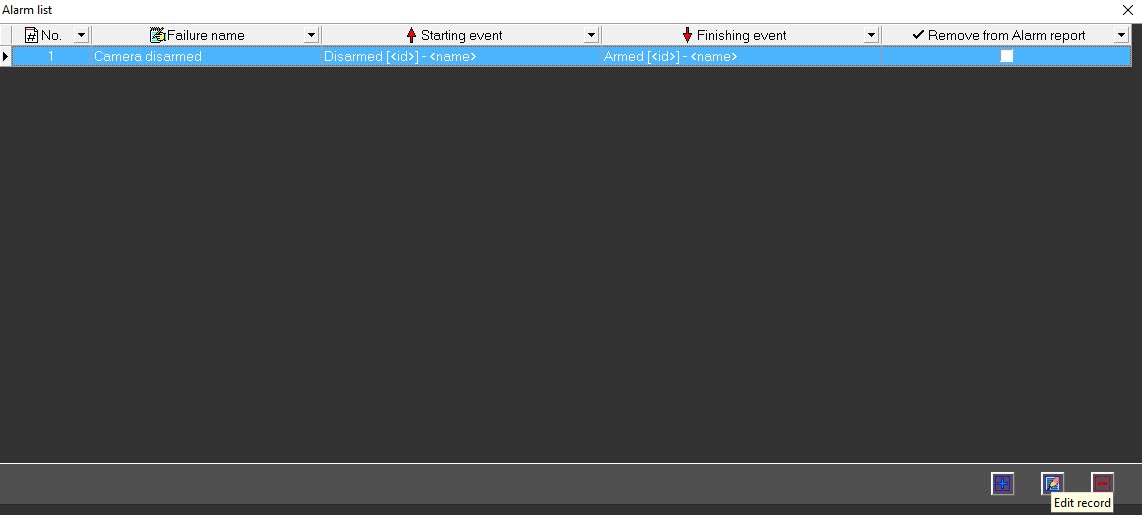
As a result, the new entry is added to the alarm list.Info title Note The button to add an entry appears only if you fill in all the data, and the description of the starting and finishing events contains the the [<id>] - <name> template. Further, you can edit or remove the created entry.
- Repeat steps i-vi for all alarms.
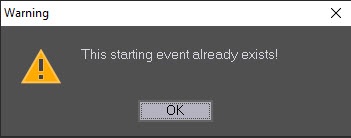
Info title Note When you add the following entry, don't duplicate the values of the edited fields. If you try to enter a duplicate, the error message appears.
- Build Generate a report.
Example of an alarm report.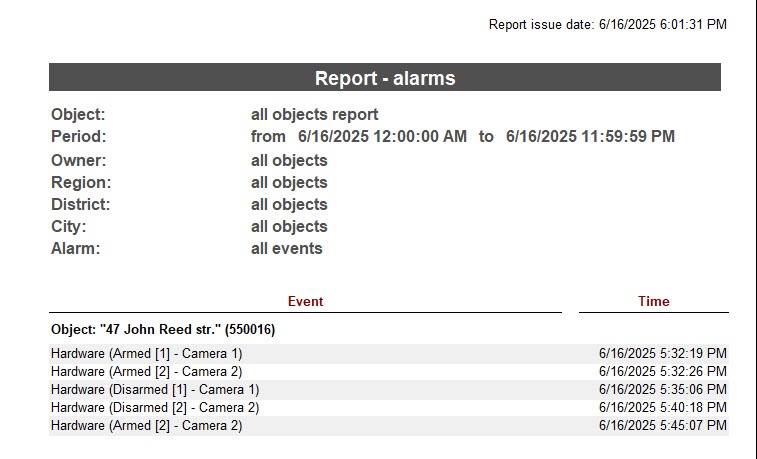
Example of a report on failures with the Alarms as failures checkbox set.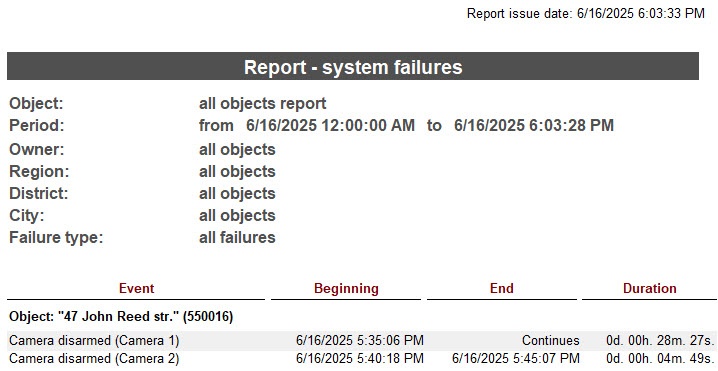
If you set the Remove from Alarm report checkbox in the Alarm list window, the corresponding events aren't included in the alarm report.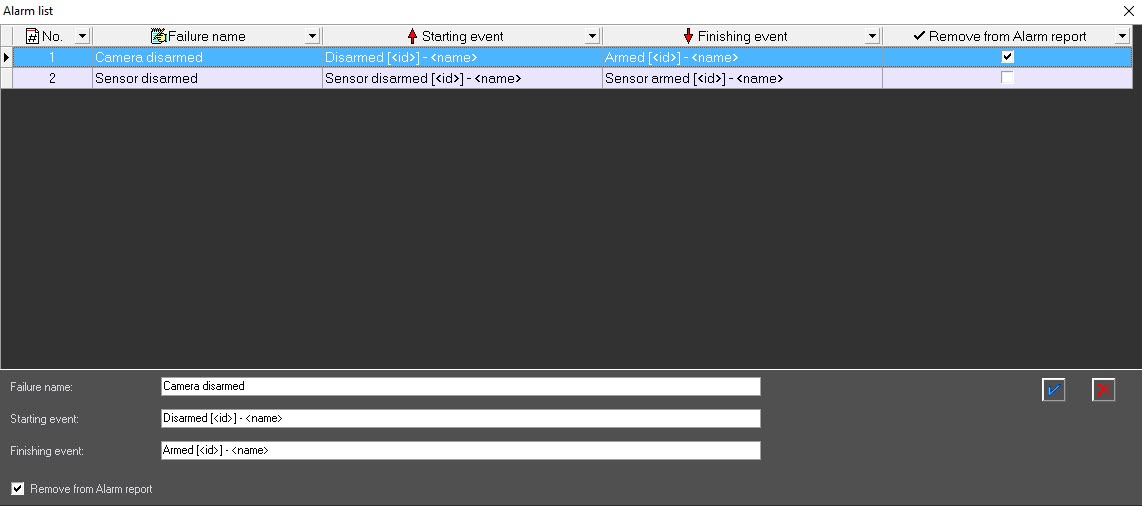
- Click the
- Set the Alarms as failures checkbox.
Building Generating a report on alarms as system failures is complete.
Features of
...
generating a report on alarms as system failures
When you clear the Alarms as failures checkbox, then the the Failure type list displays standard failures.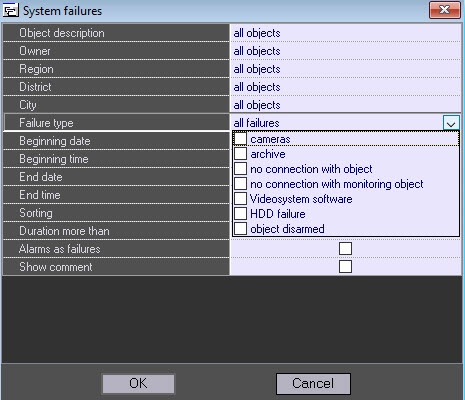
When you set the Alarms as failures checkbox, then the the Failure type list displays failures described in the Alarm list window.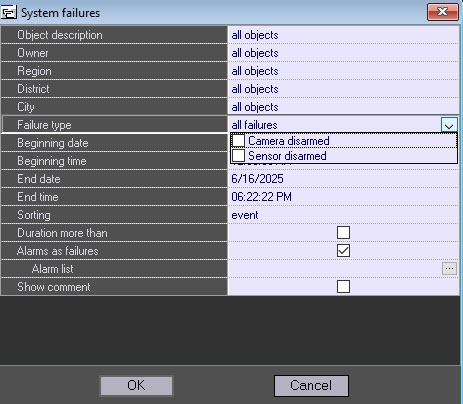
You can build generate a report either for all failures (Failure type=all failures) or several ones (in the Failure type field, select specific failuresfailure).
Example of a script for a timer with number 1, which triggers once a day
If the starting event is lost, the Alarms as failures incorrect report is builtcreated. To avoid this, we recommend using scripts on the Control Agent side to generate, for example, a starting or finishing event once a day, depending on the object's current state. For more details on how to create scripts, see Axxon PSIM Software Package: Guide for creating scripts (programming).
Example of a script for a timer with number 1, which triggers once a day.
...
Overview
Content Tools