To configure the VisionLabs equipment detector:
- Go to the settings panel of the VisionLabs equipment detector object that is created on the basis of the Camera object on the Hardware tab of the System settings window.
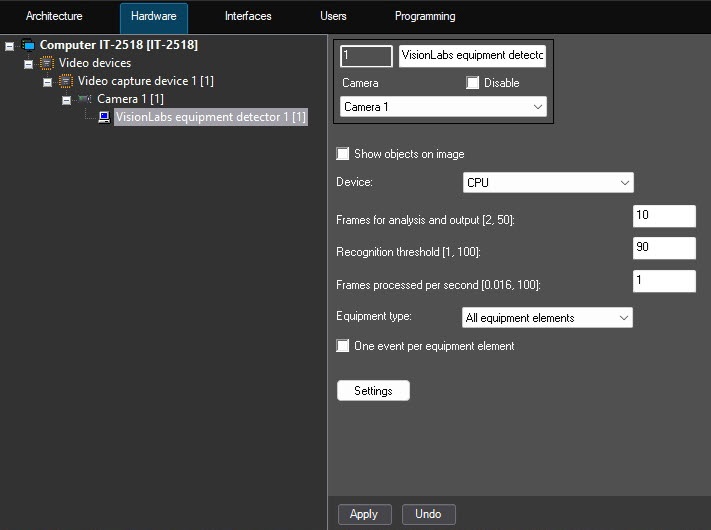
- Set the Show objects on image checkbox to outline the detection area with a red frame on the video surveillance monitor when the camera status changes. The detection area is the entire video image.
- From the Device drop-down list, select the device on which the neural network will operate: CPU (default) or one of the GPUs: NVIDIA GPU0, NVIDIA GPU1, NVIDIA GPU2, or NVIDIA GPU3.
- In the Frames for analysis and output [2, 50] field, enter the minimum number of frames in the range from 2 to 50 on which the detector must detect a violation so that an event is generated. The default value is 10.
- In the Recognition threshold [1, 100] field, enter the detector sensitivity—an integer value in the range [0, 100]. The default value is 90. You must select the value empirically. The higher this value, the fewer objects are detected, but the higher the recognition quality.
- In the Frames processed per second [0.016, 100] field, enter the number of frames in the range from 0.016 to 100 per second that the detector processes. The default value is 1 (recommended). You can enter only positive integers. If you enter a number outside the range of 0.016–100, it is automatically changed to the nearest border value. If you leave the field blank, the default value is used after you save the settings.
- From the Equipment type drop-down list, select which PPE elements will be checked: All equipment elements (default), Helmet, Vest, Gloves, Hood. If you select All equipment elements, the detector generates an event on all elements of equipment detected as missing. In other cases, the detector generates an event on only the selected elements of equipment.
- By default, the One event per equipment element checkbox is set, and the detector generates an event once for each equipment element violation within one object (track). If you want the detector to generate an event each time the equipment violation occurs, clear the checkbox.
- Click the Settings button. The Detection settings window opens.
- Click the Stop video button to pause playback and capture a frame of the video image.
- Click the Area of interest button to specify the detection area. The button is highlighted in blue.
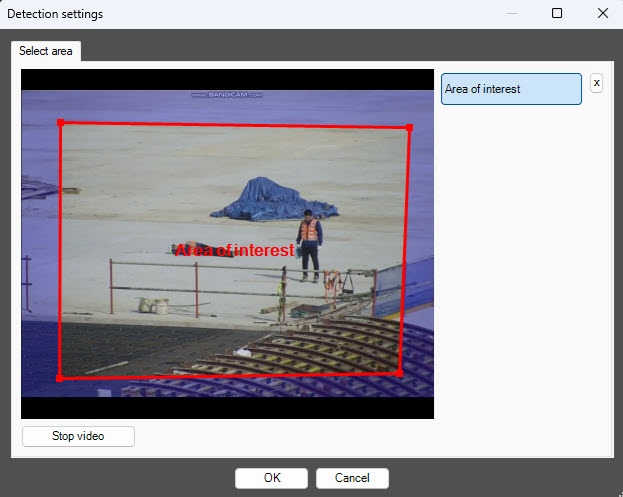
- On the captured video frame, use the mouse to sequentially set the anchor points of the area in which objects are detected. The rest of the frame is faded. If you don't specify the area of interest, the entire frame is analyzed.
- Click the OK button to close the Detection settings window and return to the settings panel of the detector.
Configuration of the VisionLabs equipment detector is complete.

 button to the right of the Area of interest button.
