
Go to documentation repository


After you add a camera to the map (see Adding cameras), do the following:
- Drag the camera icon
 to the place on the map that represents the camera's actual location at the protected facility.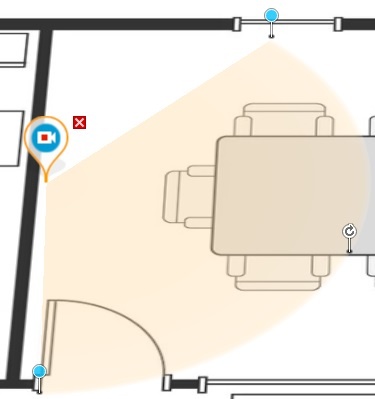
- Set the camera field of view
 in the same direction as at the protected facility.
 On the map, use the anchor points
 to adjust the camera field of view to match the actual position at the protected facility.
To display the video image, right-click the area of the camera field of view.
Select the Show video item from the menu.
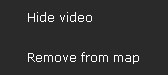
Note
You can configure the Show video/Hide video parameter separately from the layout editing mode. In this case, the parameter setting is saved until you restart the client.
Configure the video display area:
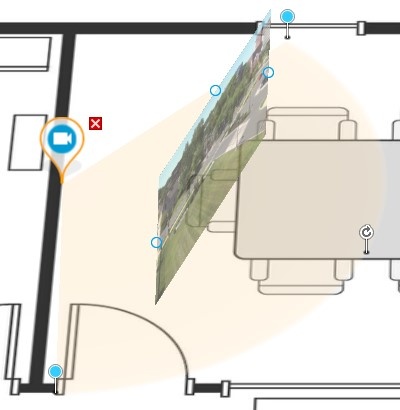
Important!
To display video when you use a ceiling-mounted fisheye camera (see Configuring fisheye cameras), you must specify the area of the camera field of view in the form of a circle. In this case, the video from the camera is displayed directly in the specified area:
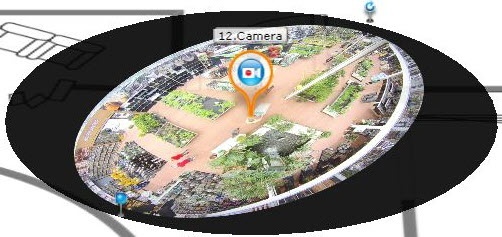
To enable this feature on cameras with Immervision lenses, you must select the PTZ display mode (see Configuring fisheye cameras).
If a fisheye camera in a ceiling-mounted position has a different field of view, the video display area isn't available.
- Use the dots
 to adjust the size of the video area—left-click the dot, hold down the mouse button, and move the cursor.
 Use a dot
to change the tilt angle of the area.Note
You can switch the video display to "flat" while working with the Map (see Customizing an interactive map).
- Use the slider in the lower right corner of the screen to adjust the transparency of the video display area. At the far left position of the slider, the video is 90% transparent; at the far right position, the video isn't transparent.
- Use the dots
Configuration of the camera in standard map viewing mode is complete.
Overview
Content Tools