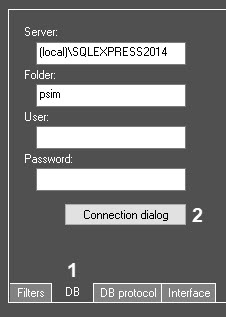
The SQL Server Login window opens.
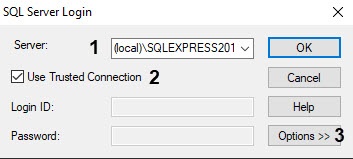
In the Server list, specify the SQL Server to connect to (1).
| If the required SQL Server is in the Server list, then there is no need to further configure the connection. |
When you work in a distributed configuration, you must enter the name of the computer without the (local) value where the database is stored. For example, "WS1\SQLEXPRESS", where WS1 is the name of the computer on which the database is stored. |
If you need to specify the login and password to authorize on the SQL Server, then set the Use Trusted Connection checkbox (2). As a result, the Login ID and Password fields are available for editing.
| If the Use Trusted Connection checkbox is set, then the authorization on the SQL Server is performed using Windows OS credentials. |
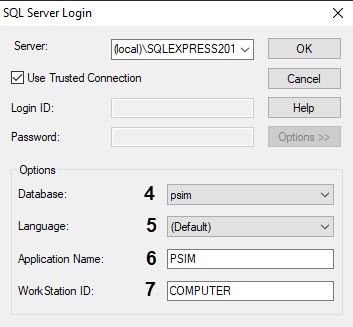
- In the Database drop-down list (4), select the database to store events.
- In the Language list (5), select the language of SQL system messages.
- In the Application Name field (6), set the application name (PSIM by default).
- In the WorkStation ID field (7), set the computer name (computer ID in Windows OS by default).