In the upper-right corner, click the  button.
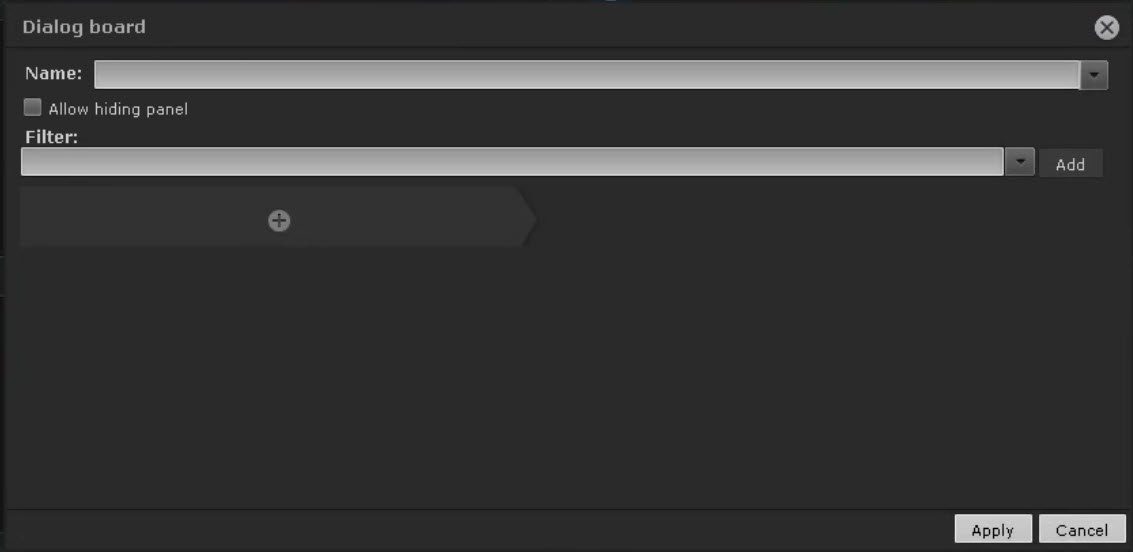
Select the event types that you want to display on the board and click the Add button.
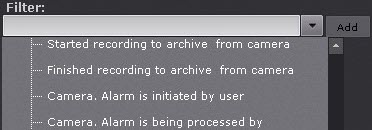
To add events of the same type from different devices, enter the name of the event in the Filter field. This will list only the events of the specified type. To go back to the full list of all events, select any event and clear the filter field.
|
 button.
If you don't select any event type, all system events are displayed on this board.
 button and configure additional parameters of the board interface.
| Parameter | Value | Description | |
|---|---|---|---|
| Сообщение | |||
| Show last event |
| By default, the checkbox is clear. If you want to display the last event, set the checkbox | |
| |||
| Keep events log |
| By default, the checkbox is clear. If you want to keep events log, set the checkbox | |
| |||
| Font | If necessary, change the font style, size, modification, and character set | ||
| Color | Main colors | If necessary, select the required color from the palette | |
| Bookmark | |||
| Mandatory comment |
| By default, the checkbox is clear. To make the bookmark mandatory, set the checkbox | |
| |||
| Selected camera | Show selected camera | Select this parameter if you want to display video from the selected camera | |
| Alarm | Show alarm playack on selecteed camera1 | Select this parameter if you want to display alarm events from the selected or linked camera on the board. If the board is linked to any video surveillance window (see Linking cells), only alarms from this camera are displayed. If the board isn't linked to any video surveillance window, alarms from any selected camera are displayed
| |
| Related camera of selected camera | Show related camera from selected camera | Select this parameter if you want to display the video of the related camera from the selected camera | |
| Related camera of linked camera | Show related camera with linked camera | Select this parameter if you want to display the video of the related camera from the linked camera. In this case, the board must be linked to any video surveillance window (see Linking cells) | |
| Button | |||
| Enter text | Enter the name of the button | ||
Macro | From the drop-down list, select the macro that triggers when you press the button | ||
| Close board when clicked |
| By default, the checkbox is clear. If you want to hide the board from the layout after clicking on the button, set the checkbox | |
| |||
| Alignment | Left | Select the location of the button on the board: left edge, center, right edge | |
Center | |||
Right | |||
| Color | Gray | Select the color of the button | |
Blue | |||
Green | |||
Yellow | |||
Red | |||
| Image | |||
| Fit to frame |
| By default, the checkbox is clear. If you want to fit the image to the size of the board, set the checkbox | |
| |||
| Load from file... | Select this parameter if you want the board to display the still image. Allowable image format: jpeg, png, or bmp | ||


